Table of Contents
Introduction
Memory capacity requirements have steadily increased in modern workstations as content creation workloads have become more demanding. Video editing, 3D rendering, motion graphics, and game development projects all benefit from having enough RAM available to hold large datasets, caches, and intermediate calculations.
Recently, however, the broader PC industry has been facing rising memory prices and limited supply. A major factor driving this shift is the rapid growth of artificial intelligence infrastructure, which requires enormous amounts of memory in data center servers.
For professionals configuring a new workstation, this raises an important question: how much RAM do you really need? In some cases, reducing memory capacity slightly can yield meaningful cost savings without affecting performance. In others, insufficient RAM can significantly slow down your workflow.

We’ll walk through how to track your RAM usage and highlight specific workflows that may use more system memory than others. This will give you the information necessary to determine how much RAM you need now, as well as how much you may need in the future.
Why Have RAM Prices Increased?
One of the biggest drivers behind recent memory shortages is the explosive growth of AI training and inference infrastructure. When training AI models, servers process massive batches of data while simultaneously storing model parameters, intermediate calculations, and caching information to keep GPUs fed with work. To support this, AI servers frequently use very large memory pools, allowing them to stage large datasets and minimize slow storage access during training.
With this approach, many new AI servers are being deployed with hundreds of gigabytes or even multiple terabytes of system memory. Multiply that across thousands of servers in a single data center, as well as multiple such locations around the world, and the total RAM demand becomes enormous.
This surge in demand has created significant pressure on the global memory supply chain. As a result, manufacturers have prioritized manufacturing server-class memory products for high-volume data center customers, leading to higher prices and reduced availability of traditional desktop and workstation memory.
For workstation users, this doesn’t necessarily mean that large memory configurations are impossible – but they are far more expensive than even a few months ago. To avoid wasteful spending, careful capacity planning is more important now than ever before.
Editor’s Note: This article was written over the course of a few weeks, and completed just prior to news breaking that some AI data center build-out plans may not be proceeding – and possibly weren’t as solid of commitments as the industry first thought. This may lead to price decreases over time, but as of the day this is being published we have not yet seen any of our costs on memory modules from distributors go down.
What Happens When You Don’t Have Enough RAM?
Before deciding what the memory capacity of a system should be, it’s important to understand what happens when a system runs out of available RAM. When the combination of running applications altogether request more memory than the system has physically installed, the operating system begins using a portion of your storage drive as virtual memory, often called a pagefile, paging file, or swap space.
This process moves inactive data from RAM to your drive, freeing up physical memory for active tasks. While this keeps the system running, it comes with a major downside: storage is much slower than RAM. Even the fastest NVMe SSDs have significantly higher latency compared to system memory. When heavy paging occurs, you may notice:
- Applications becoming sluggish
- Timeline playback stuttering
- Longer render or compile times
- Frequent pauses while the system swaps data
In severe cases, running out of RAM can make the entire system feel unresponsive. Because of this, the goal when configuring a workstation is not necessarily to max-out RAM capacity, but rather to ensure that your system has enough memory to avoid frequent paging during normal workloads.
How to Monitor Your RAM Usage
One of the best ways to determine whether you need more RAM is to observe memory usage during your normal workflow. Rather than relying on generic recommendations, this allows you to see how your own projects and applications behave.
Windows Task Manager
Task Manager provides a simple way to monitor memory usage, built right into the OS since Windows NT 4.0.
To check your RAM usage:
- Right-click the taskbar and select Task Manager
- Click the Performance tab
- Select Memory
Here you can view:
- Total installed RAM
- Current memory usage
- Memory speed and configuration
- Committed memory
- Cached memory
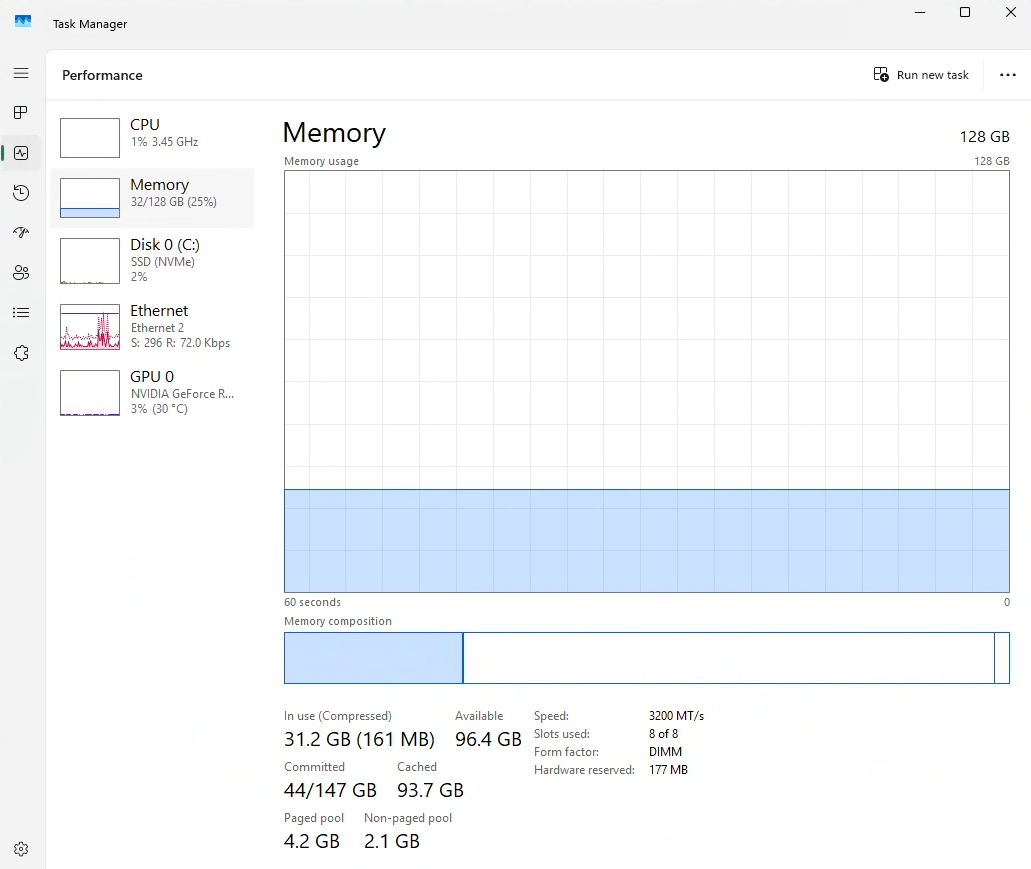
To get the most useful data, open Task Manager and leave it running while performing your typical workload. Try using common combinations of applications you use, and make sure to include heavier tasks like editing a project, compiling shaders, rendering, or working with large assets. Task Manager will show a graph of the last 60 seconds, so switch back to look at it periodically to see how things look. Pay particular attention to whether memory usage approaches your system’s maximum capacity.
Understanding “In Use” vs. “Committed Memory”
When monitoring memory usage in Task Manager, it’s important to understand the difference between memory in use and committed memory, as they represent different aspects of how your system is handling RAM.
- In Use – This shows how much of your installed system memory is actively in use by applications, the operating system, and background processes.
- Committed Memory – Refers to the total amount of memory that applications have requested from the operating system. Often, a program will request more memory than it is currently using just to reserve that portion for any actions that may come up.
In the screenshot above, the system has 31.2 GB of RAM in use. If this was at peak usage, someone might think that they would be OK in with a system that has 32GB. However, the Committed memory is 44GB, so they would be at a high risk of going over their physical RAM and relying on the pagefile.
Ubuntu System Monitor
Many diagnostic tools are available for Linux users, but a simple, graphical option built into Ubuntu is System Monitor. It functions very much like Task Manager, in that it shows the amount of memory that is in use both as a raw number and a percentage. It also shows a 1-minute graph of usage over time.
To access System Monitor, simply press the Super key and enter “System Monitor” in the search, or type this command into your terminal: gnome-system-monitor
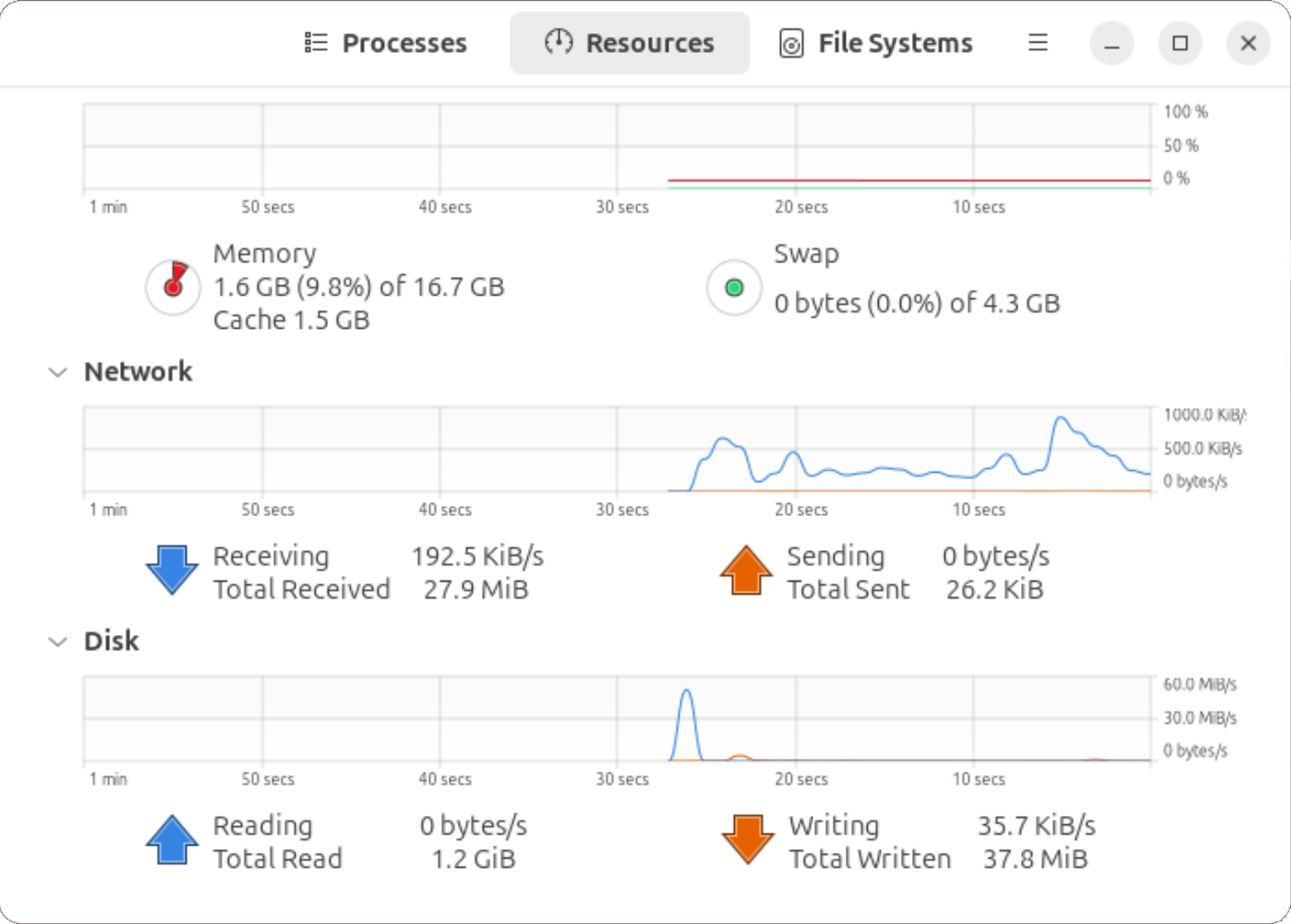
Just as with Task Manager, it is best to leave this running while you step through more demanding aspects of your workflow to see how much memory is really being used. Note that System Monitors shows Swap space usage directly, which Task Manager does not.

Looking for a new workstation? Get a Puget System!
We build computers tailor-made for your workflow.

Don’t know where to start?
We can help!
Get in touch with our technical consultants today.
Monitoring RAM Capacity for Your Workflow
Motion Graphics
How much memory is needed for motion graphics workflows varies based on the application used, composition settings, and the rendering complexity of each frame. Programs such as Adobe After Effects and Blackmagic Fusion use RAM to store rendered frames from the composition for video preview playback, but each uses memory differently for this purpose. When RAM reaches capacity, After Effects writes rendered frames to the disk cache and streams them back into memory during playback. Fusion, on the other hand, reprocesses any frames that are no longer in RAM before they can be played back.
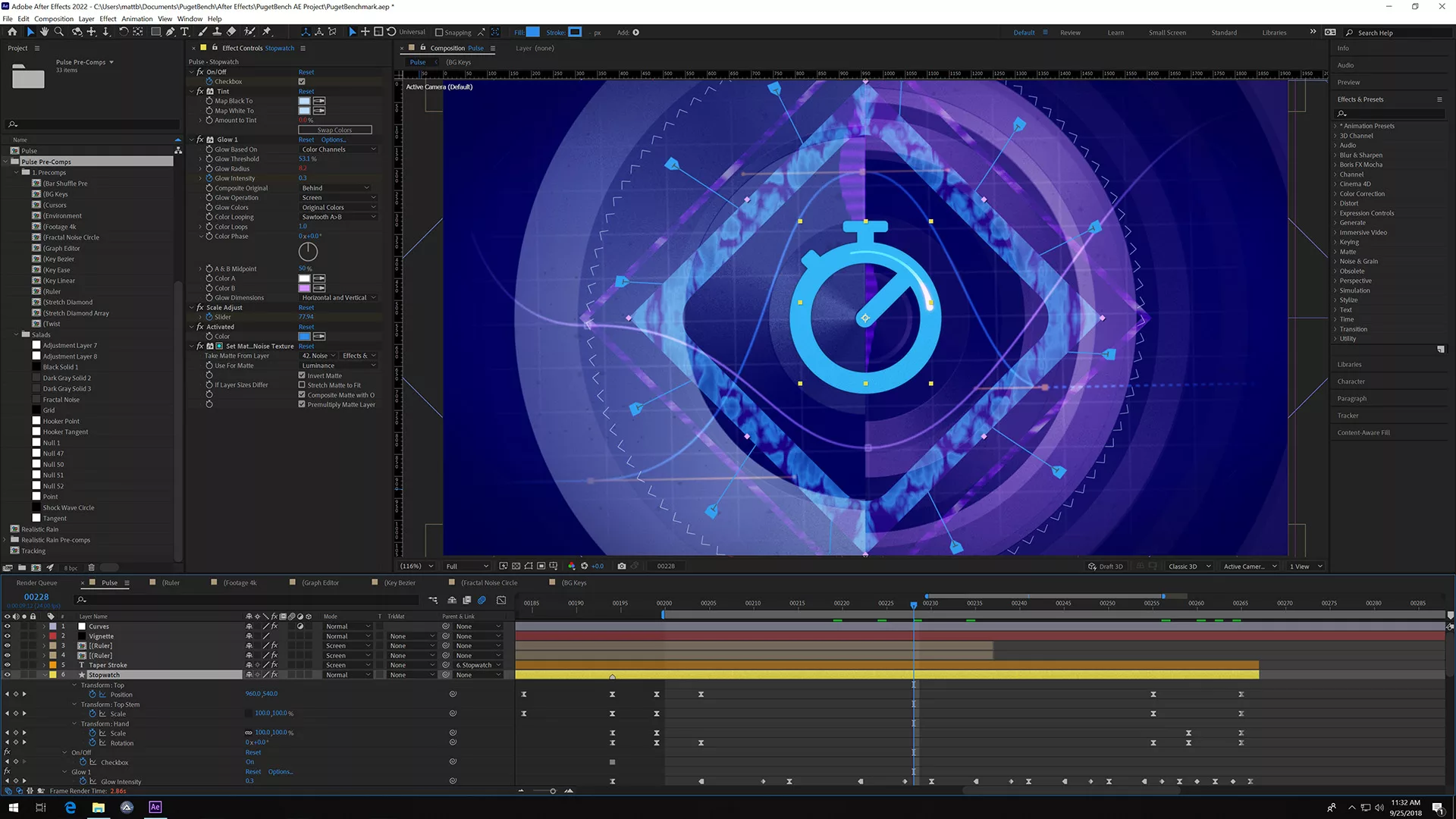
Adobe After Effects screenshot
The resolution, frame rate, and bit depth of a composition determine how much data each frame generates – which in turn impacts how many frames can be cached in RAM, depending on available capacity. Compositions with higher resolution, bit depth, and frame rates produce more data per frame, reducing the total number of frames that can be stored in a given amount of memory. Compositions that generate less data per frame can keep more frames in RAM, supporting longer-duration previews during playback. To accelerate preview playback, multiple frames can be rendered at once – but this increases memory usage, since each frame requires its own allocation in RAM.
Photography
The total RAM needed for editing photos and 2D graphics can vary depending on the tools used, the types and sizes of images, and how the user chooses to edit them. In applications such as Adobe Lightroom Classic and Photoshop, RAM is primarily used as a cache for reading, writing, and storing data generated from every edit made to an image. However, the total amount of cache generated can vary, as some file types and editing processes produce significantly more data than others.
For instance, cameras capture photos in a variety of file formats such as RAW, HEIC, or JPEG. Many photographers prefer shooting in RAW for the greater detail and flexibility it provides when editing. RAW files contain considerably more image data than compressed formats like HEIC and JPEG, as they preserve the unprocessed data from every pixel on the camera sensor at its native resolution and bit depth. Processing RAW files involves demosaicing or debayering, which converts the data captured from the camera’s sensor into an RGB image. As a result, editing RAW files generally requires more memory than compressed files because the software needs to temporarily hold both the original sensor data and the reconstructed RGB image in RAM to apply adjustments and generate previews.
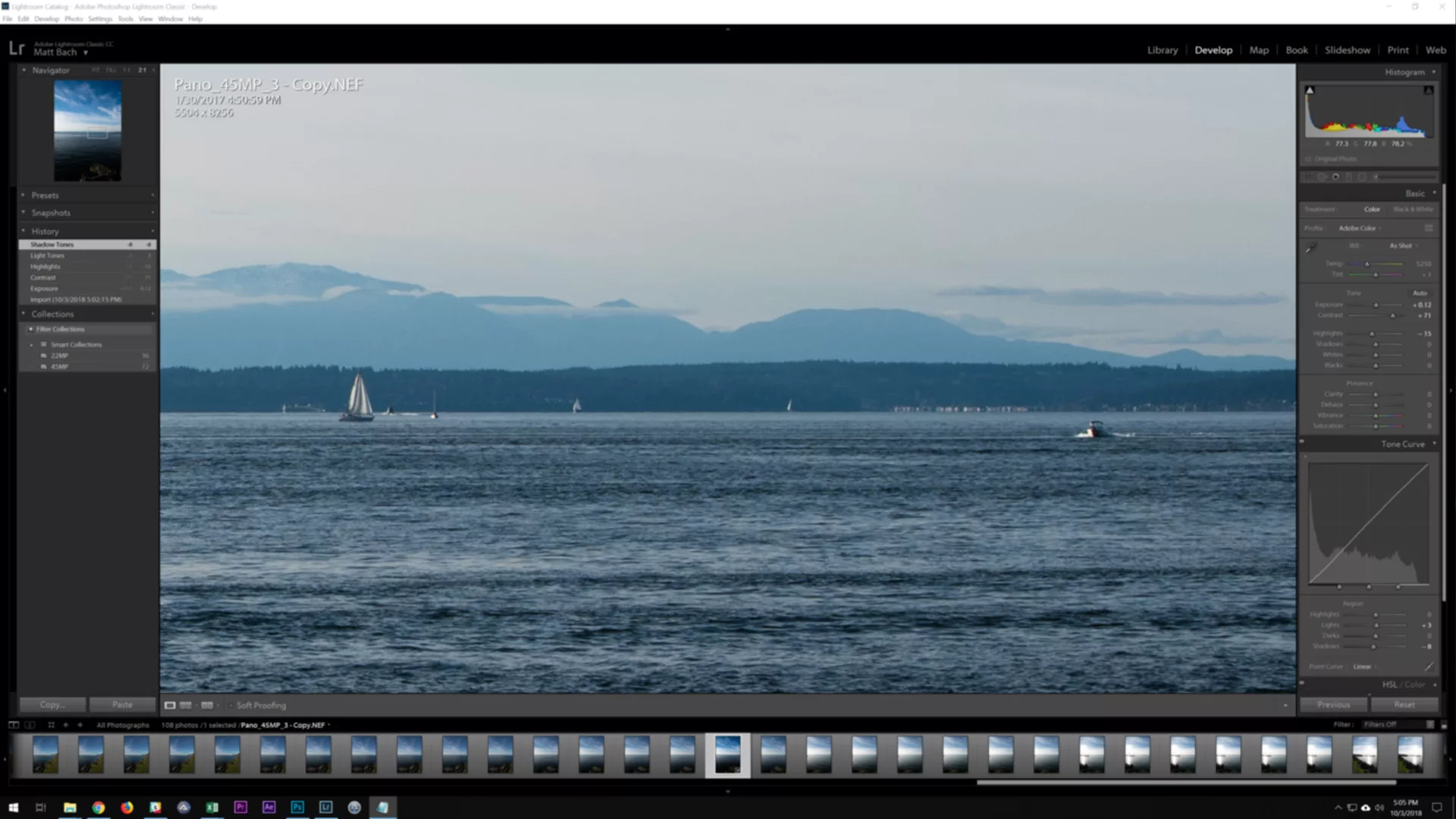
Adobe Lightroom Classic screenshot
An editor’s process, along with the tools used for editing, can generate different amounts of cached data in memory. Examples of tools and techniques that need higher amounts of RAM include:
- Camera Raw Details replace the standard demosaicing process, reconstructing a full-color image from RAW files but with finer detail and fewer artifacts.
- Denoise analyzes and processes every pixel in the image to reduce noise.
- Super Resolution creates a higher-resolution version of the original. Merge processes — like panorama, HDR, and image stacking — combine multiple images into a single composited picture, with resolution and image count determining how much data is cached in memory.
Similarly, when compositing and stacking layers – whether it be with images, generative fill, masks, or brushstrokes – each additional layer caches more data to memory.
Video Editing
The amount of memory needed for video editing can vary depending on the applications used, codecs and file formats, as well as the complexity and duration of a timeline sequence. In applications such as DaVinci Resolve and Adobe Premiere, RAM is primarily used to store video and audio data from each frame in a sequence for real-time video preview and timeline scrubbing. The video format and its specs (resolution, bit depth, chroma subsampling, and frame rate), along with the settings of the sequence, influence how much data is generated per frame and thus how many frames can be stored in RAM.
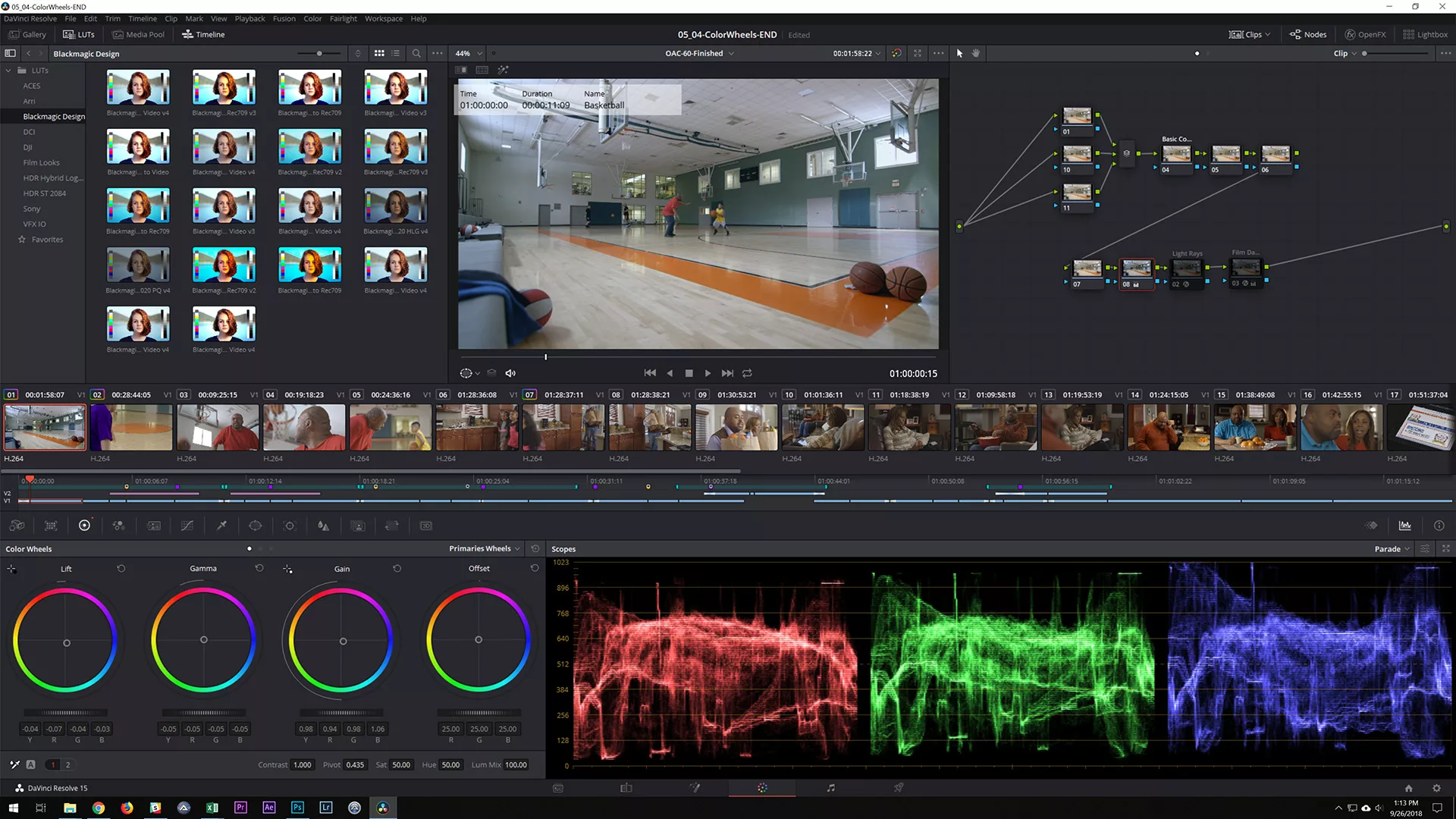
Blackmagic DaVinci Resolve screenshot
When scrubbing a timeline or previewing footage, the video codec plays a big role in how much data needs to be stored in RAM. Codecs that produce more data per frame consume more memory, which can introduce latency if RAM capacity is insufficient or if data cannot be cached fast enough to sustain real-time scrubbing and playback. Uncompressed RAW video codecs typically produce the most data per frame. Intraframe codecs, like ProRes, produce less by compressing each frame individually. Interframe codecs, like H.264 and H.265, produce the least by reconstructing frames from a series of reference points rather than storing each frame in full.
In addition to the footage itself, sequence settings affect the amount of data stored in memory. Resolution determines the size of each frame, frame rate specifies how many frames are displayed per second, and duration affects the total number of frames in a sequence. Any layers, effects, transitions, or other adjustments will require additional processing, creating more data that can affect memory usage. As more of these elements are added, processing requirements compound, making the sequence more complex and potentially affecting real-time scrubbing, video playback, rendering, and exporting performance due to the increased amount of data that must be processed and stored in memory.
3D Art
Memory requirements for 3D art workflows can vary widely depending on the type of work being done. General modeling and scene layout tend to use relatively little RAM. Here, memory is primarily used to store geometry, object hierarchies, materials, and textures within the scene. RAM usage typically grows as scenes become more complex, particularly when working with very high polygon counts, large environments, or many high-resolution textures.
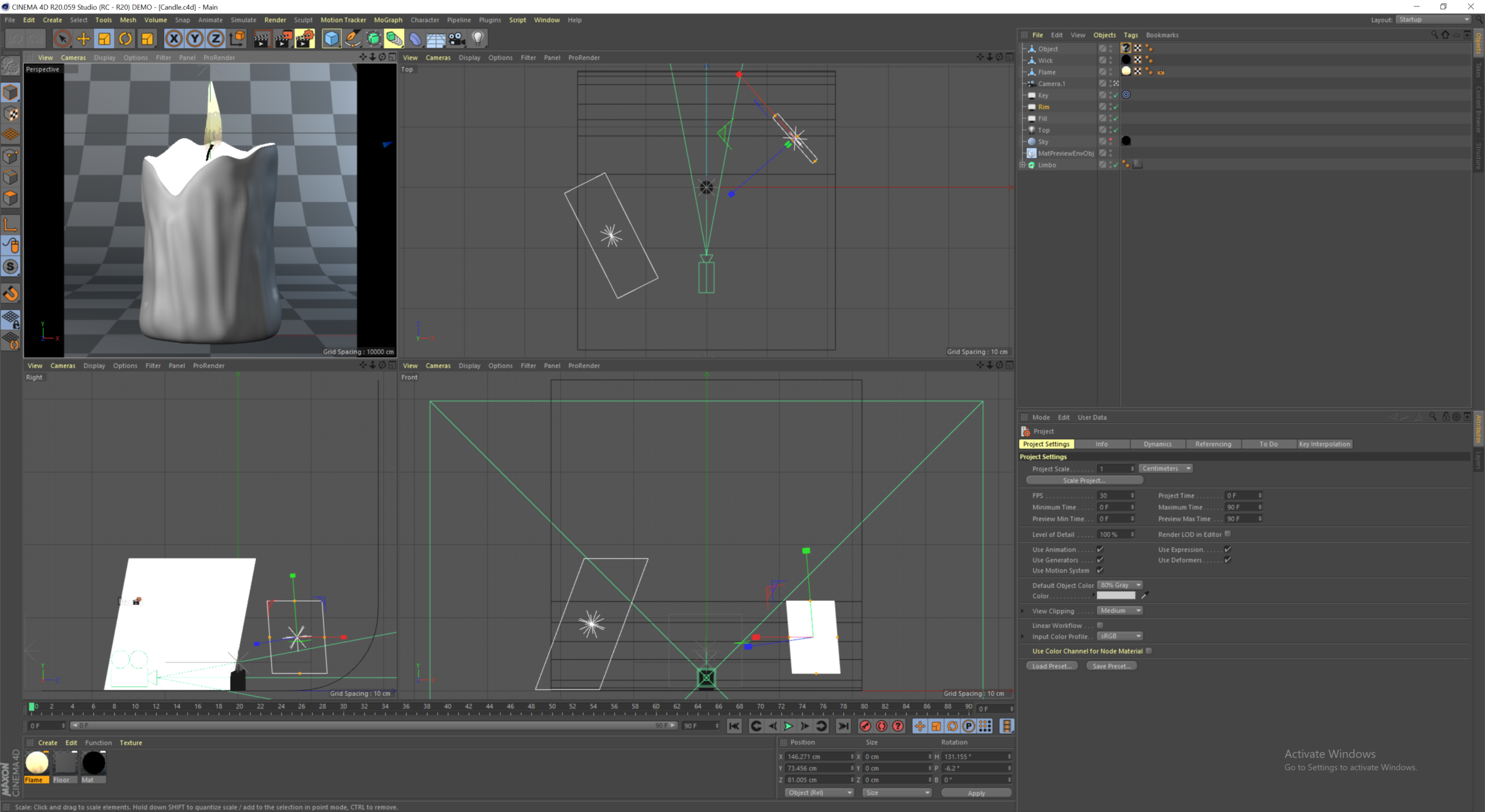
Maxon Cinema 4D screenshot
Animation workflows introduce additional data such as character rigs, skeletal hierarchies, constraints, and keyframe data. While animation itself does not always dramatically increase RAM usage, complex rigs or scenes with many animated elements can add to the overall memory footprint, especially when combined with large environments or detailed assets.
Simulation workflows are often among the most memory-intensive tasks in 3D production. Fluid simulations, smoke and fire effects, particle systems, cloth, and rigid body simulations can all generate large amounts of data as they are calculated. Higher resolution simulations and longer timelines can increase memory usage significantly, making this an important area to monitor if it is part of your workflow.
Rendering can also place significant demands on system memory, particularly when working with large scenes or high-resolution textures. CPU-based render engines typically load the entire scene into RAM during rendering, while GPU-based renderers rely primarily on VRAM but may still use system memory during scene preparation. Monitoring memory usage during final renders can help reveal whether RAM capacity becomes a limiting factor.
Game Development
How much RAM is needed for game development varies significantly depending on the project’s type and scale. While our testing focuses primarily on Unreal Engine, one of the most widely used real-time engines, similar patterns apply to other engines such as Unity or Godot.
Smaller games, such as 2D titles or simple 3D projects with limited environments, tend to have relatively modest memory requirements. These projects typically include fewer assets, smaller textures, and simpler scenes, which reduces the amount of data that needs to be loaded into memory while working in the editor. For developers working on these types of projects, RAM usage is primarily driven by the engine and the tools running alongside it.
As projects grow into more complex 3D games, memory usage tends to increase as more and higher complexity assets are loaded into the editor. Characters, environments, materials, lighting data, and larger texture sets all contribute to a project’s overall memory footprint. Developers may also work with multiple tools simultaneously, such as a game engine editor, modeling software, and version control tools, which can further increase RAM usage during normal development workflows.
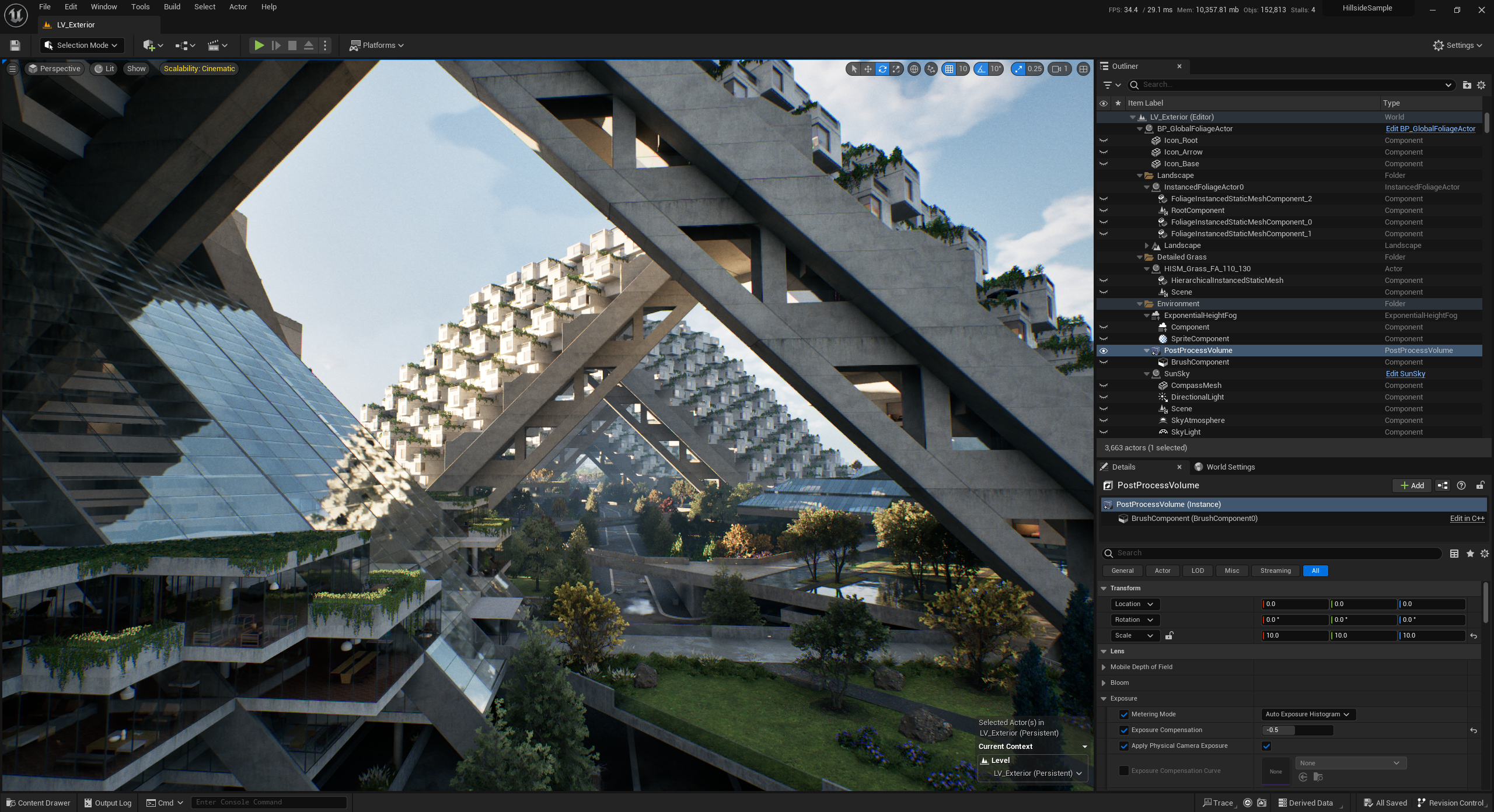
Unreal Engine screenshot
Large-scale projects, such as open-world games or titles with very detailed environments, can place significantly greater demands on system memory. These projects often involve large numbers of assets, high-resolution textures, complex lighting systems, and expansive levels that require more data to be loaded into the editor at once. In engines like Unreal, developers working on large worlds may also generate additional data for lighting, shaders, or asset processing, which can temporarily increase memory usage during certain tasks.
Virtual Production
Virtual production workflows are often built on the same real-time engines used in game development – most commonly Unreal Engine – so many of the memory considerations discussed above still apply. However, virtual production environments frequently add additional software layers and supporting tools that run alongside the engine, which can increase overall RAM usage.
In addition to the engine itself, virtual production systems may run camera tracking software, compositing tools, control interfaces, and other stage management applications simultaneously. These tools may each consume a relatively small amount of memory on their own, but together they can significantly increase the system’s total RAM usage. Monitoring memory usage while running a full-stage workflow, including Unreal Engine and any supporting applications, can help determine how much RAM is required to maintain smooth operation in production.
Planning for Future RAM Upgrades
Given the current pricing environment, one practical strategy is to purchase enough RAM for your immediate needs while leaving room to expand later. However, this can potentially impact overall system performance – so it is important to understand some fundamentals. Modern CPUs use multiple memory channels, allowing each channel to be accessed independently and greatly improving effective memory bandwidth.
High-end workstation platforms, such as Intel Xeon® and AMD Threadripper™, generally support four or eight memory channels – with a single physical slot per channel. This means the number of modules installed affects both capacity and bandwidth. The best performance is achieved with all channels filled, so there is a trade-off: leaving slots unpopulated for future expansion also means leaving some performance on the table.
Consumer CPU platforms have fewer memory channels, but their motherboards often have multiple physical slots for each. Both Intel Core™ Ultra and AMD Ryzen™ processor families support two channels, for example, while full-size boards for them generally have four RAM slots. Populating just one of those slots cuts overall memory bandwidth in half, then, since the system can only use one memory channel. Best performance is accomplished with two modules – one per channel – while filling all four allows for higher total memory capacity, but often comes at the cost of reduced frequency and small performance penalties thanks to the higher load that dual-rank configurations place on the memory controller.
How does this info play into configuring your system with the optimal amount of memory? Lets look at a hypothetical situation. If you determine that 64GB should be sufficient for your existing workflow but want the option to add more RAM later as your workflow grows, you could start with 2x32GB sticks – but, depending on the platform, that could mean missing out on some amount of bandwidth. On a consumer platform, two sticks of memory is perfect! It fills both memory channels, without doubling up and causing a reduction in memory frequency, and on many motherboards would leave room to add more memory in the future if needed (at a small performance cost when the time comes). But on a high-end desktop platform, installing just two modules would mean only having half or even a quarter of the possible bandwidth. This may have a serious impact on real-world performance, depending on how sensitive to memory speed your workflow is. Generally speaking, the more cores your CPU has – and the more heavily threaded your workload – the more important it is to populate all of the memory channels in order to avoid slowdowns.
Conclusion
With memory prices rising due to growing demand from AI infrastructure, selecting the right amount of RAM when purchasing a new workstation has become more important than ever. While it may be tempting to simply install as much memory as possible, many workflows do not actually benefit from extremely large RAM capacities. As a result, the system would end up costing more than necessary without providing any additional performance.
Instead, the best approach is to understand how your own projects use memory. By monitoring RAM usage while performing your typical work – whether that involves editing video, building game environments, running simulations, rendering complex scenes, or anything else – you can identify how close your current system comes to its memory limits. This makes it much easier to determine whether additional RAM will meaningfully improve performance or if your current capacity is already sufficient.
For many users, a balanced approach works best: install enough RAM to comfortably support your current workflow while leaving room to expand in the future if your projects grow more complex. With careful planning and a better understanding of how your software uses memory, you can avoid overspending while still ensuring your workstation delivers the performance you need.
If you have additional questions about configuring a new workstation for your workflow, our consultants are always available to help guide you through the process.
Looking for a new workstation? Get a Puget System!
We build computers tailor-made for your workflow.
Don’t know where to start?
We can help!
Get in touch with one of our technical consultants today.