
Puget Bench for Creators Quick Start Guide
Thanks for downloading Puget Bench for Creators! You’re just a few steps away from benchmarking your system with real-world creative workloads.
This quick start guide will walk you through installing, running, and interpreting the results from your first benchmark run – all in just a few minutes.
Quickly Jump To: System Requirements • Installation • Running the Benchmark • Viewing Results • Troubleshooting • Links
System Requirements
Before you begin, make sure your system meets these requirements:
- OS: Windows 10/11 or macOS Ventura (or newer)
- Hardware: Meets or exceeds the host application’s recommended system specs
- One or more installed versions of:
- Adobe Premiere Pro (v23.3 – 25.2)
- Adobe After Effects (v25.2 or newer)
- Adobe Photoshop (v24.4 or newer)
- Blackmagic DaVinci Resolve (v18.6 or newer, Studio or Free)
For full requirements, visit the benchmark information pages: Premiere Pro | After Effects | Photoshop | DaVinci Resolve
Installing Puget Bench for Creators
Since you are here, you likely already downloaded the Puget Bench for Creators installer. If you haven’t already, run the installer and follow the wizard to install Puget Bench for Creators. Should you need to re-download it, you can do so with the links below.

By downloading and installing this software, you agree to the terms and conditions outlined in the End-User License Agreement (EULA).
For details on our data collection policy, update logs, command line parameters, and more, see the PugetBench for Creators User Guide.
Running Your First Benchmark
Puget Bench for Creators allows you to customize the benchmark to run on different versions of the host applications with different benchmark presets. Licensed users have additional options to configure uploading and logging of results. For a typical benchmark run, follow the steps below:
- Launch Puget Bench for Creators
- If you have a license, enter it in the License Key Field and click Activate
- Select the Software you want to benchmark (e.g., Photoshop)
- Configure the:
- Application Version
- Benchmark Version
- Benchmark Preset
- Click Download Assets
- After the assets have finished downloading, click Run Benchmark
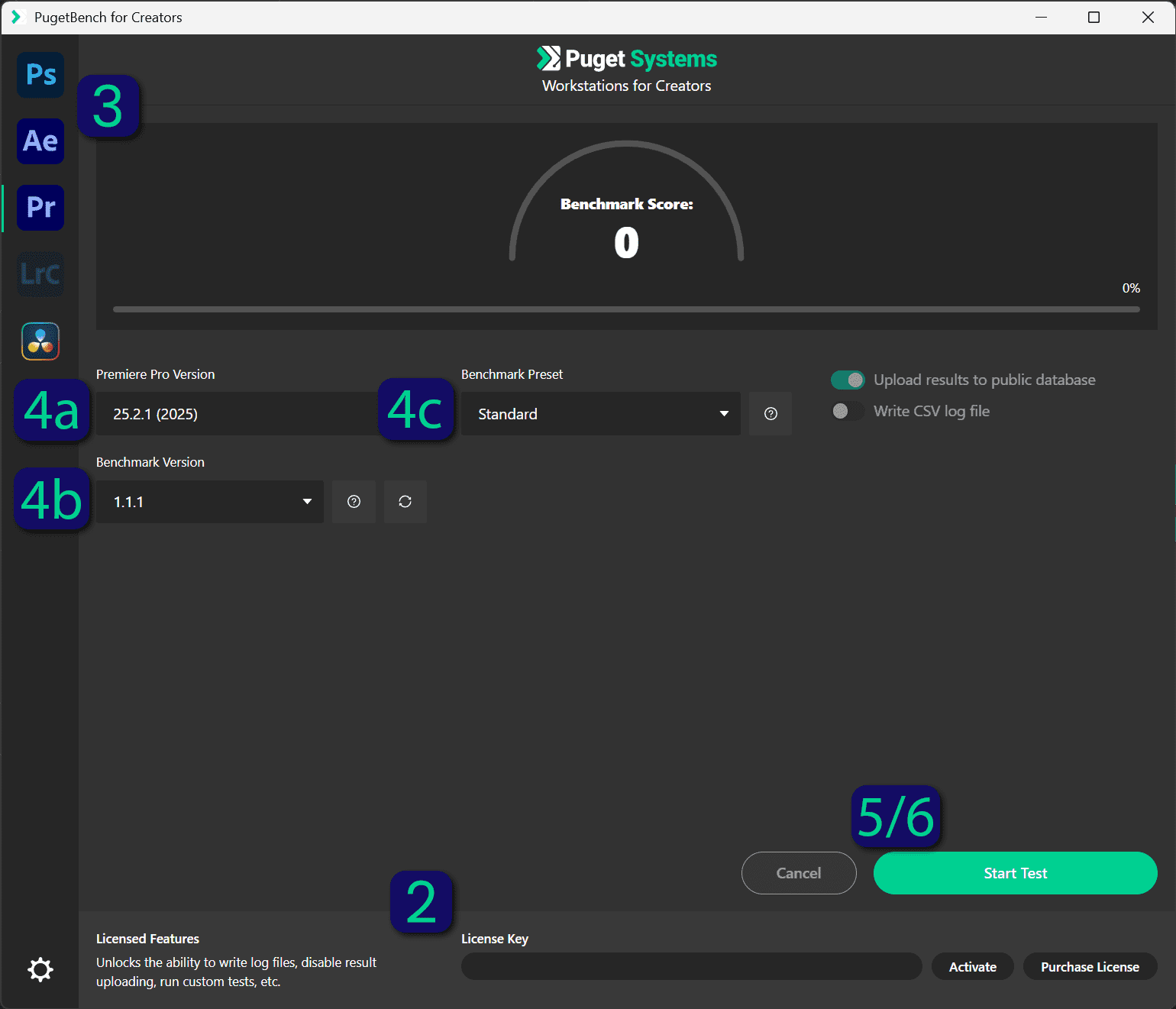
The host application will open and run the tests automatically – just let it run! Tests usually take 10-30 minutes, depending on the benchmark, preset, and system performance.
Review Your Results
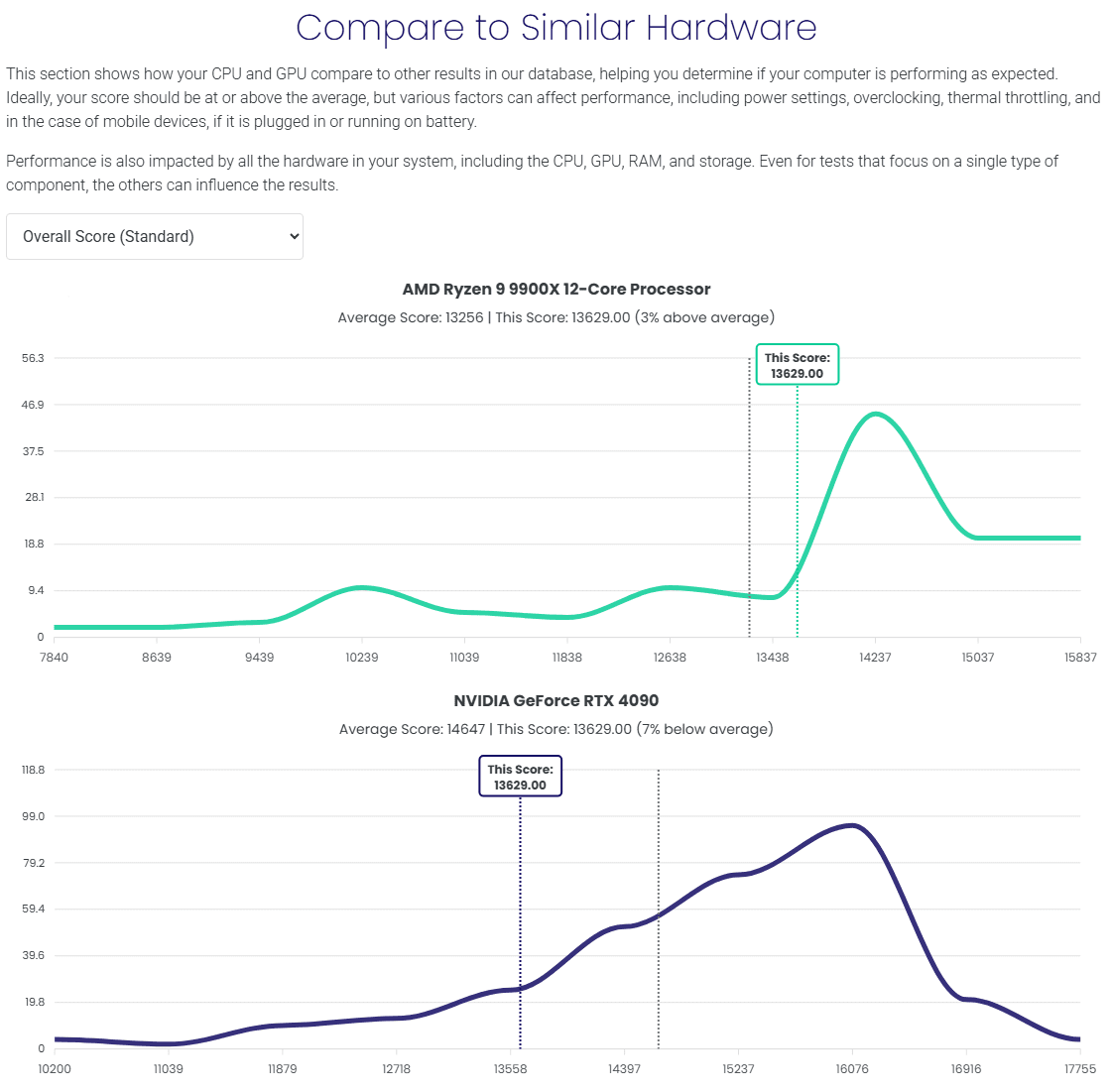
Once the benchmark is complete, your Overall Score will appear in the Puget Bench UI. Results are also automatically uploaded to the Puget Bench Results Database (unless disabled with a license), and your browser will open a Detailed Results Page showing performance breakdowns and comparison data.
This page has a wealth of data, and can easily be overwhelming. To better understand your results, we recommend watching our Understanding the Results Page video for a breakdown of each section.
Troubleshooting & Tips
We are constantly improving and refining our benchmarking process. Still, the nature of interfacing with a separate software application and supporting multiple versions means that the benchmark can sometimes encounter issues.
If the benchmark doesn’t start or complete:
- Ensure the host app (Eg, Photoshop) is installed and the initial setup is complete
- Restart your system and try again
- Clear the application’s cache and preferences. Refer to the Troubleshooting Guide for detailed instructions.
For best results:
- Restart your PC before testing
- Avoid using your system during the test
- Temporarily disable background processes (e.g., antivirus, Windows Update)
- Check that all application preferences, like GPU acceleration, are properly configured
- Run the benchmark 2-3 times for consistency
Advanced testing:
We recommend purchasing a benchmark license if you are running more advanced testing. Press licenses are also available for qualifying users.
A license provides access to the following features:
- Licensed for commercial use
- Extended benchmark presets
- Command Line Interface automation
- Local CSV result logging
- Disabling of online result uploading
- Access to beta benchmark builds
- Email support
Useful Links
- Puget Bench User Guide – Troubleshooting, CLI guide, known issues
- Benchmark information pages: Premiere Pro | After Effects | Photoshop | DaVinci Resolve
- Compare Public Results
- Benchmark Licensing Information
Thanks for trusting Puget Bench! We hope the results help you make better hardware and workflow decisions so you can get the performance you need. If you want even more in-depth info, check out our full Puget Bench User Guide.