Table of Contents
Introduction
There is a wide variety of software applications that allow photographers and editors to modify, enhance, and deliver images. Adobe’s Lightroom Classic is a desktop image editing and management tool that utilizes your computer’s local hardware to process changes made to your photos.
However, choosing the best workstation for Lightroom Classic is not as straightforward as it may seem. With computer technology continually advancing, modern cameras pushing higher resolutions, and generative AI making its way into photography workflows, knowing which system delivers the best performance is not always clear. That’s why we research and test a wide range of cameras, tools, and processes in Lightroom Classic to give you recommendations on which PC hardware delivers the best performance for your needs and budget.
If you are looking for a straightforward answer about which system delivers the best performance in Lightroom Classic, this article is for you!
Please note that the prices for these systems may shift over time, as the market fluctuates, and that if you are reading this months or years after publication, the links may eventually point to newer and different hardware.
Our Recommended Workstation for Lightroom Classic
Photographers have unique methods for capturing their subjects, and employ various tools both in terms of hardware and software. Whether organizing thousands of photos from an event, stitching panoramas, or preparing images for print, a photographer’s camera, creative intent, and post-production workflow will all affect the processing and storage requirements needed in their computer to ensure a smooth, responsive editing experience.
For those looking for a workstation that delivers strong editing performance in Lightroom Classic, capable of storing and processing RAW files from modern camera systems, we recommend the following configuration:
| CPU | Intel® Core™ Ultra 7 270K Plus |
| GPU | NVIDIA GeForce RTX™ 5070 Ti 16GB |
| RAM | 64GB DDR5 |
| OS Drive | 1TB NVMe PCIe Gen 4 M.2 SSD |
| Storage | 2TB NVMe PCIe Gen 4 M.2 SSD (Assets/Catalog/Cache) |
| Warranty | 3-Year Parts, Lifetime Labor & Support |
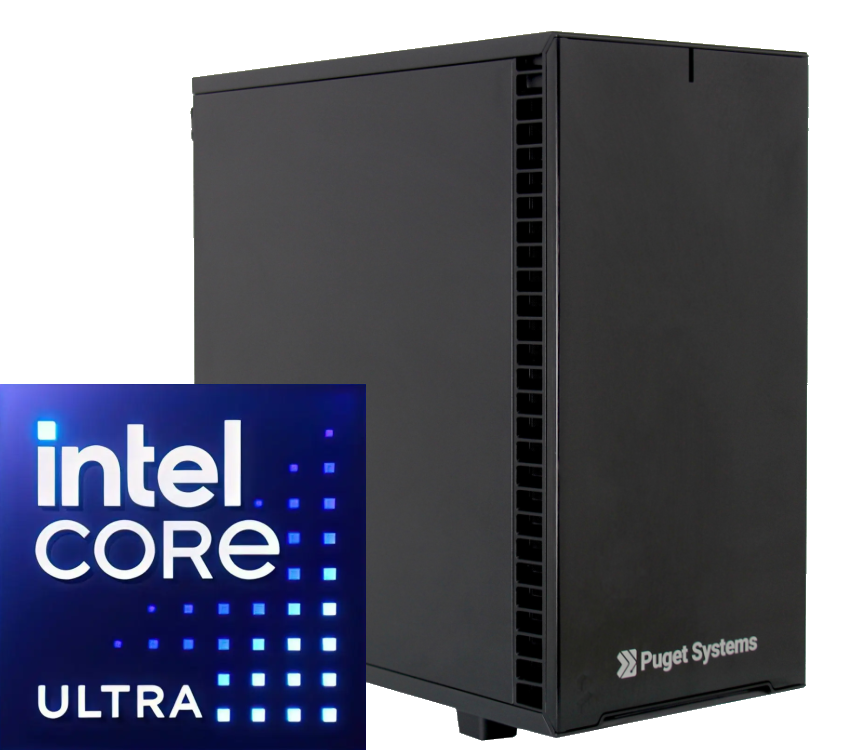
In 2026, a wide range of camera sensors can capture images with high megapixel counts – from 40 MP to over 100 MP – in RAW formats, giving you greater latitude to edit and enhance your images in Lightroom Classic. However, these RAW files contain a large amount of pixel-level information that must be processed and rendered during editing. This can introduce latency when working with larger catalogs or applying a large number of effects, masks, or other adjustments to your images, which push the performance of your computer and Lightroom Classic itself to their limits.
When importing images as a catalog, generating Smart Previews, and enabling the RAW Details tool, the CPU is the primary driver of performance. While these processes occur before editing, it can take a significant amount of time to complete before you can really begin working. When testing Canon, Nikon, Panasonic, and Sony RAW files in Puget Bench for Lightroom Classic v1.0 benchmark, we found that Intel’s Core Ultra 7 270K Plus performed best.
RAM is currently one of the more cost-sensitive components to configure, especially given recent price increases. Working with lots of images and heavier edits increases Lightroom Classic’s memory usage, which can lead to slowdowns when approaching a system’s maximum capacity. If you’re working with RAW files and applying lots of effects, masks, adjustments, and AI-based tools to your images, a minimum of 64GB of RAM is recommended to avoid software latency.
The GPU assists with rendering and displaying the adjustments you make in Lightroom Classic. When navigating the filmstrip, your GPU loads the selected image in the Preview window. When applying AI-based tools and effects to a batch of images, your GPU determines how quickly those changes are processed and applied. When editing is complete, and you need to deliver your images, the graphics card accelerates JPEG exports. To keep all those processes moving smoothly, we recommend NVIDIA’s GeForce RTX 5070Ti, as it offers a strong balance of performance and VRAM capacity at its price point.
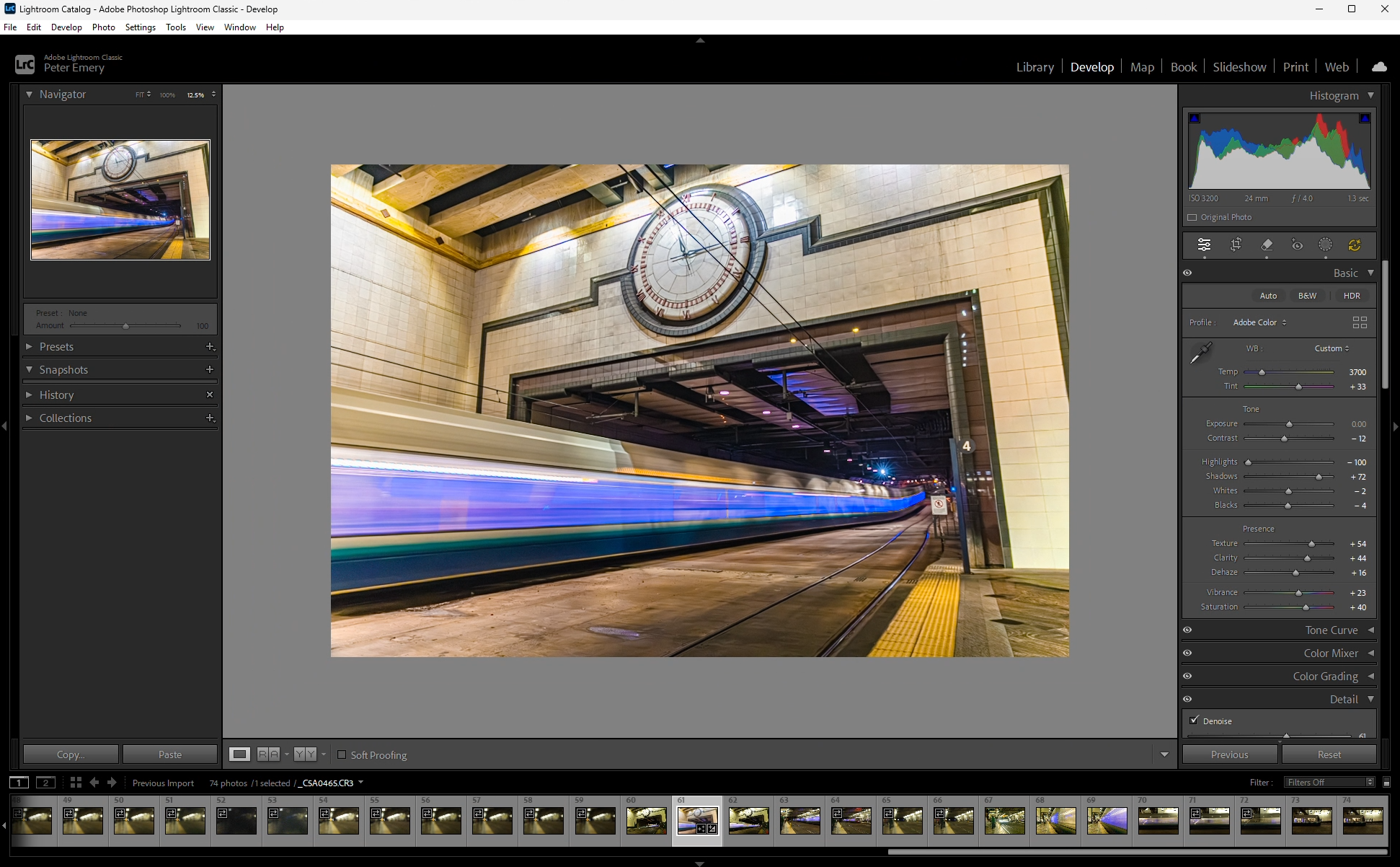
Adobe Lightroom Classic screenshot
Best Value for Performance Workstation
If you want to look beyond our standard recommendation above, there are a few directions to consider. One option is to look for the best value, scaling back in places where you can save money without a lot of performance loss. A system like this, aiming for the best price-to-performance ratio, is great for those who have recently invested in a new camera system and need a workstation that delivers strong editing performance within a more manageable budget.
There aren’t many options for better bang-for-your-buck in the current generation of hardware, though. The 270K Plus is already a fantastic value, and you can’t really drop down to a lower CPU without giving up quite a bit of performance. Similarly, scaling back on the RAM or drives can quickly impact performance in a negative way. However, there are viable options on the GPU – especially if you aren’t doing a lot of AI tasks in Lightroom, which is where NVIDIA cards are particularly strong. You could also save some money with a shorter hardware warranty, though that carries some longer-term financial risk. Scaling back in those two areas saves several hundred dollars, and results in these specs – which are all selectable on our Lightroom configure page:
| CPU | Intel Core Ultra 7 270K Plus |
| GPU | AMD Radeon™ RX 9070 XT 16GB |
| RAM | 64GB DDR5 |
| OS Drive | 1TB NVMe PCIe Gen 4 M.2 SSD |
| Storage | 2TB NVMe PCIe Gen 4 M.2 SSD (Assets/Catalog/Cache) |
| Warranty | 1-Year Parts, Lifetime Labor & Support |
In this configuration, we swapped the NVIDIA GeForce RTX 5070 Ti from our original recommended system with an AMD Radeon RX 9070 XT video card. The 9070 XT is ~$300 cheaper than the 5070 Ti and offers similar performance. For photographers who are batch processing, culling, and exporting hundreds to thousands of photos and don’t need high-end performance from AI-processed tools in Lightroom Classic, the 9070 XT is a great GPU alternative to NVIDIA.
If you really need to reduce costs further, you could decrease storage capacity to 1TB – but that limits the number of photos you can have in your Lightroom catalog. Dropping the RAM capacity to 32GB would also lower the price, but there will be a performance penalty, especially when other applications are open simultaneously.
High-End Workstation for Optimal Performance
On the other end of the spectrum, you could max-out performance – at the cost of a higher price tag for the system. While some photographers use Adobe Lightroom Classic exclusively, others may be power editors who use additional applications in their workflow, such as Adobe Photoshop and Topaz Photo.
If you are a photographer or editor looking for a powerful workstation that gives the best overall performance in Lightroom Classic while also multitasking and making heavy use of AI tools, and you have more flexibility in your budget, we suggest the following hardware:
| CPU | Intel Core Ultra 7 270K Plus |
| GPU | NVIDIA GeForce RTX™ 5090 32GB |
| RAM | 128GB DDR5 |
| OS Drive | 1TB NVMe PCIe Gen 4 M.2 SSD |
| Storage | 4TB NVMe PCIe Gen 5 M.2 SSD (Assets/Catalog/Cache) |
| Warranty | 3-Year Parts, Lifetime Labor & Support |
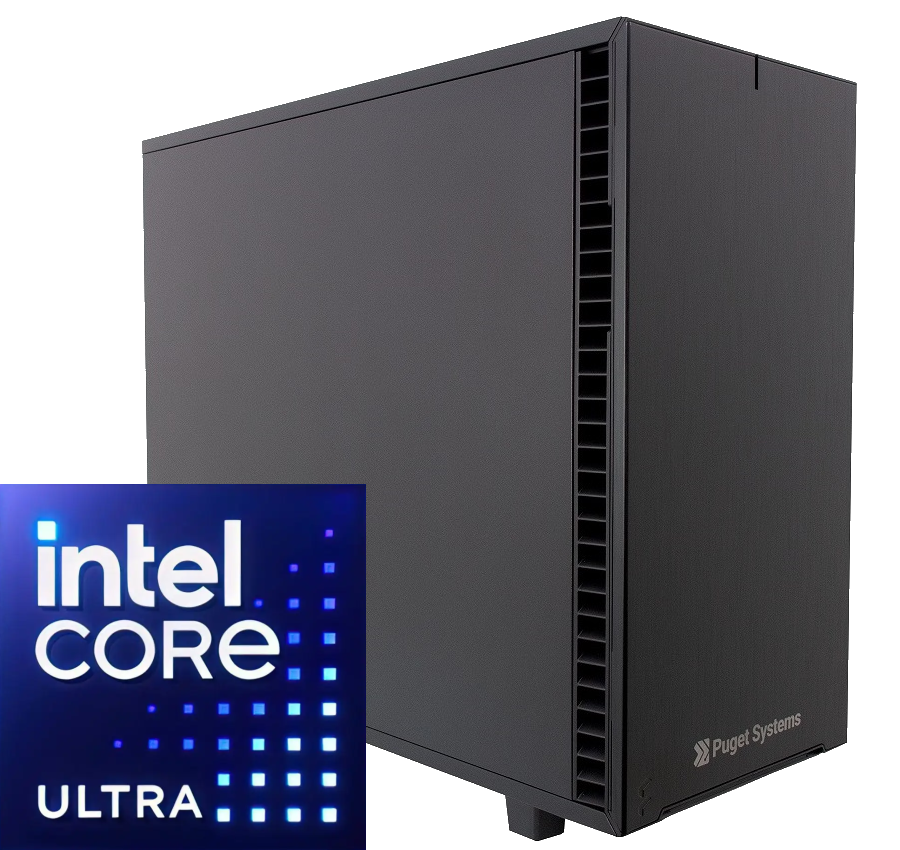
The configuration above is an upgrade from our recommended system, with effectively double the VRAM, system memory, and storage capacity. That VRAM comes along with a more powerful GPU, so this design is well equipped to maximize performance in Lightroom Classic’s AI-based features while enabling simultaneous work in other applications such as Adobe Photoshop. The bigger GPU does require a larger chassis, though, so this would need to be configured in one of our taller tower workstations.
NVIDIA’s GeForce RTX 5090 showed the best performance in our Puget Bench for Lightroom Classic benchmark, most notably in AI scores. The AI tools available in Lightroom Classic, such as masking (Select Sky, Select Subject), Details (Denoise, RAW Details, Super Resolution), and Reflection Removal, utilize your system’s hardware for processing; the exceptions to this are Generative Fill and Remove in Lightroom Classic, which utilize cloud-based processing through Adobe Firefly. If you’re applying all of these tools to your images and copying and pasting these settings to the majority of your catalog, the RTX 5090 offers the fastest performance.
It’s worth noting that VRAM capacity does not directly improve processing performance in Lightroom Classic. Instead, the GPU uses VRAM to hold the data needed to render and display your edited RAW files in the Preview window. If VRAM reaches capacity, you may experience latency within the software interface when making adjustments or viewing your edits. With 32GB of VRAM, the RTX 5090 provides additional headroom for complex edits and reduces the likelihood of latency related to VRAM capacity limitations.
To further help prevent lag when editing, 128GB of RAM gives you more room to run Lightroom Classic and Photoshop or other software simultaneously. This allows you to move and work between both applications and make more complex edits across a wider range of images without the risk of latency from memory filling up.
Best-Performing Laptop for Lightroom Classic
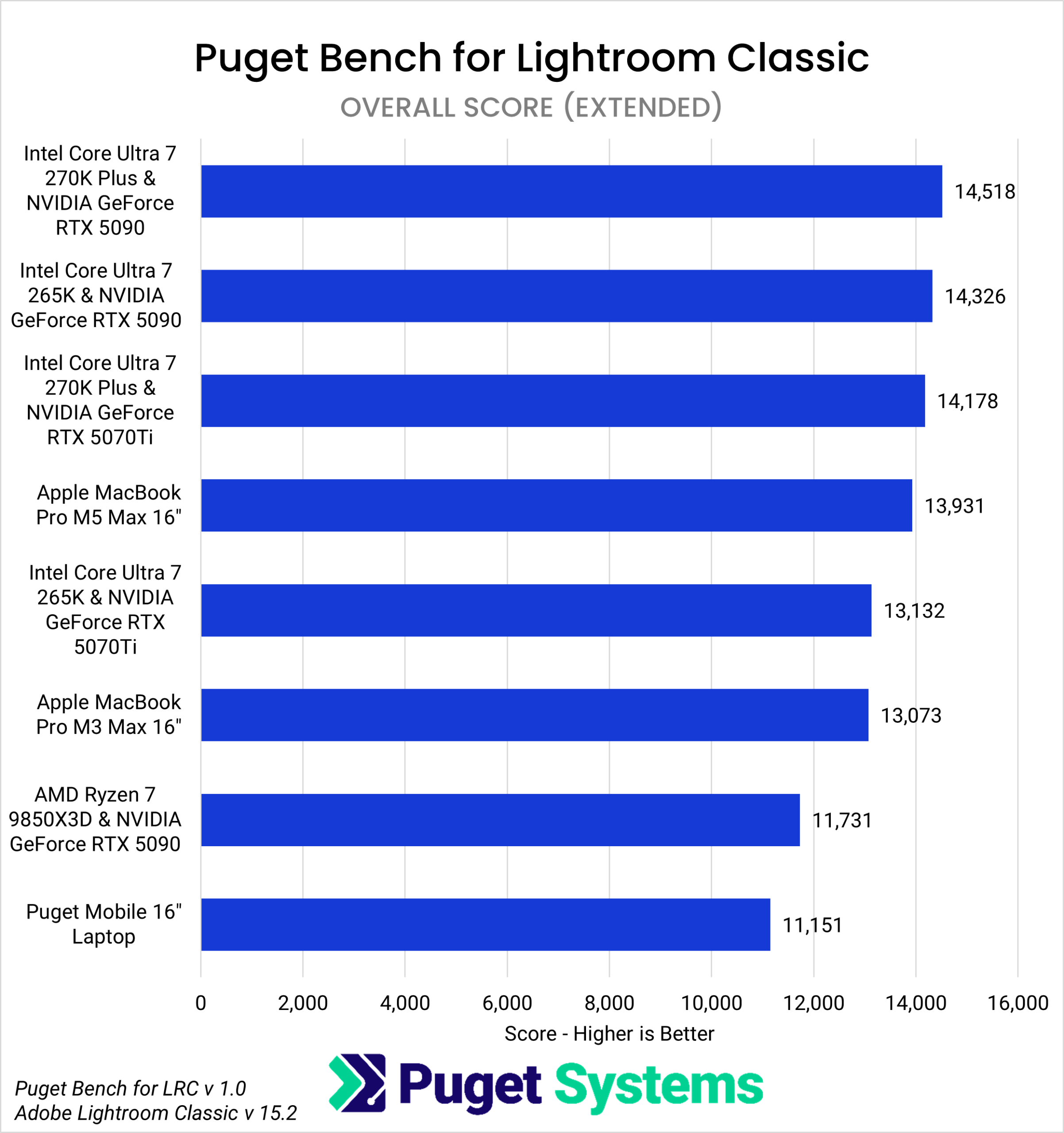
Instead of scaling up or down in cost, some users need mobility. While we found that desktop PC hardware offered the best performance in Lightroom Classic, a desktop is not suited for all post-production environments. Some photographers need to work on the go, making a a laptop necessary for ingesting, sharing, and editing their photos. In these instances, our testing shows that the Apple MacBook Pro M5 Max is the best-performing option based on Puget Bench for Lightroom Classic Overall Extended Scores – and not too far behind a full desktop!
Additional Resources
If you would like to learn more about how Lightroom Classic performs with various hardware, as well as our justifications for these recommendations, we have several resources available:
- For those who want a basic overview, we recommend visiting the Hardware Recommendations section of our Lightroom Classic Solutions page.
- If you want to dig deeper into our recommendations, we also have an ongoing series of hardware articles that are regularly updated, as well as Puget Bench for Creators, which is a public database of Puget Bench for Lightroom Classic benchmark results.
- And, as always, if you aren’t sure exactly what you need, or just want to verify that you are spending your budget in the most effective way possible, our technology consultants are available to help you get the right system for your workflow.

Looking for a Lightroom Classic workstation?
We build computers tailor-made for your workflow.

Don’t know where to start?
We can help!
Get in touch with one of our technical consultants today.