Table of Contents
Introduction
Content creation applications have evolved to provide artists with the tools and capabilities for complex and fast-paced projects. Whether it is video editing, motion graphics, or VFX, these workloads utilize memory (RAM) to process and manage data. Some applications use more memory than others, and depending on an artist’s workflow, a system with more RAM can mitigate performance bottlenecks caused by insufficient memory.

To reduce the possibility of RAM bottlenecks, one approach would be to install the maximum amount supported by the CPU and motherboard. However, there are two issues with this strategy. First, fully populating all memory slots with high-capacity DIMMs on the motherboard often results in RAM being downclocked to maintain system stability, reducing performance. Additionally, in today’s market, RAM supply is limited (and thus more expensive), meaning the cost of building a computer based on this strategy comes at a premium. For instance, the cost for a single stick of Kingston DDR5-5600 32 GB RAM in May of 2025 was $98, while in May of 2026, that same product costs $478, an astounding 388% increase.
With rising prices and tighter supply, those considering upgrading or purchasing memory for a new computer might prefer to keep costs down and target capacities that are within the ‘sweet spot.’ This is where a system has an optimal amount of RAM, with enough overhead to mitigate any performance issues, without overspending on unutilized capacity. However, depending on the user’s workflow and workload, determining where memory affects performance is nuanced, as content creation applications utilize memory differently.
To better understand and select the optimal amount of memory for content creation workloads, our testing below explores two questions: how much RAM is needed to avoid performance issues, and where is performance affected by insufficient memory?
Test Setup (Expandable)
AMD Platform
| CPU: AMD Ryzen™ 9 9950X3D2 Dual Edition |
| CPU Cooler: Noctua NH-U12A |
| Motherboard: ASUS ProArt X670E-Creator WiFi BIOS Version: 3702 |
| RAM: 2x DDR5-5600 32GB (64 GB total) |
| GPU NVIDIA GeForce RTX™ 5080 Driver Version: 595.79 |
| PSU: EVGA SuperNOVA 850W P2 |
| Storage: Kingston KC3000 2TB |
| OS: Windows 11 Pro 64-bit (26200) Power Profile: Balanced |
Benchmark Software
| Adobe Lightroom Classic 15.3 — Puget Bench for Lightroom Classic 1.0 |
| Adobe After Effects 26.2.1 — Puget Bench for After Effects 1.1 |
| Adobe Photoshop 27.6 – Puget Bench for Photoshop 1.0.6 |
| Adobe Premiere 26.2.2 – Puget Bench for Premiere Pro 2.0.1 |
| DaVinci Resolve Studio 20.3.2 – Puget Bench for DaVinci Resolve 2.0 |
Our test bed contained an AMD Ryzen™ 9 9950X3D2 Dual Edition CPU, ASUS ProArt X670-E-Creator motherboard, two DDR5-5600 32 GB UDIMM memory modules, and an NVIDIA GeForce RTX™ 5080 GPU. Windows, BIOS, and drivers were fully updated at the start of testing. To isolate the effect of memory capacity on performance, we used every benchmark in our Puget Bench for Creators suite, which includes Adobe After Effects, Lightroom Classic, Photoshop, Premiere, and Blackmagic Design’s DaVinci Resolve, to see if there were any differences in performance between 64 GB, 32 GB, and 16 GB capacities.
To simulate 32 GB and 16 GB capacities without swapping memory modules, we used the bcdedit command in the Command Prompt to modify Windows boot parameters. This allowed us to isolate memory capacity as the controlled variable for each benchmark. It’s worth mentioning that our testing methodology measures application performance based on common workflow processes, and real-world performance may differ from our results, as project scope, system configuration, and workload vary between artists.
Adobe Lightroom Classic
In Lightroom Classic, RAM is primarily used as a cache to store and load data generated by the photo editing process. Whether it is importing, creating Smart Previews, applying effects, or exporting a large batch of photos, each process produces varying amounts of data, which affects how much cache is stored in RAM.
The charts below show which processes are impacted by different RAM capacities:
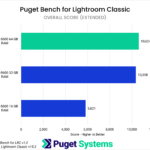
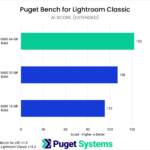


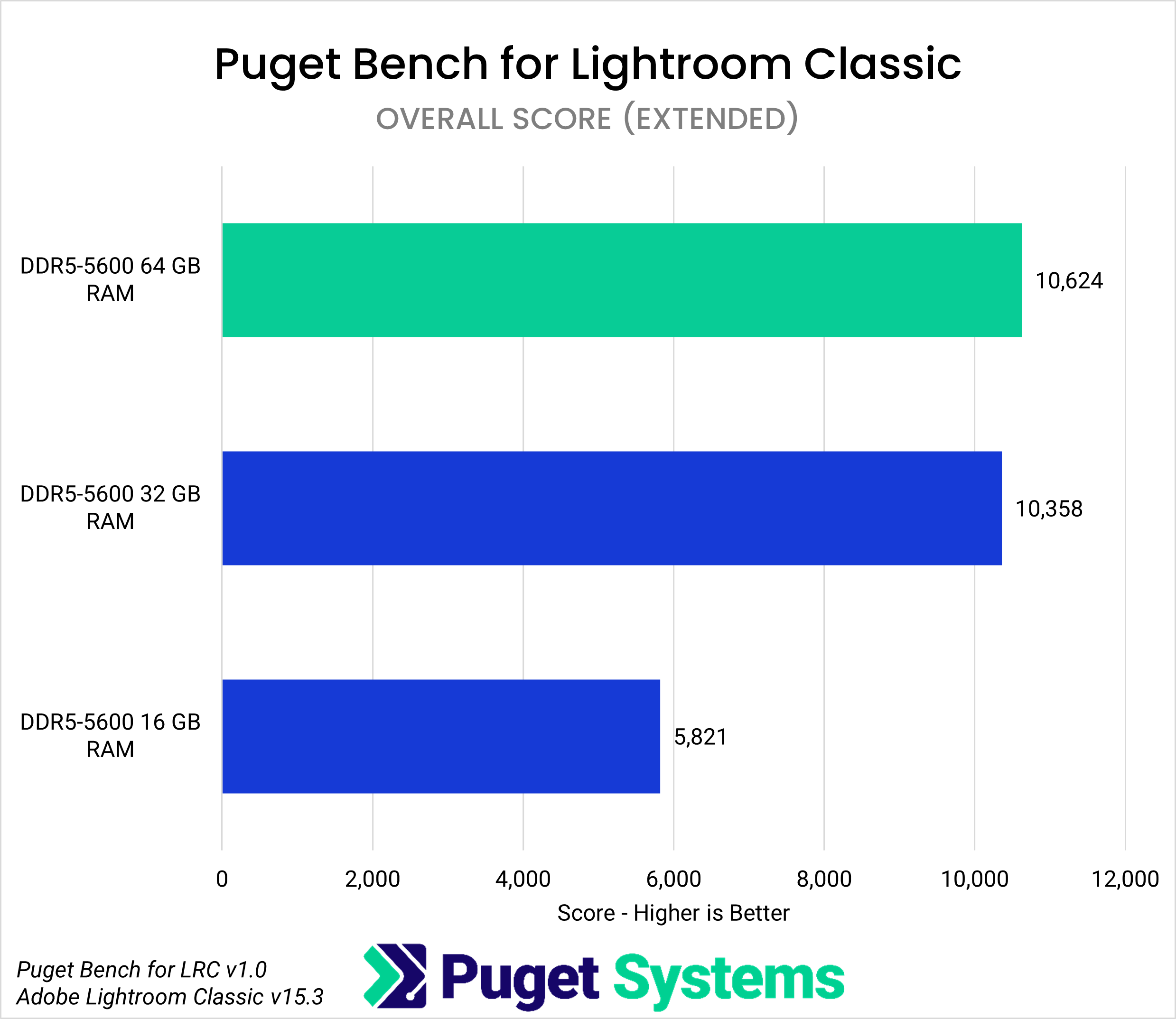
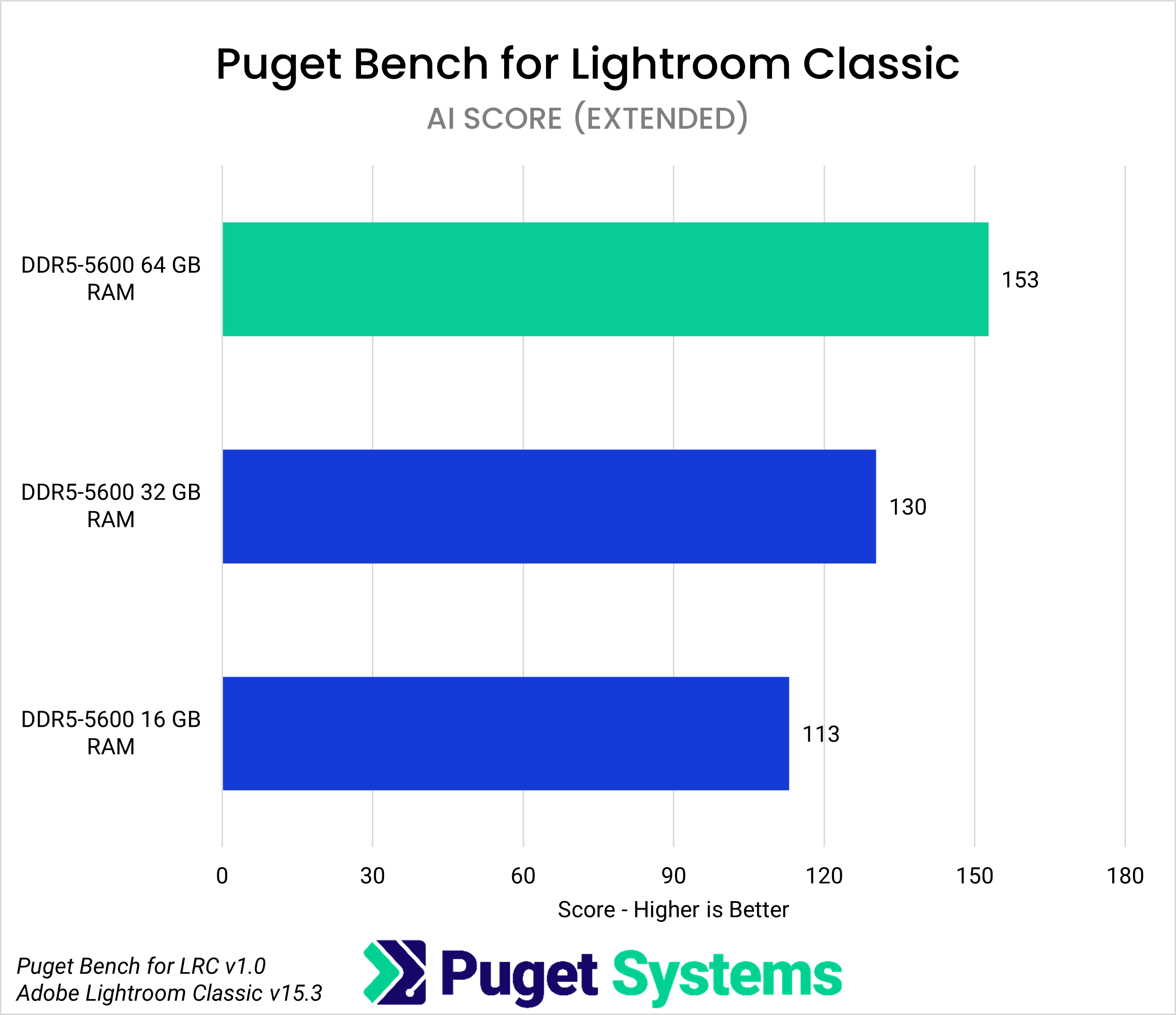
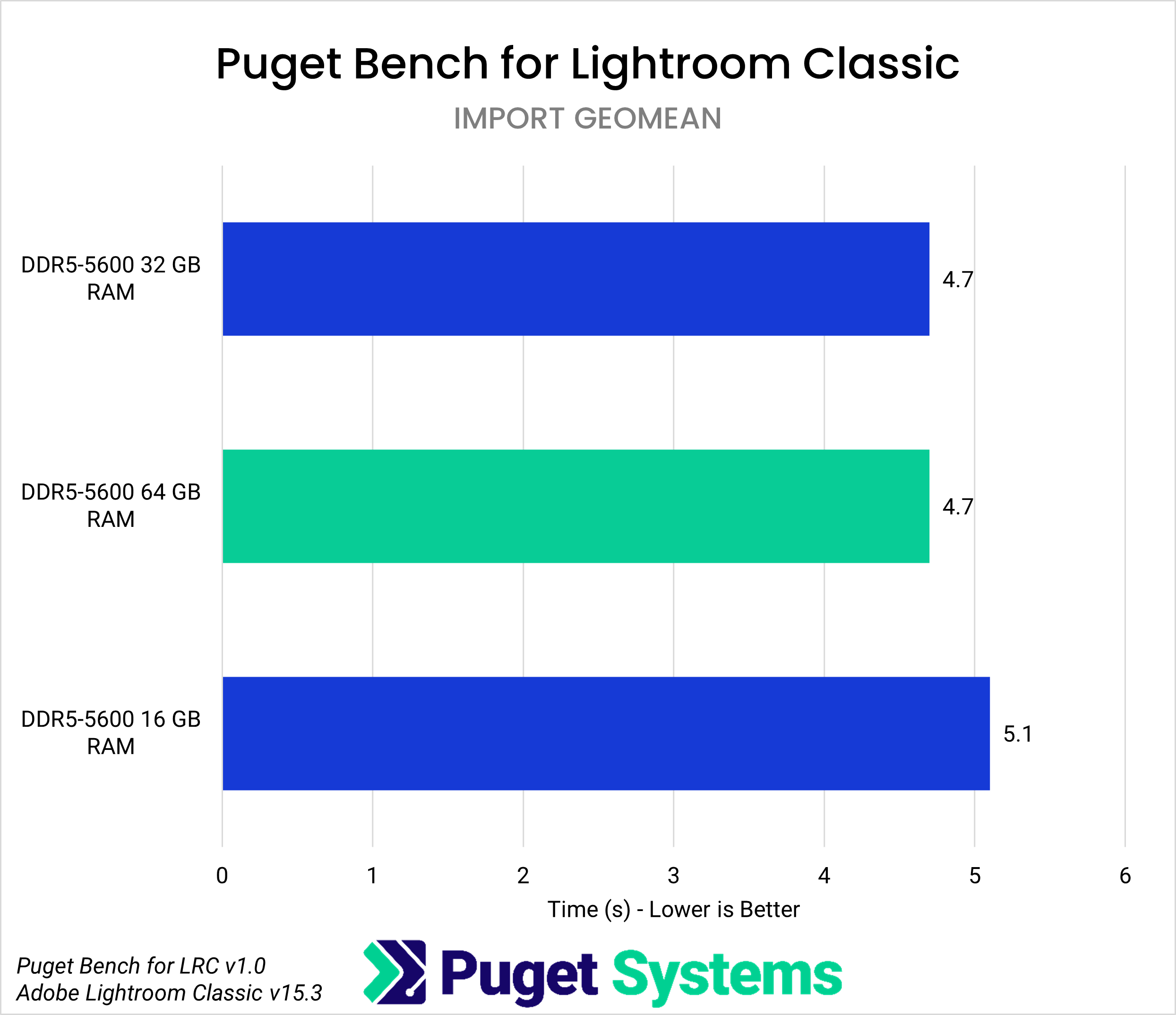
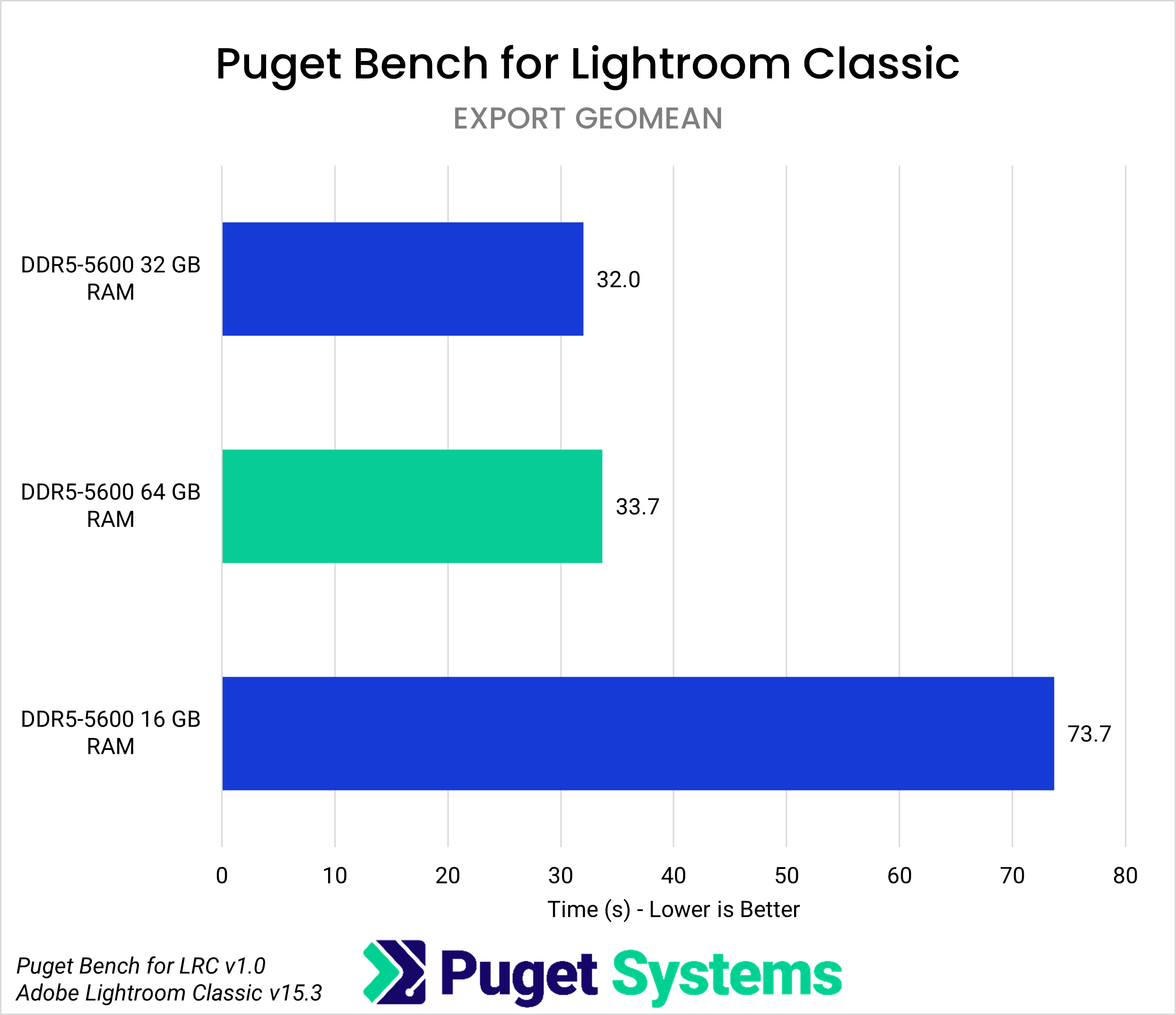
The Overall score (Chart #1) is our indicator of application performance across different memory capacities. Based on these scores, having 32 GB of RAM instead of 64 GB correlates to a 2.5% reduction in performance. While this is a relatively small delta and falls within the margin of error, the next charts show that certain functions in Lightroom Classic are affected by memory capacity. For instance, in the AI score (Chart #2), 32 GB of RAM instead of 64 GB reduces AI tool performance by 15%, while the Import geomean (Chart #3) and Export geomean (Chart #4) show no differences.
The 16 GB configuration shows that lower memory capacity does affect Lightroom Classic performance. Compared to 64 GB, its Overall score is 45% lower; AI scores show a 26% decrease in performance; import times (Import Geomean) were 8.5% slower; and export times (Export Geomean) had a 118% drop in performance.
In Lightroom Classic, the optimal amount of RAM depends on the photographer’s and editor’s processes. If the workload does not include AI-generated effects, 32 GB of RAM is acceptable for those on a limited budget. In contrast, professional workloads that require full CPU and GPU performance, where memory does not hinder the editing process, will need 64 GB.
Adobe Photoshop
Photoshop uses RAM to store data generated during image compositing and editing. Each adjustment, layer, and effect applied increases the document size, which in turn increases the amount of RAM used.
The charts below show where performance is affected by different RAM capacities in Photoshop:
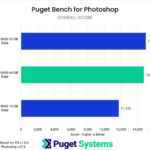
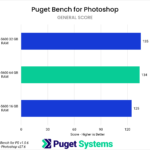
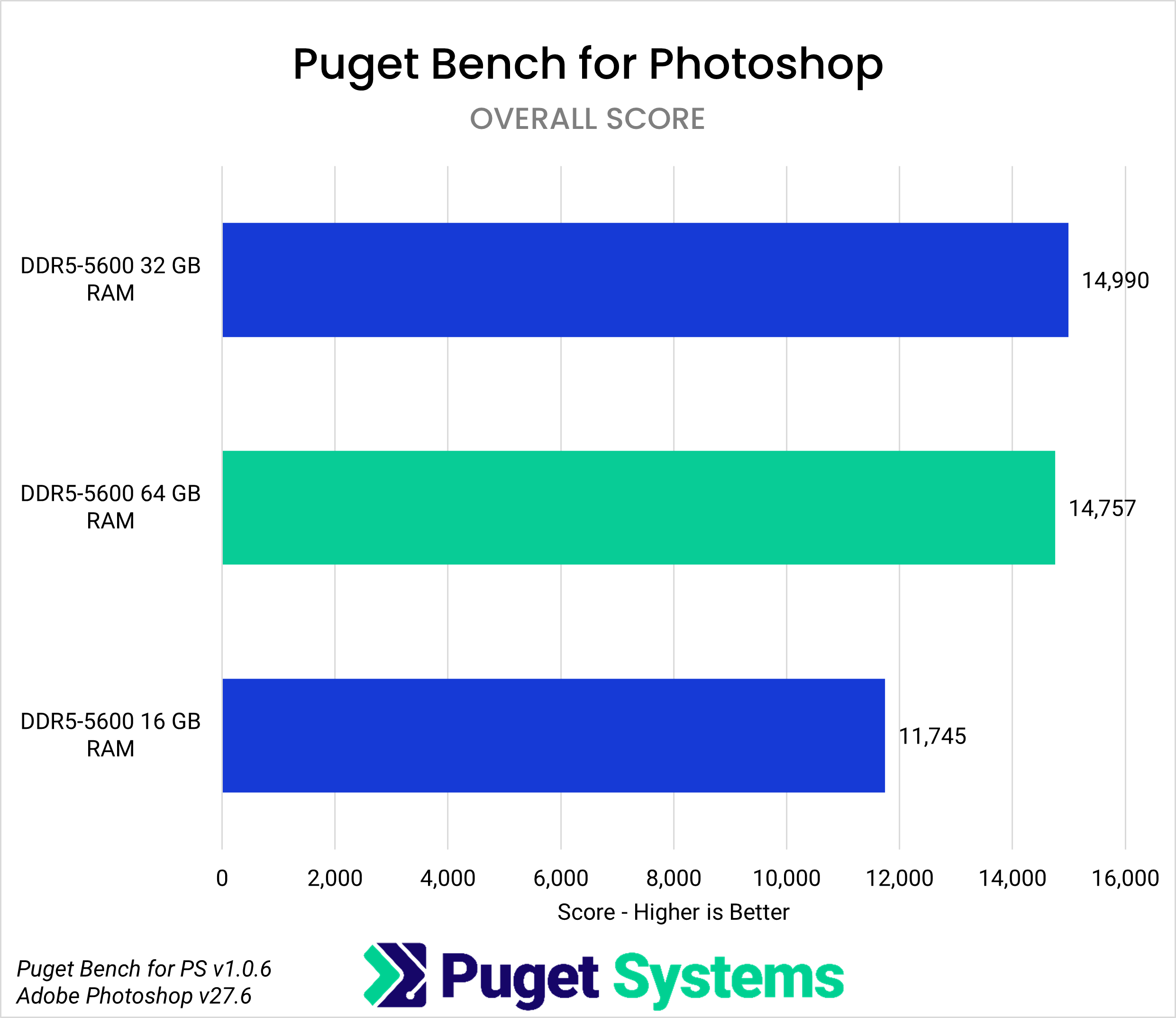
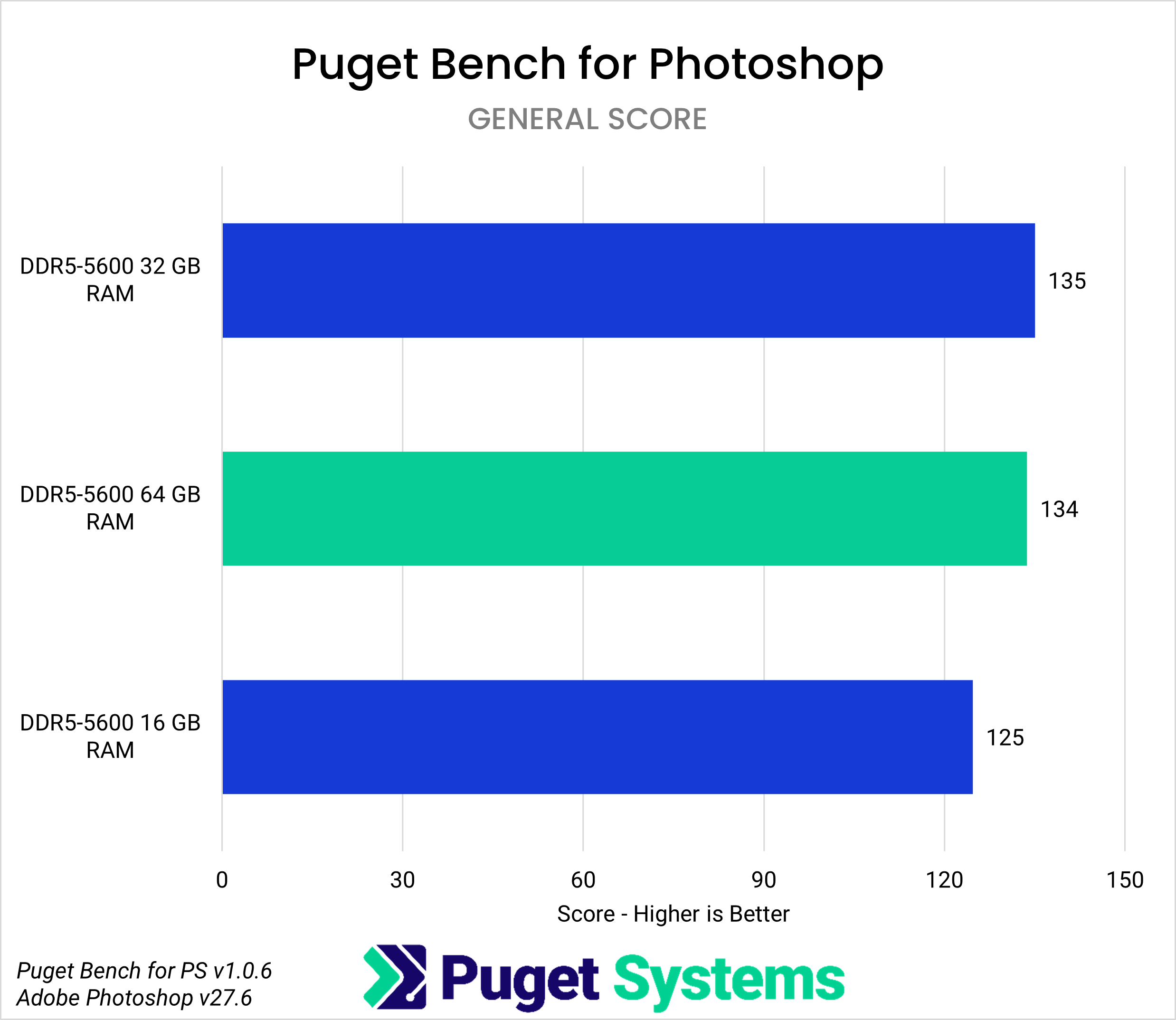
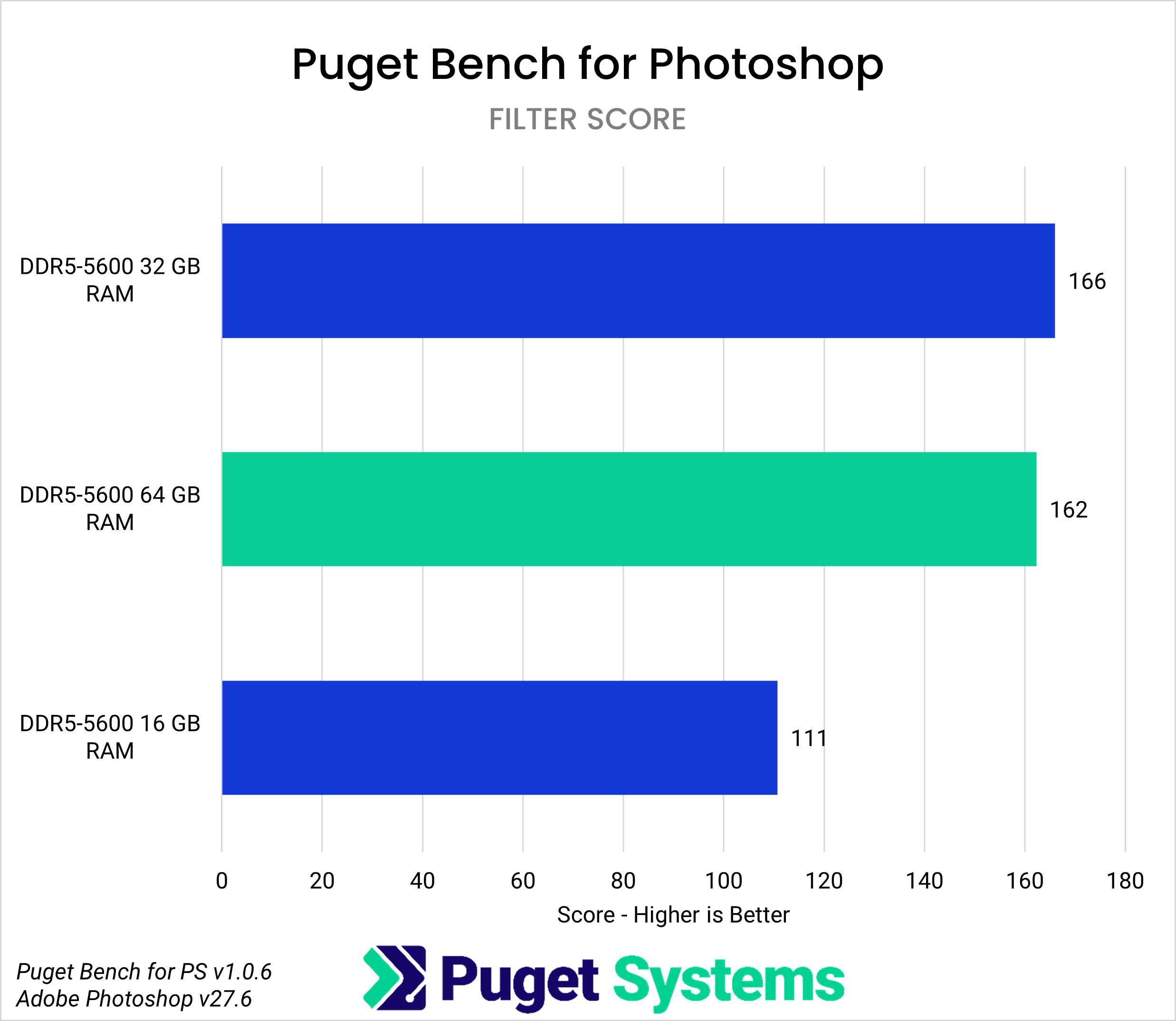
The Overall score (Chart #1) shows that there is no performance difference between a system with 32 GB and 64 GB of RAM. However, at 16 GB, the Overall scores is 20% lower than the 64 GB system. The General score (Chart #2), which includes some of the more basic functions such as opening documents, rotating, resizing, and saving images, shows 16 GB coming in 6% slower, which is not substantial enough to be noticeable in real-world practice. However, the Filter score (Chart #3) shows a 31% performance difference between 64 GB and 16 GB, indicating that insufficient memory will affect performance for effects-based tools in Photoshop.
The optimal amount of RAM for Photoshop, therefore, depends on the user’s workflow. For lightweight photo editing, compositing, or graphics work, such as creating a reference or first frame for generative AI workflows, 32 GB of RAM is a practical starting point. However, 64 GB is recommended for more complex compositing, editing high-resolution images, or for workflows that involve having multiple applications open simultaneously, such as Adobe Illustrator, Lightroom Classic, Topaz Photo AI, and Gigapixel.
Adobe After Effects
After Effects primarily uses RAM for Preview playback, which stores rendered frames from a composition for viewing. Aside from Preview playback, certain tools also use RAM for processing, but this depends on which render engine is used. Whether it is a 2D or 3D composition, each uses a specific render engine that offers a specific set of tools. These tools can produce varying amounts of cache in RAM, which can reduce available memory for processing and Preview playback.
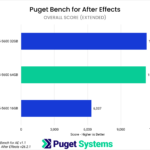
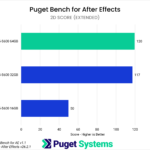
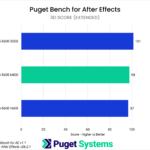
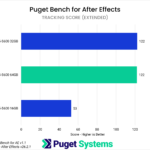

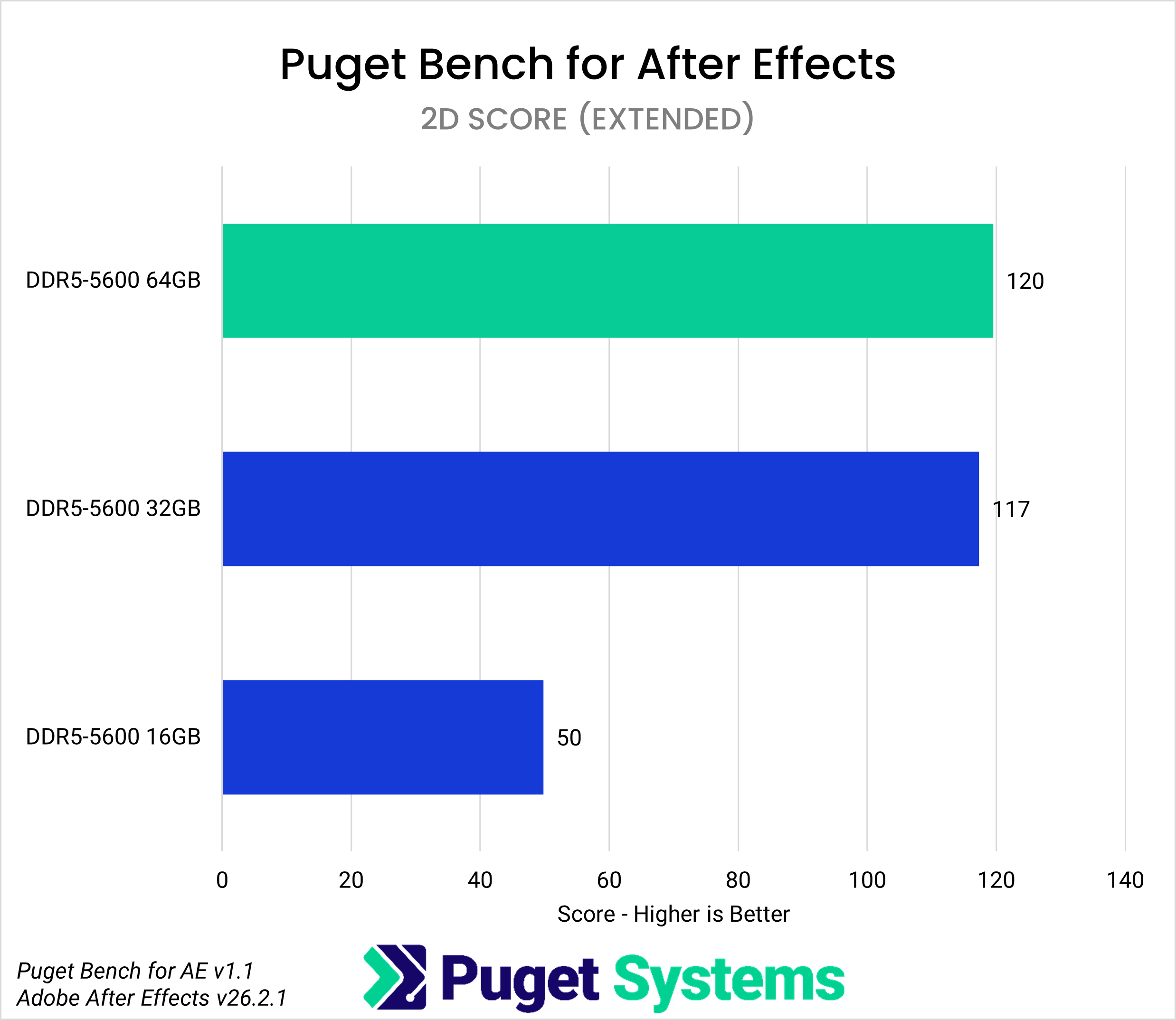
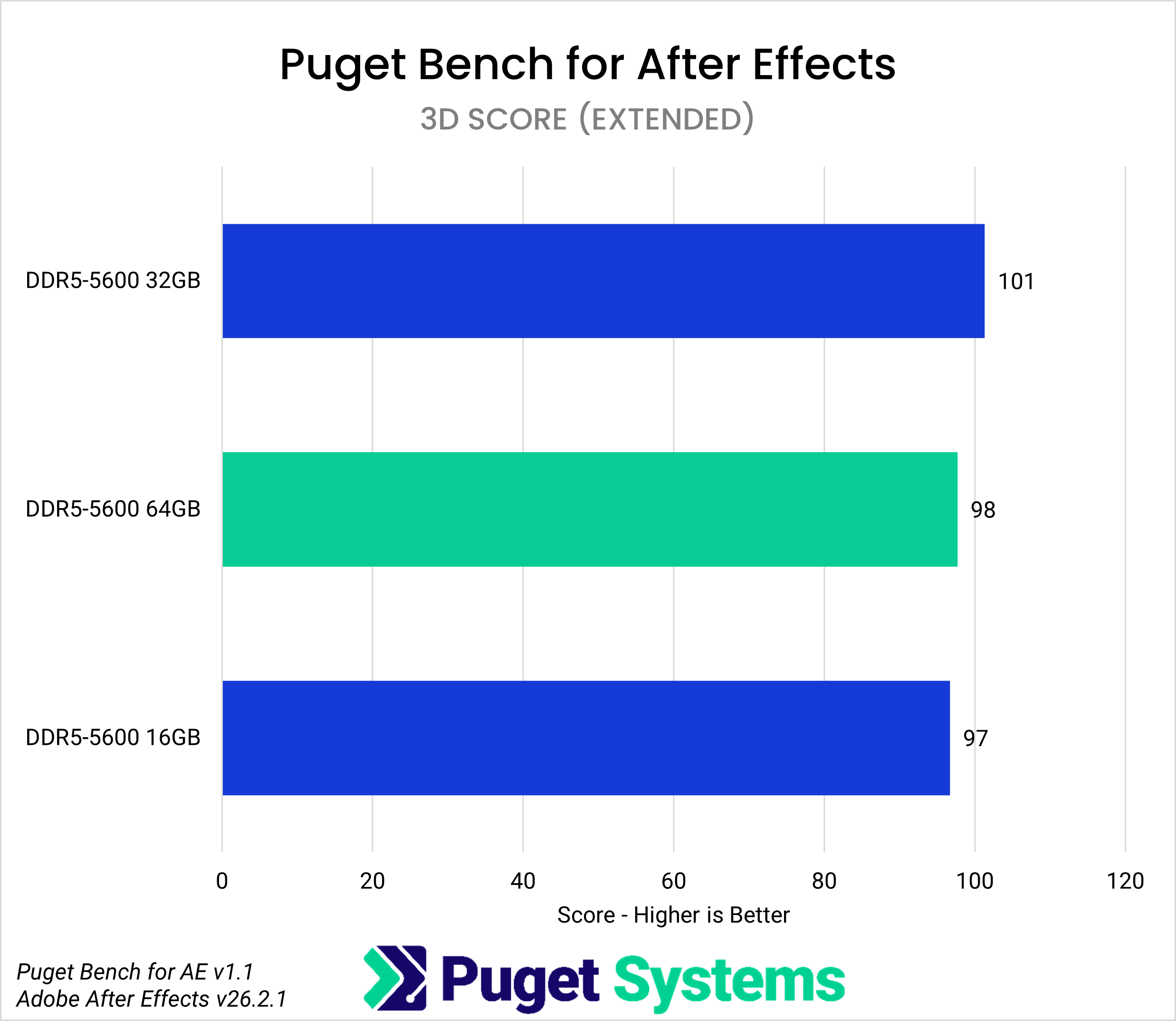
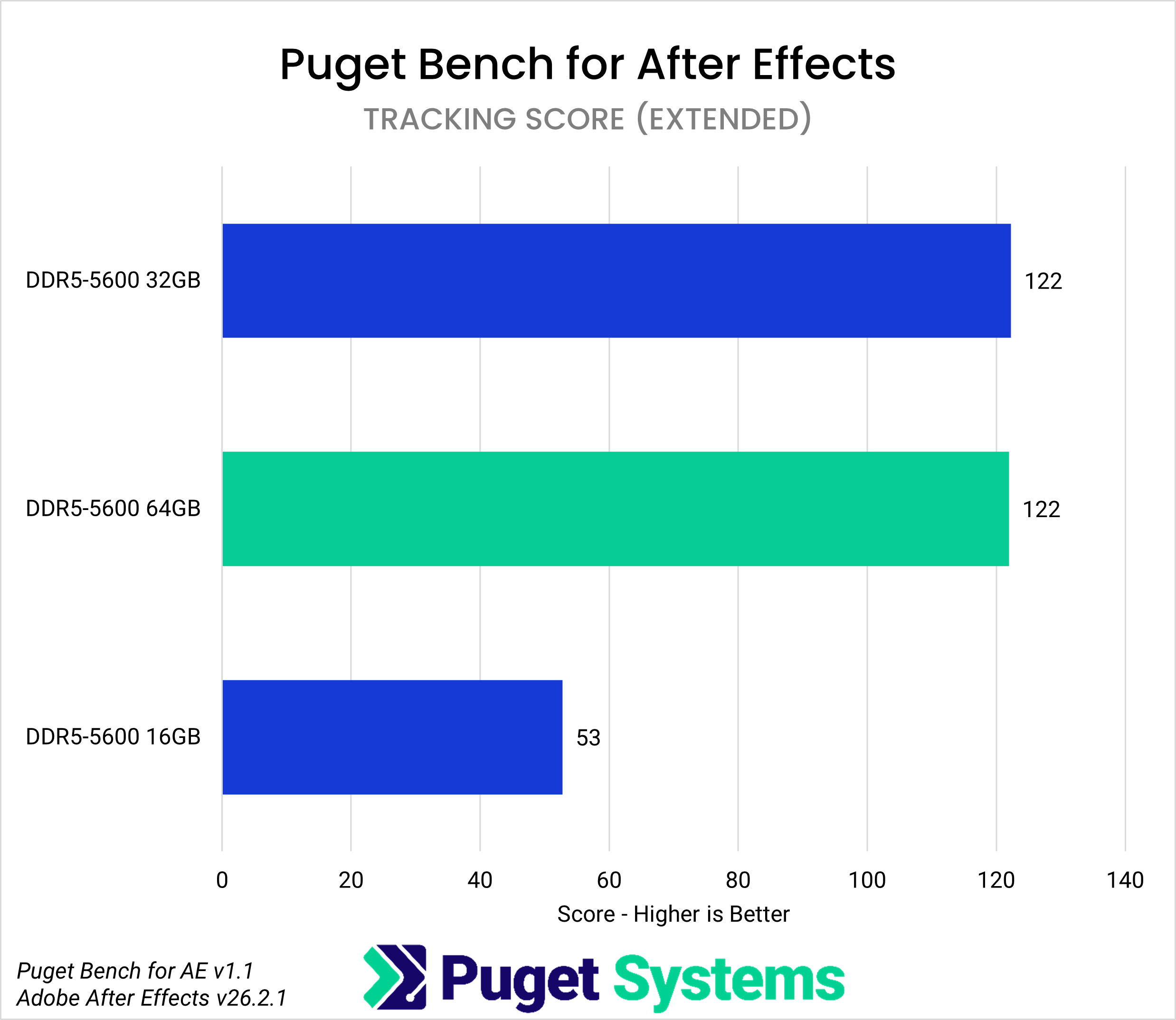
The Overall score (Chart #1) shows that when a system has enough memory (in this instance, 32 GB and 64 GB), there is no impact on performance. However, a system with 16 GB of RAM performs 43% lower than the 64 GB configuration. But it’s with 2D compositions that use the classic 3D renderer, as well as our tracking-based tests, where 16 GB of memory had the greatest impact on performance, with the 2D score (Chart #2) dropping by 58% and the Tracking score (Chart #4) by 56%. Interestingly, the 3D score (Chart #3) is not affected by RAM capacity, as all tests yielded consistent results.
While After Effects primarily uses memory for Preview playback, 2D compositions will see the greatest performance impact when RAM capacity is insufficient. For animations, motion graphics, or video compositing projects, 32 GB is a reasonable capacity for those with tighter budgets; however, as composition settings increase in resolution, frame rate, or duration beyond one minute, 64 GB will be needed to reduce performance issues related to RAM and to increase the amount of frames stored for playback.
Adobe Premiere
Premiere uses RAM to hold decoded video frames and buffered audio for editing, scrubbing, and playback. The decoding process produces data from two sources. First is the video clip, defined by footage specifications such as format (LongGOP, intraframe, RAW), resolution, frame rate, and clip duration, which contains a predetermined amount of data that Premiere decodes and stores as cache. Second is the sequence settings, which include their own resolution and frame rate parameters that the video clip, effects, graphics, and additional layers are conformed to. Each frame is then rendered and stored in RAM based on those settings.
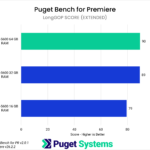
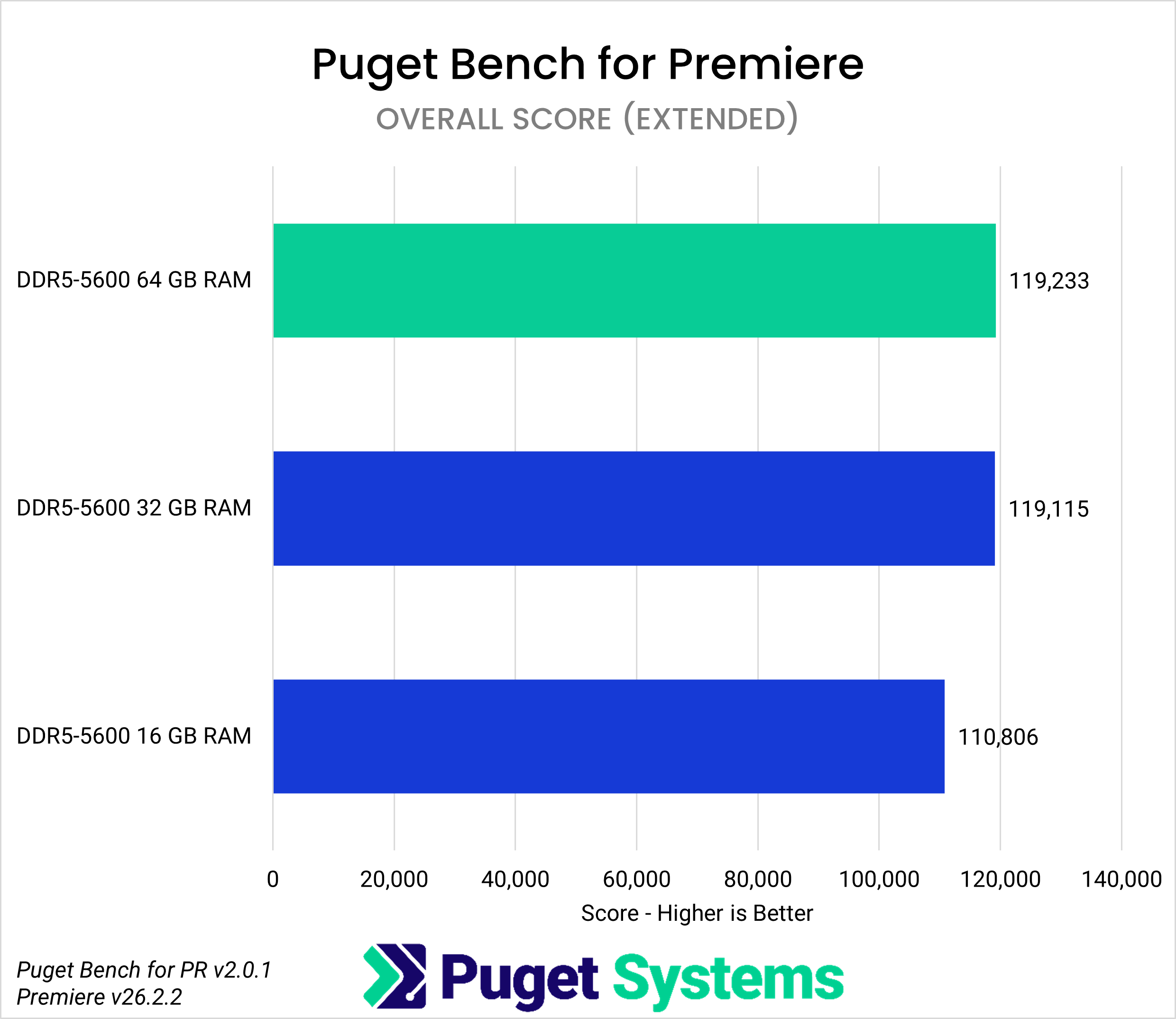
Looking at the Overall score (Chart #1), there is only a 7% difference between a system with 16 GB of RAM and both 32 GB and 64 GB. While this shows that RAM capacity has a relatively small effect on performance, 16 GB capacities are not recommended for video editing in Premiere, as our testing is not reflective of real-world projects. They can vary in the footage used, total duration of an edit, and other project parameters which can quickly fill memory and introduce other performance bottlenecks.
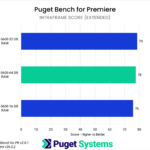
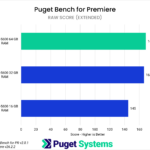
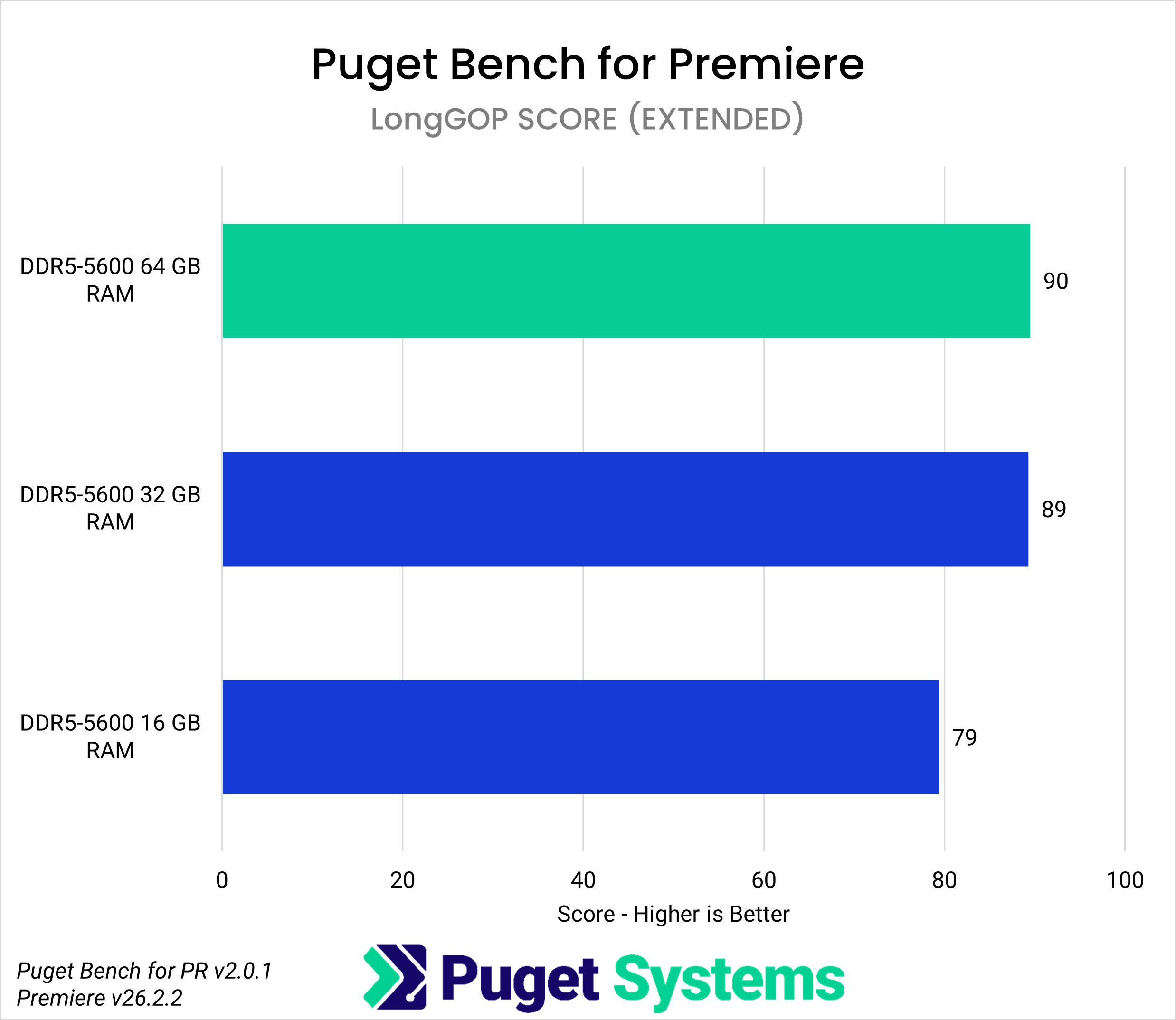
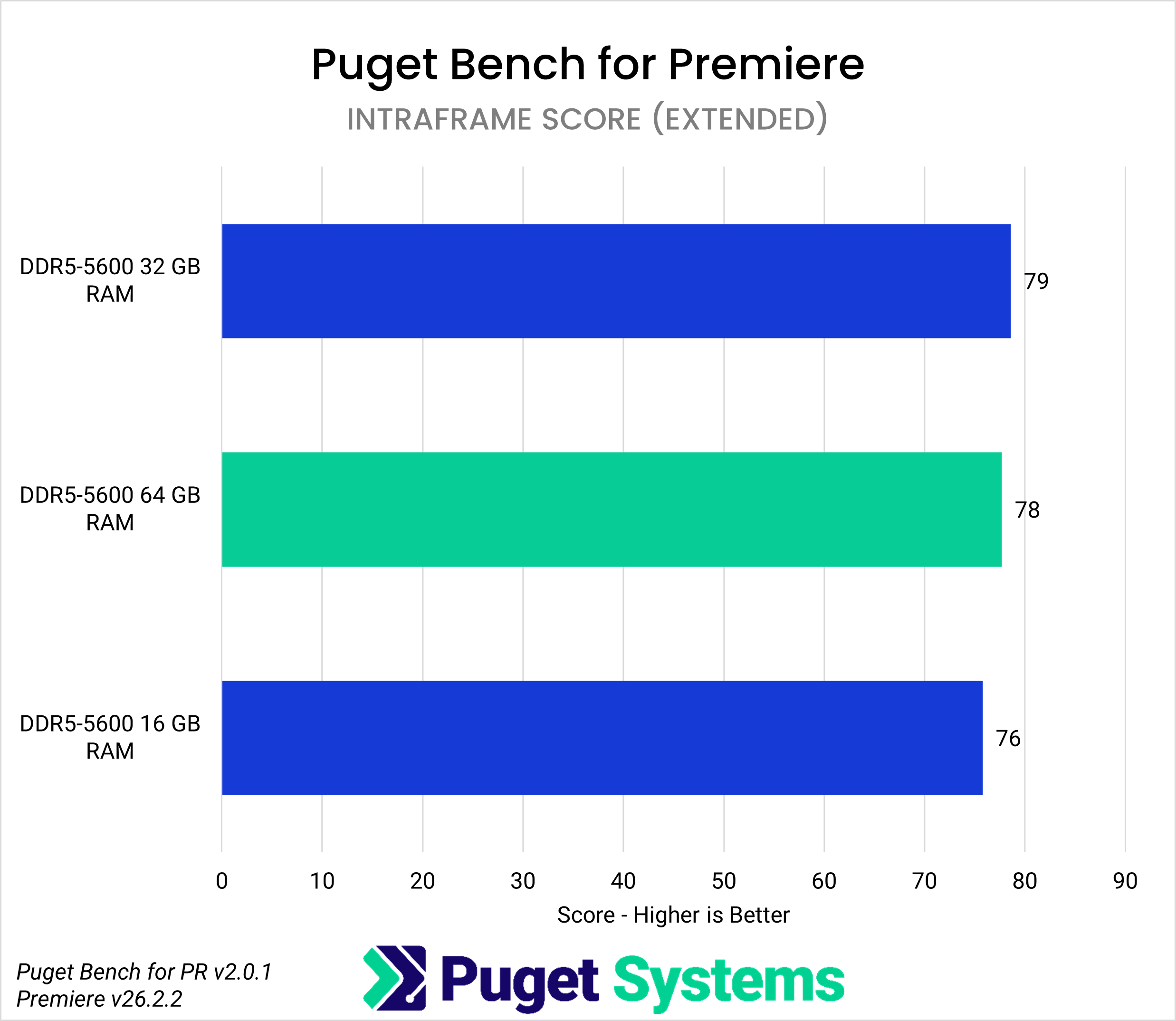
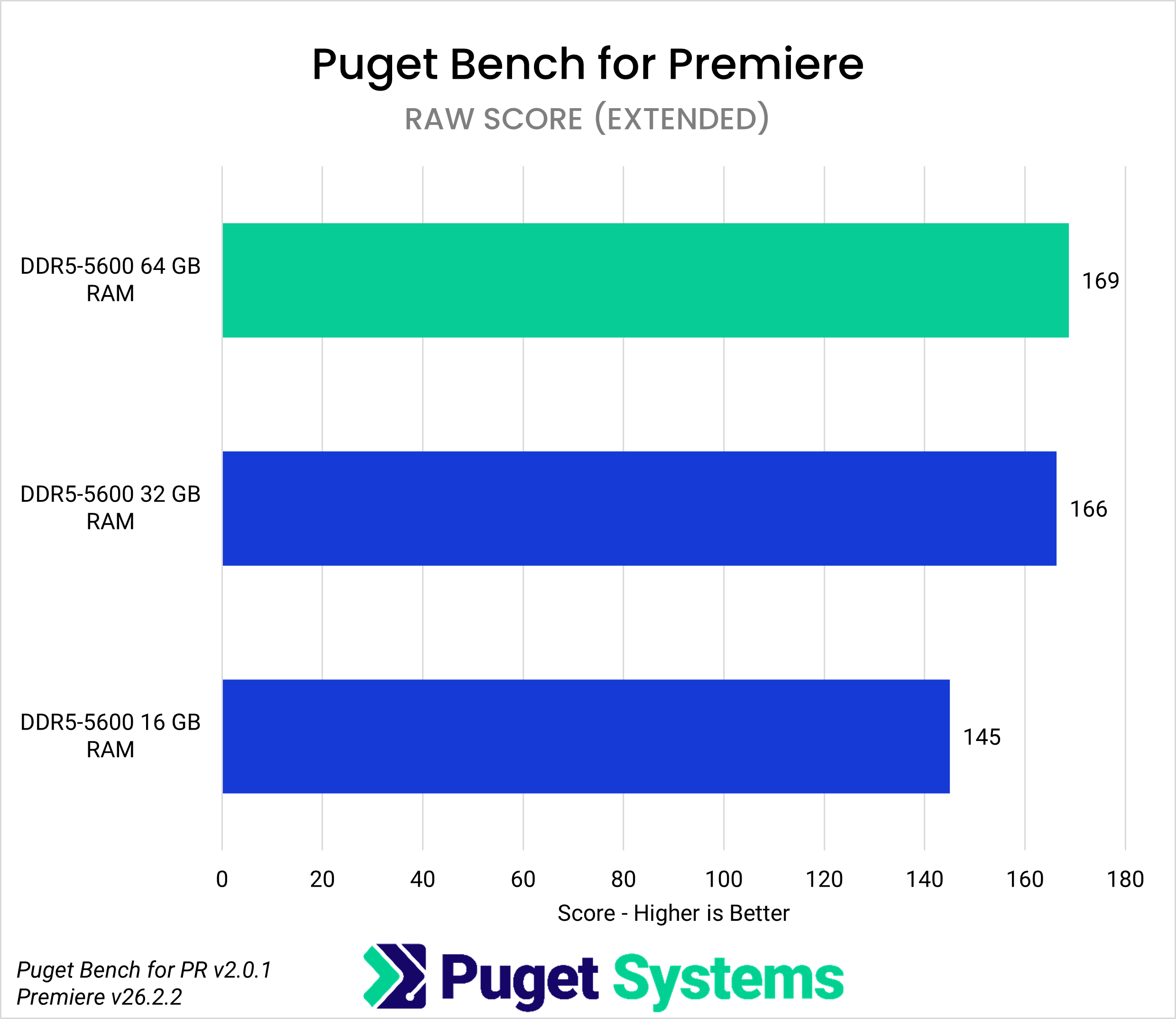
The LongGOP score (Chart #2) shows a 12% difference between the 16 GB system and both the 32 GB and 64 GB capacities. The Intraframe score (Chart #3), which includes video formats such as ProRes, shows no performance difference across the three capacities tested. In contrast, the RAW score (Chart #4) shows that RAW video file types edited on a system with 16 GB of memory will be 14% slower.
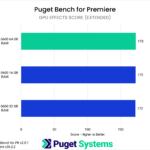
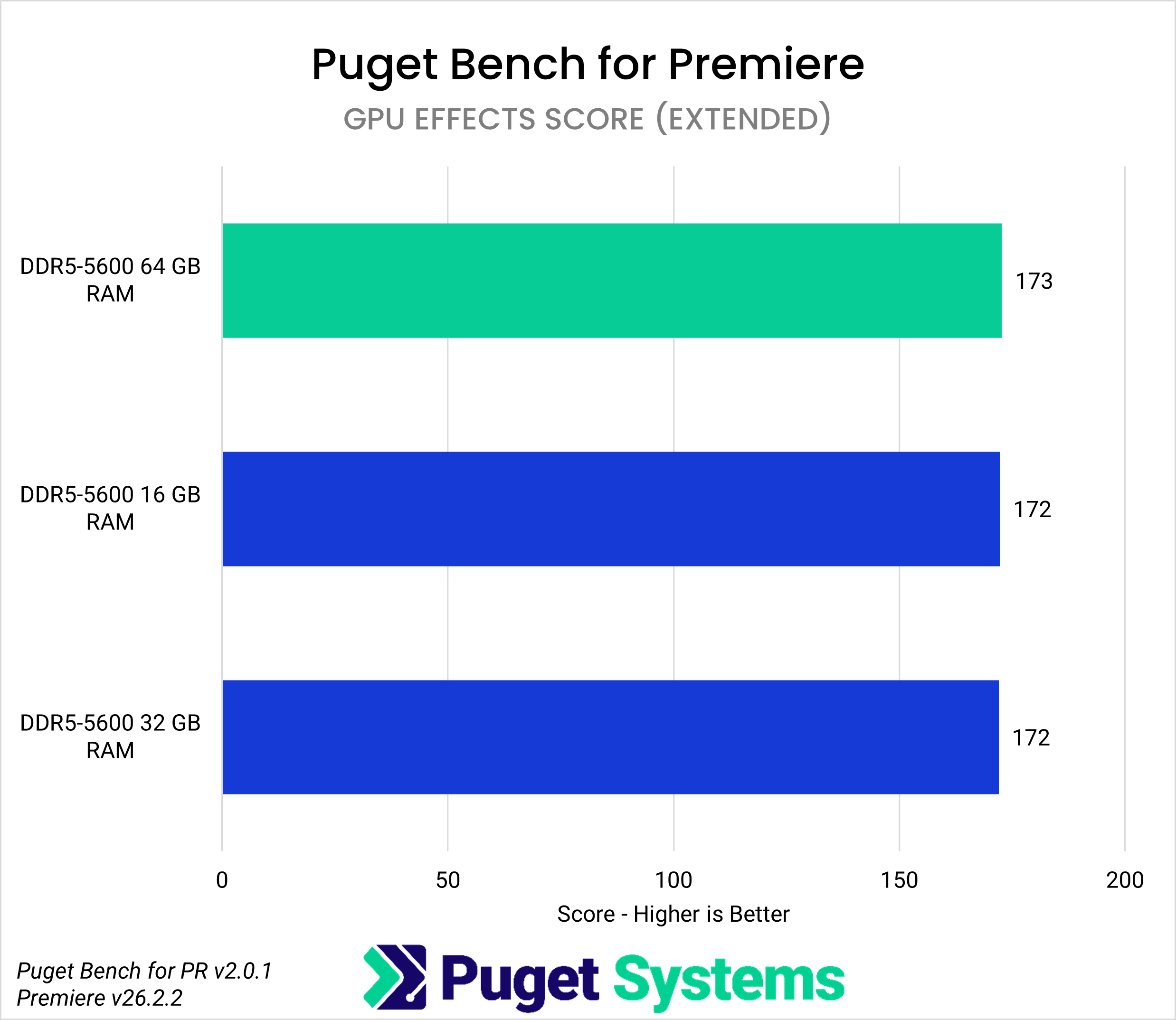
The last chart, GPU Effects (Chart #5), shows no change in performance across memory capacities, indicating that GPU effects rely solely on graphics-accelerated processing; however, this could change during playback and scrubbing, which is not captured in these benchmarks.
Memory has a lesser effect on Premiere performance, though our results showed that footage type can affect performance across different memory capacities. LongGOP video files are common in budget-friendly cinema cameras, while RAW formats are more demanding to process and require more memory during playback and editing. For Premiere, hobbyists working with lighter footage, such as H.264 8-bit 4:2:0 from devices like a GoPro, DJI Osmo Action, or Mavic drone, can start with 32 GB of RAM. For most other workflows, 64 GB is a good starting point for high-end video editing, although more memory may be needed depending on the workflow and workload.
DaVinci Resolve Studio and Fusion
Resolve has several pages, each designed for a specific type of workload. Whether it is for video editing, compositing, creating motion graphics with Fusion, mixing audio in Fairlight, or utilizing Resolve’s GPU effects and AI tools, each page uses RAM differently.
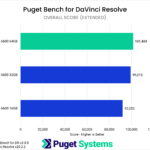
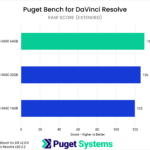
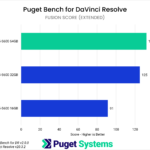
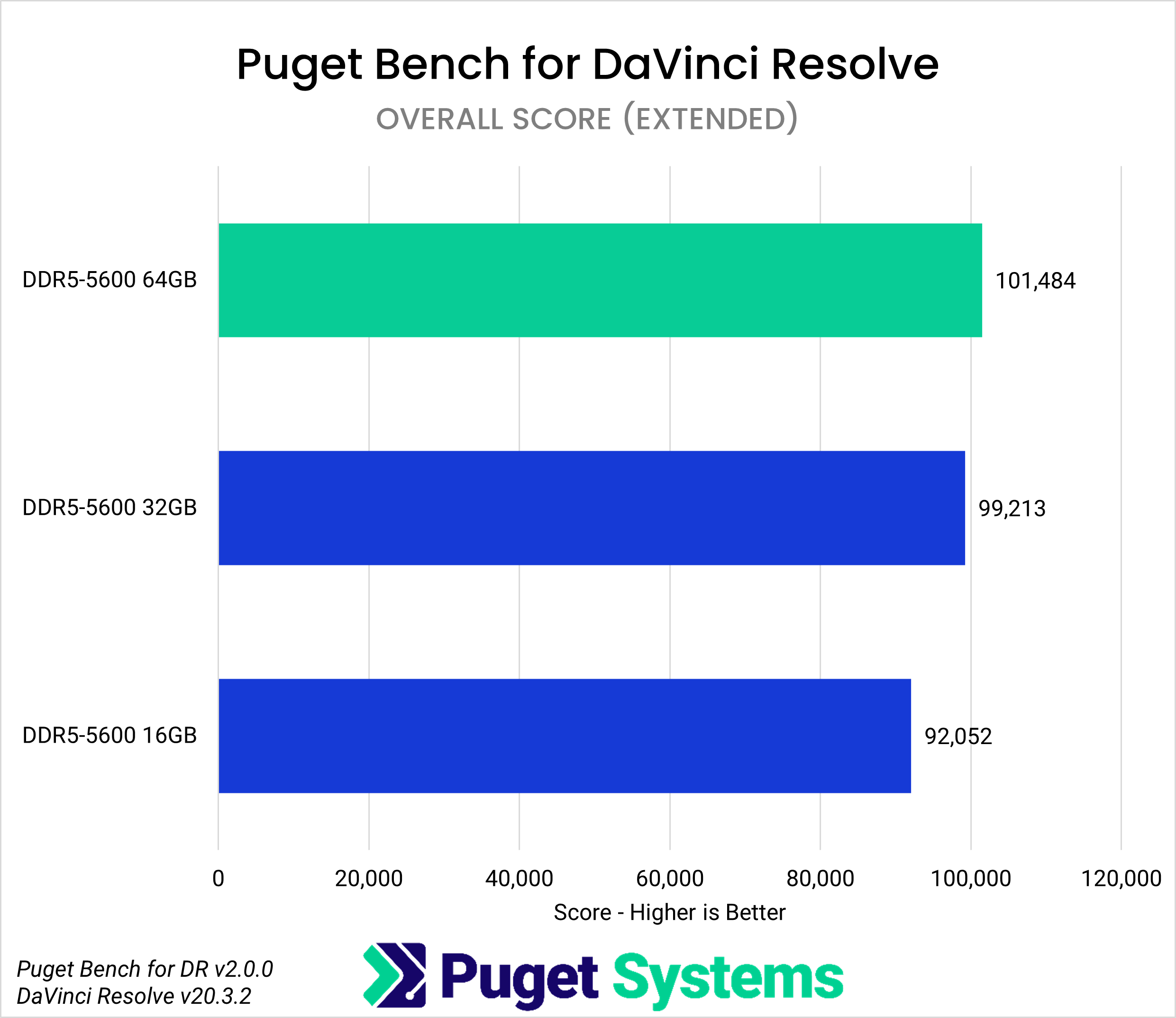
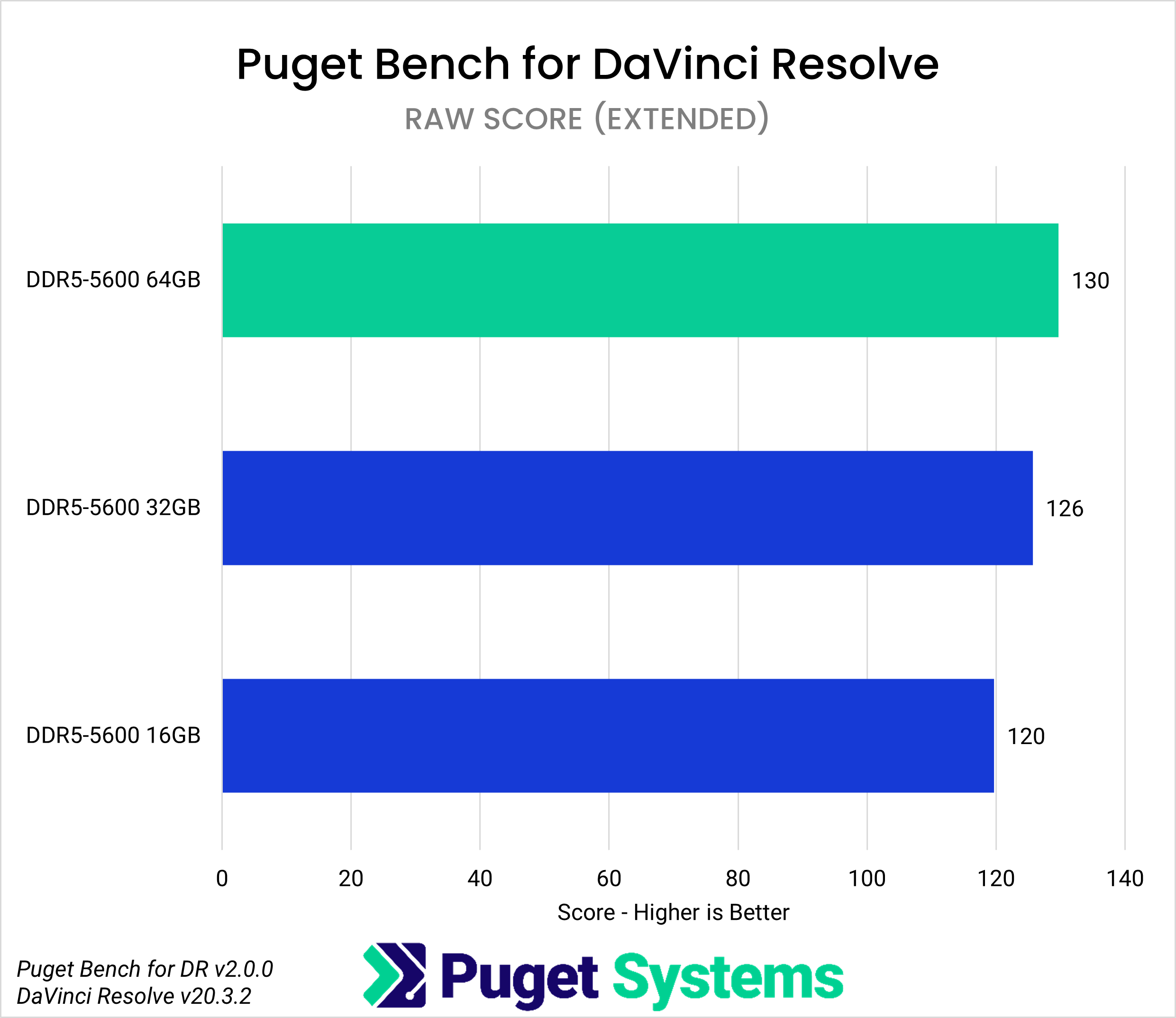
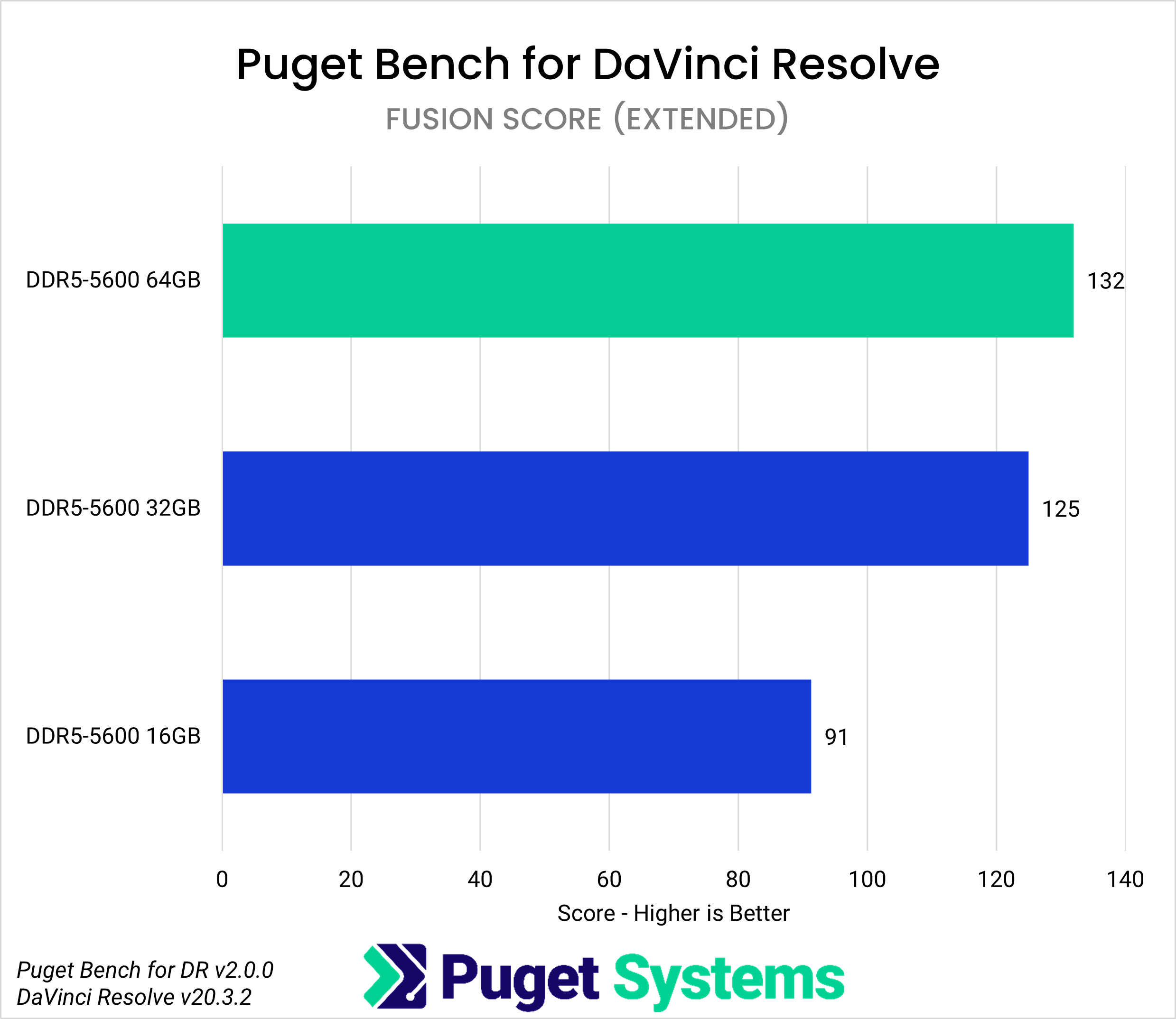
The Overall score (Chart #1) is 2.5% lower with 32 GB compared to 64 GB. While this score is unlikely to show any real differences in performance, the RAW score (Chart #4) and the Fusion score (Chart #5) show 3% and 5% drops, respectively. Both of these results fall within our normal variation, meaning that a system with 32 GB of RAM compared to 64 GB is unlikely to have a measurable impact on performance when editing RAW footage or working in Fusion.
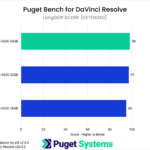
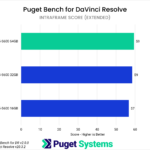
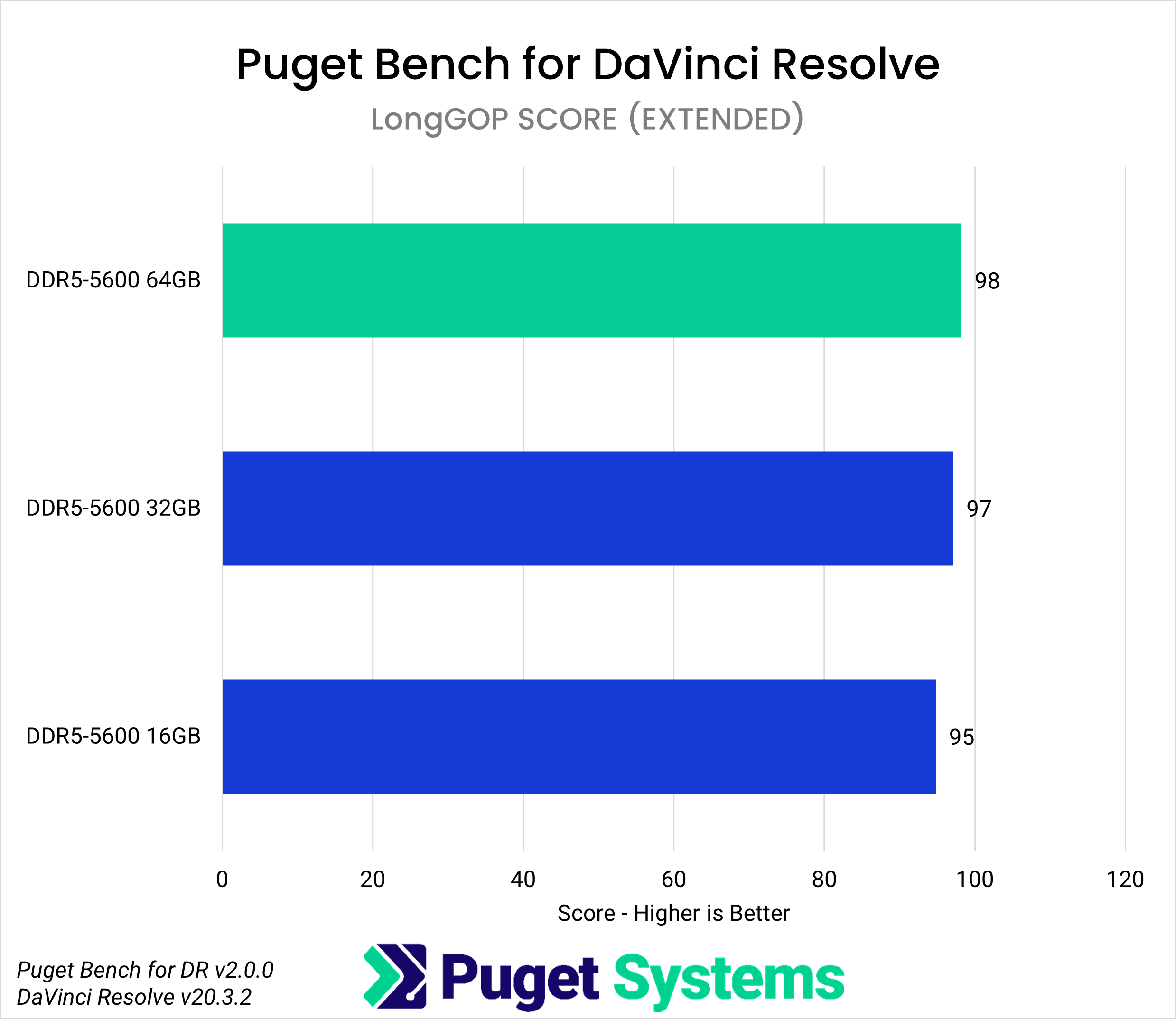
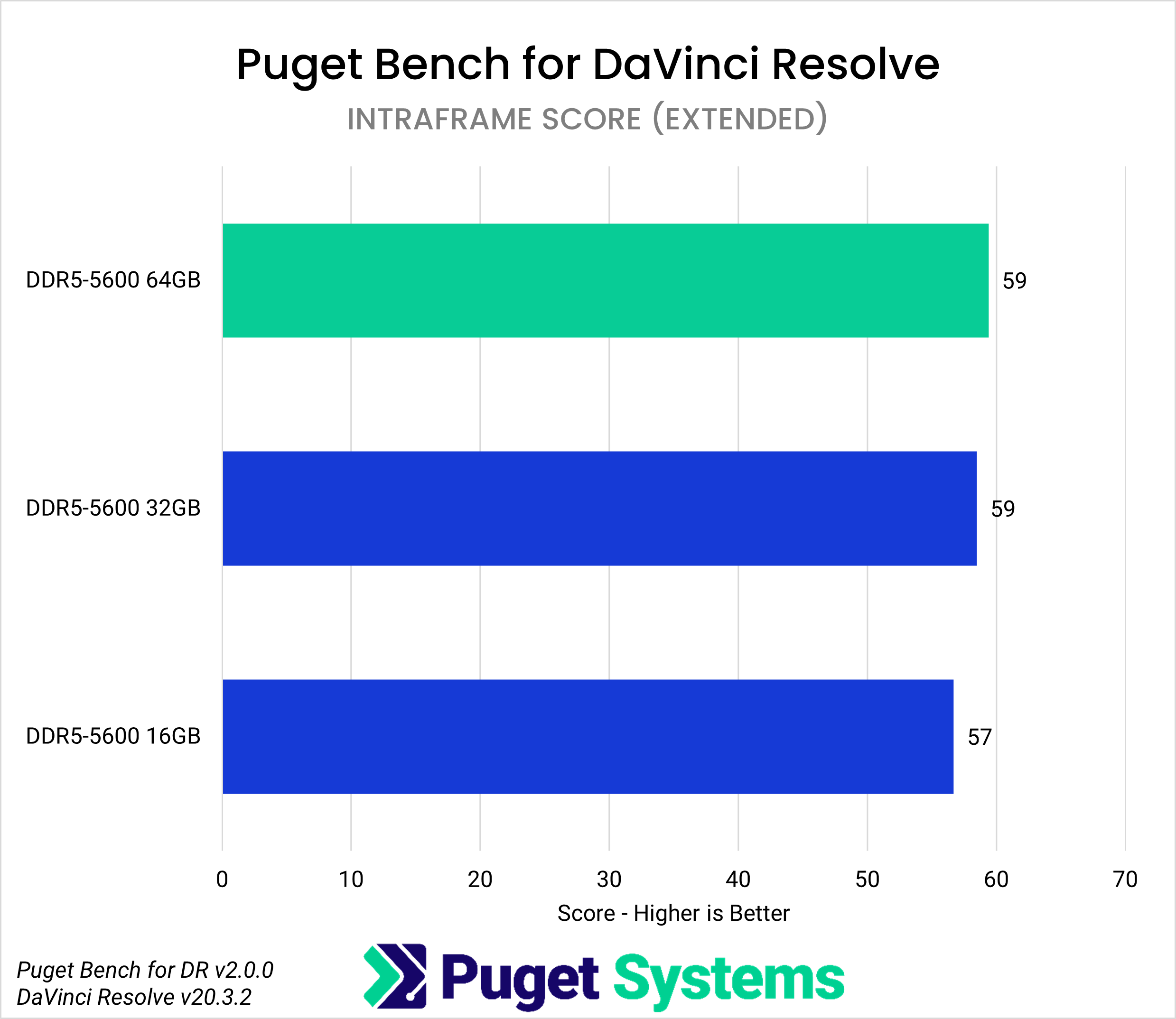
Results with 16 GB of capacity showed a 9% reduction in performance compared to the 64 GB configuration, as measured by the Overall score. When looking at video format-specific scores, the LongGOP score (Chart #2) and Intraframe score (Chart #3) both showed a 3% difference, while the performance difference based on the RAW score was slightly higher at 7%.
Most interestingly, the Fusion score shows that lower memory capacity has the greatest impact on Fusion performance, resulting in a 31% reduction. This result is most likely due to its node-based workflow, where each node processes and passes results through the compositing pipeline, increasing the amount of data stored in memory.
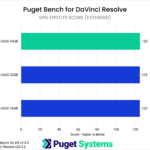
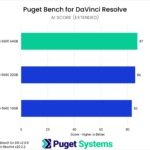
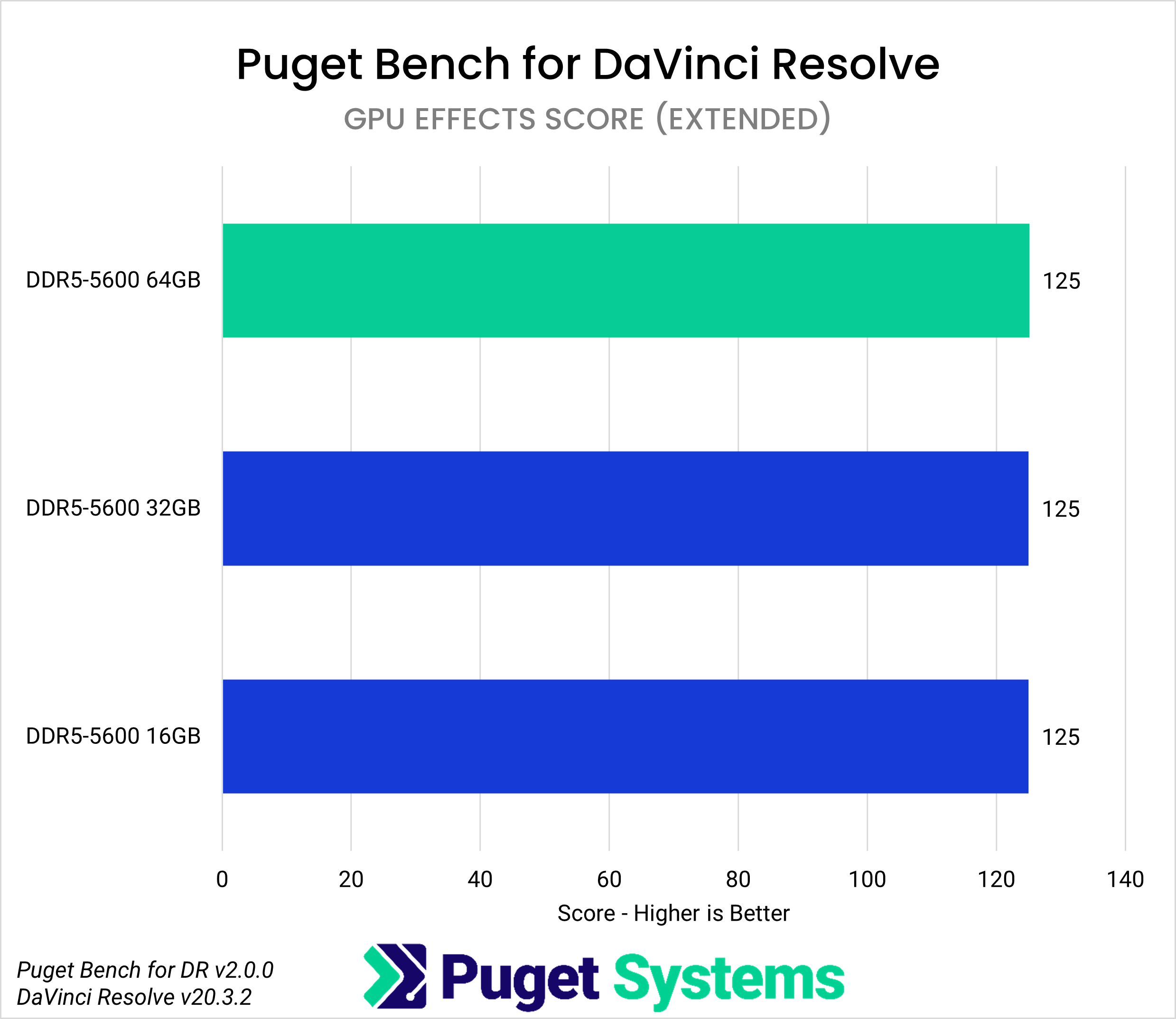
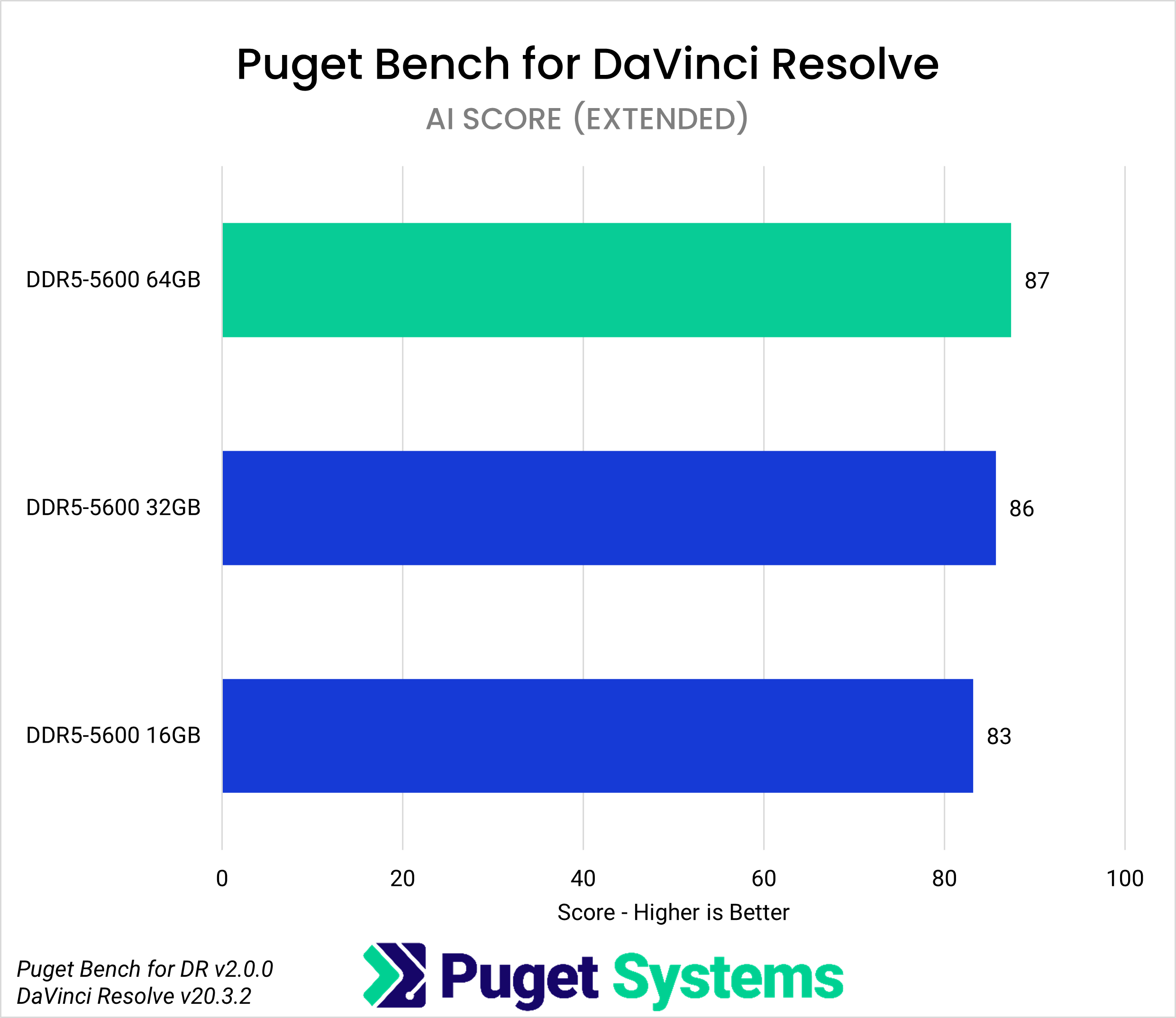
Lastly, the GPU Effects (Chart #6) and AI Scores (Chart #7) show no difference in performance across any of the three capacities tested, as the GPU primarily handles these processes.
Based on the results above, 64 GB of RAM is the threshold for Fusion. Video editing in Resolve is less affected by RAM capacity, though RAW workflows benefit from starting at 64 GB; higher capacities may be beneficial depending on the file type and the run-time of the sequence.
How Much RAM Is Needed for Content Creation?
Our testing showed that a system with 16 GB of RAM reduced performance across all content creation applications in the PugetBench for Creators benchmark suite. As such, it is not recommended for creative workloads – especially with top-tier components, as insufficient memory capacity can constrain the performance of CPU- or GPU-processed tools within an application. Lower-end components may be less affected, as they may already be constrained by other performance bottlenecks.
While some applications in our testing show minimal performance differences between 32 GB and 64 GB of RAM, this does not mean that 32 GB is the optimal amount of memory for all applications, workflows, and workloads. For lighter workloads where intensive processing is not required, 32 GB can be a cost-effective option, particularly for students or hobbyists who do not need a system to meet the day-to-day demands of complex creative work.
However, most professional content creators, or those working on complex projects, should consider 64 GB of RAM for their system, as this was the sweet spot in our testing. Some applications and workloads may even require more than 64 GB, depending on project complexity, and may exceed typical consumer platform limits (usually 128 or 256 GB, depending on the motherboard). Above that, workstation-class platforms with higher memory capacity may be required.

Looking for a Content Creation Workstation?
We build computers tailor-made for your workflow.

Don’t know where to start?
We can help!
Get in touch with one of our technical consultants today.