Table of Contents
Introduction
A monitor is one of the most essential tools for content creation because it is the window through which you make and evaluate your work. However, not all monitors are designed the same, and the images they produce can vary in brightness, color, contrast, and detail depending on the brand and model of display you are using.
For some types of projects, these differences may not matter much. In other cases, your monitor plays a more important role throughout the creative process, where its technical capabilities help you make precise adjustments to your images to comply with the deliverable specs of your project. Any inaccuracies in color, brightness, or detail can affect how your work appears on screen, potentially leading to issues when delivering your content to its intended distribution channels, such as digital displays, print, projection, etc.
With that context in mind, this post focuses on the monitor specifications that matter most for content creation. I will explain how various technical features tend to align with different workflows so you can choose a display that best suits your budget and role. Please note that the monitors referenced in this article are discussed solely based on their published technical specifications, not on internal testing or performance evaluations conducted by Puget Systems.
Technical Specs to Consider
The following sections outline monitor characteristics commonly referenced in technical specifications and explains how they relate to different content creation workflows. It does not cover underlying technologies, such as panel types (OLED, LCD, etc.), focusing instead on the technical capabilities most relevant to creative professionals.
Resolution and Pixel Density
Resolution refers to the number of pixels a monitor can display horizontally and vertically, ranging from HD (1920×1080) to 4K (3840×2160) and even 8K (7680×4320)! Higher resolutions make fine details in an image or scene easier to evaluate for any necessary edits.
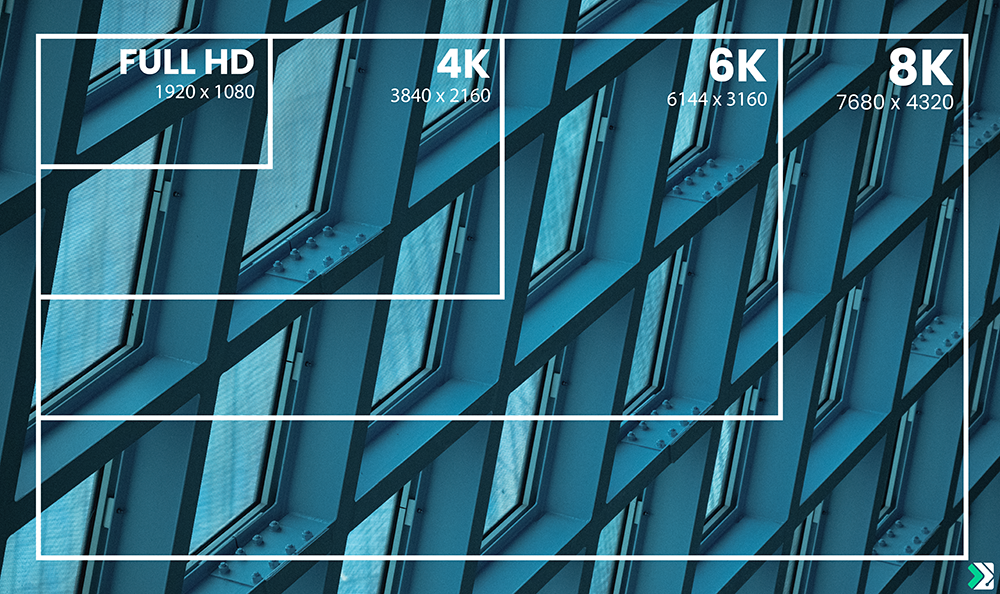
In addition to pixel count, the monitor’s physical size affects how clearly those details are seen. Two monitors with the same resolution but different dimensions will have varying densities, measured in pixels per inch (PPI), which determine how sharp the image appears. Smaller screens pack the same number of pixels into a tighter area, which can make text and images appear sharper. On larger screens, those same pixels are spread over a wider area, which can make fine details appear slightly softer at the same resolution. If a monitor has a higher PPI count, fine details are easier to see up close or when zoomed in, but the benefits diminish as your viewing distance increases.
Understanding the trade-offs of monitor resolution can help you choose a display that fits your workflow. Higher-resolution monitors generally cost more as pixel count and/or screen size increases. Aside from image quality, they provide more viewable space and make it easier to manage multiple applications on one screen, which can improve both efficiency and the quality of your work. That said, higher resolution is not always necessary. Lower-resolution monitors can still be effective for tasks where pixel-level detail is less critical, such as general computing or displaying software interfaces rather than the content itself. The optimal resolution you’ll need ultimately depends on the monitor’s role in your workspace, your budget, and the demands of your workflow and projects.
Bit Depth
Bit depth determines the number of colors a single pixel can display within a color channel, such as red, green, or blue (RGB), which affects how accurately a monitor displays brightness, saturation, and intensity.
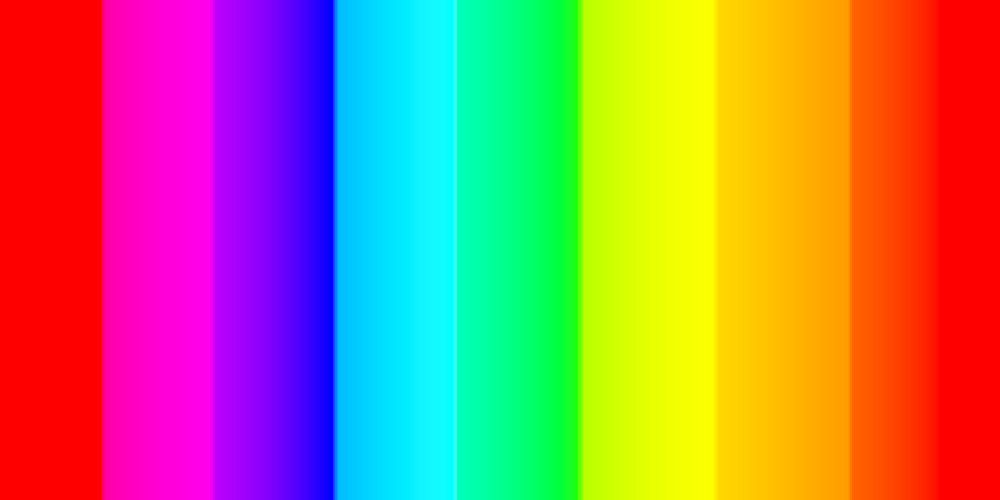
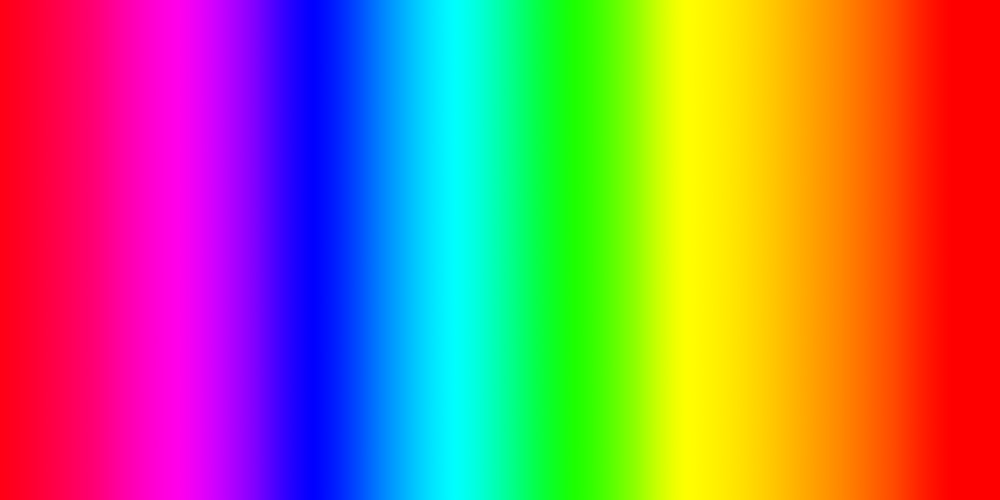
Most prosumer and professional monitors use 8-bit panels, which are sufficient for standard dynamic range (SDR) workflows. Some monitors use 8-bit + FRC panels, which employ Frame Rate Control (FRC) to simulate 10-bit color. By rapidly alternating each pixel between color values, these panels create the appearance of additional shades similar to a true 10-bit display. For most workflows, 8-bit + FRC displays are sufficient, particularly when deliverables remain within 8-bit, sRGB, or Rec 709 standards. True 10-bit panels are needed when project deliverables must adhere to specifications that exceed those 709 color spaces. This becomes more noticeable when pushing brightness and color far enough that smoother gradients and consistent color matter.
Higher bit depths reduce banding and allow greater latitude when adjusting brightness, color, and contrast within the monitor’s capabilities. This is important for high dynamic range (HDR) content. For example, a 10-bit channel can display 1,024 levels per color, compared to 256 levels for an 8-bit channel, providing each pixel with more information to reproduce nuanced variations in brightness and color. With more information per pixel, 10-bit panel monitors support workflows that comply with industry standards and certifications, such as HDR10, HLG (Hybrid Log-Gamma), and Dolby Vision.
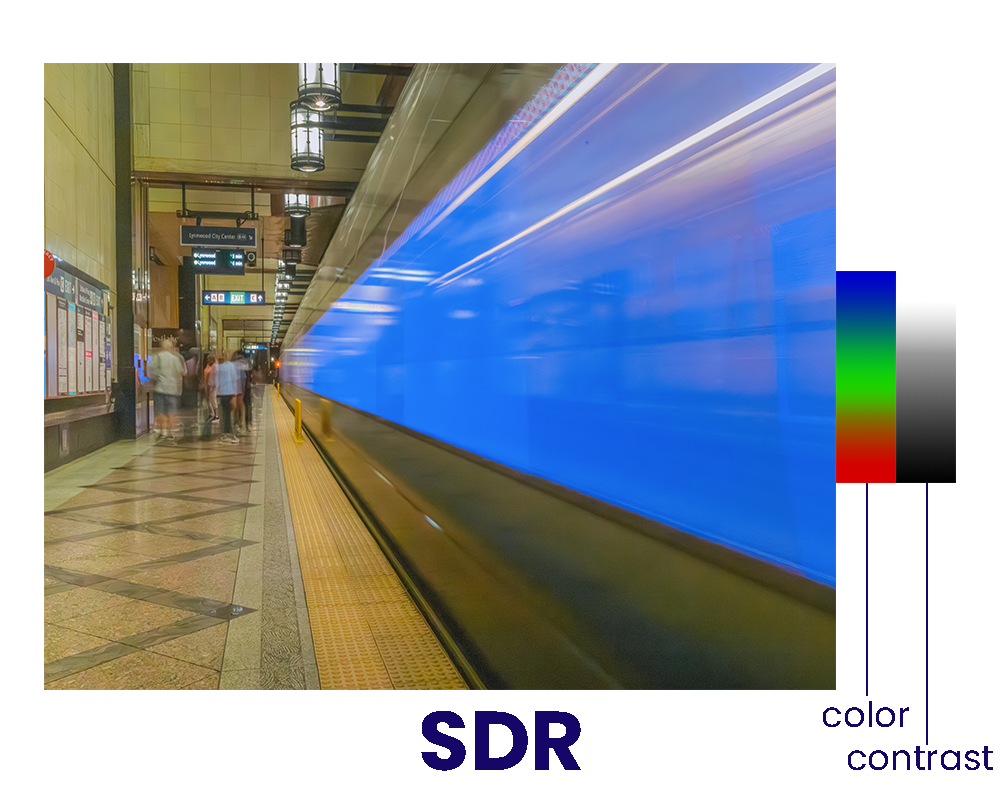
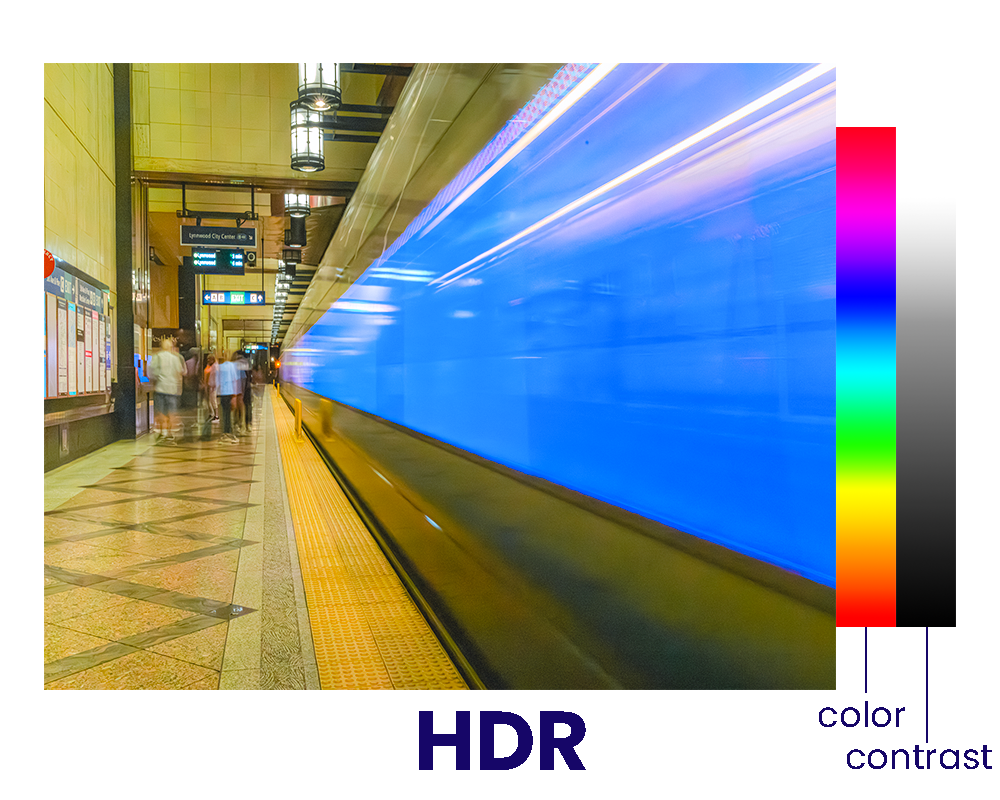
However, even if a monitor supports higher bit depths, it can only display the full range of colors if the operating system, software, and GPU can deliver that signal. For example, NVIDIA GeForce RTX™ 50-series video cards support DisplayPort 2.1b and HDMI 2.1b, with maximum output capabilities that vary by resolution, refresh rate, and the number of monitors connected. If your setup exceeds these limits, HDMI and DisplayPort outputs may not provide the required bit depth or refresh rate for all displays simultaneously. In such cases, SDI outputs can route uncompressed high-bit-depth signals to one or more monitors, though this requires additional hardware—such as a Blackmagic Design 8K Pro G2 Capture Card—to provide SDI in/out for your system.
Color Accuracy
Color accuracy measures how faithfully a system reproduces intended colors from the source to the display. Even a monitor capable of displaying a wide range of colors can show inaccuracies if uniformity is uneven across the panel, it isn’t correctly calibrated, or software settings differ from the project’s color profile or intended delivery specifications.
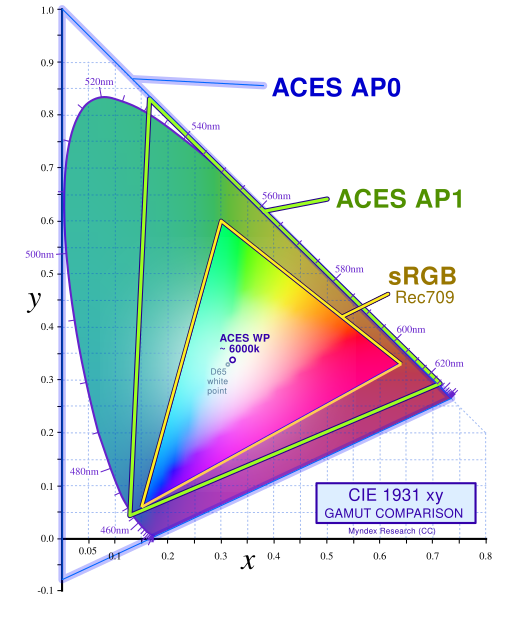
To display accurate colors, monitors cover different color spaces and color gamuts, such as sRGB, Adobe RGB, ProPhoto RGB, DCI-P3, Rec 709, and Rec 2020. A color space is a numerical range of colors that can be reproduced across the screens of various devices, while a color gamut describes the range of colors a specific display can actually show within that space.
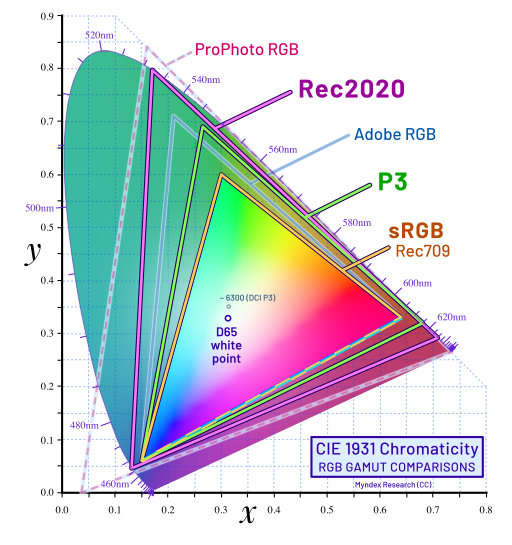
Other factors can also affect how accurate color appears on a display. Some panels carry certifications such as VESA DisplayHDR, Pantone, or Calman, meaning the monitors have met specific criteria for color accuracy within the color, luminance (brightness), and contrast ranges measured for each certification. Colors can also shift when moving files between monitors or devices with different settings, and displays can gradually drift over time, altering how colors and brightness appear. Calibration tools measure and adjust a monitor to reproduce the intended color values, while ICC profiles—standardized files that describe how colors should be displayed—help maintain accuracy across multiple monitors and devices.


Aside from ICC profiles, which handle color management at the device level, there are also color management systems such as ACES and OpenColorIO (OCIO) that control how color values are interpreted and transformed across software applications and file formats.
Recommendations for Content Creation
While there are many monitors to choose from, the options narrow considerably once you focus on displays designed for content creation rather than general-purpose use. If you’re editing photos or video, color grading, or working on any graphic design, animation, or VFX projects, then the nuances of your workflow can help determine which monitor is worth considering investing in.
The monitors recommended in the following sections are expected to remain applicable for many years to come, barring any major shifts in display technology, supply issues, or workflow trends that would make them obsolete. These displays were not evaluated for subjective image quality, long-term reliability, or system compatibility. While budget may be a consideration, the primary focus here is to provide you with a short list of screens with features best suited for creative work, along with resources to help you conduct further research to decide which monitor best fits your needs.
Furthermore, these sections do not attempt to cover every professional monitor available for content creation. Rather, the recommendations highlight monitors that, based on published technical specifications, are ideally suited for a variety of content creation workflows. These recommendations reflect the current market, which is subject to change as models come and go, and I do not intend to update this post continuously.
Monitor for Mixed Content Creation Workflows
For those looking to invest in a single monitor capable of supporting all major content creation workflows, without investing in a high-end professional reference monitor, I recommend the ASUS ProArt PA32UCG‑K.
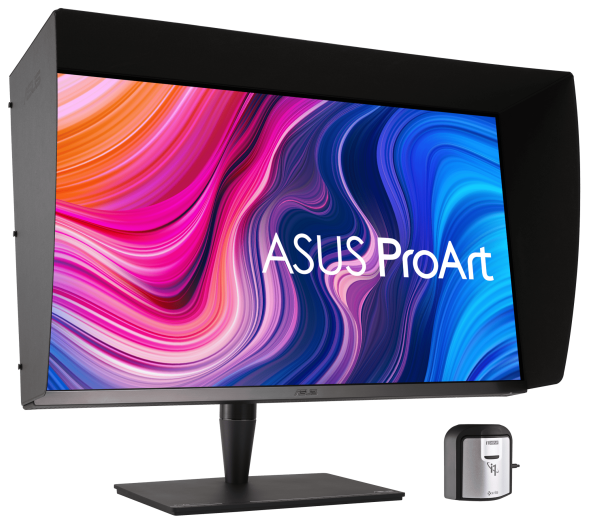
This 32-inch 4K mini-LED display, priced around $3,200, offers a set of technical capabilities that allow it to function across the various workflows discussed in this article. For photo editing, it covers 100% of the sRGB color space and approximately 99.5% of Adobe RGB, producing near-perfect color reproduction when editing images for display or print. With a true 10-bit panel, this monitor lets video editors and colorists work in Rec 709 and Rec 2020 color gamuts – great for those editing video and color grading RAW or 10-bit 4:2:2 formatted footage. It also supports high dynamic range standards, including Hybrid Log Gamma (HLG), HDR10, and Dolby Vision, projecting colors within Rec 2020 at 85% accuracy and DCI‑P3 at 98% accuracy.
For projects that move across multiple applications using a color management system such as ACES or OCIO, the monitor provides consistent color representation, helping animators and VFX artists maintain uniform textures, materials, lighting, shading, and color intensity across different displays and environments. With a refresh rate of 120 Hz, motion in animations and VFX simulations appears smoother than at 60 Hz, making it easier to evaluate timing and movement. It’s worth reviewing ASUS’s published specifications to ensure this monitor fits your requirements.
Monitor for Photo Editing
Color spaces like sRGB, Adobe RGB, and ProPhoto RGB represent progressively larger ranges of colors that a monitor can reproduce accurately. At the pixel level, more accurate colors let you see subtle differences in hue, saturation, and brightness, ensuring your edits and proofs appear as expected both on display and in print.
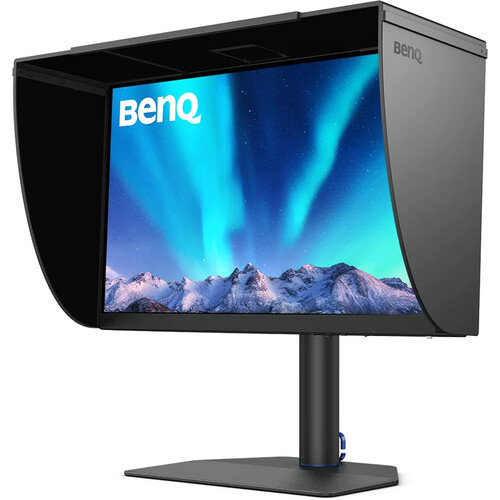
The BenQ PhotoVue SW272U is a 27-inch 4K IPS display that serves as an excellent alternative for photographers and editors who focus on still images, while also capable of handling light video work. Priced at $1,550, it is roughly half the cost of the preceding ASUS option.
This PhotoVue has a pixel density of 163 PPI, slightly higher than the ASUS ProArt above, which should show slightly better detail when making adjustments to your images. The monitor covers 100% of sRGB, 100% of Rec 709, 99% of Adobe RGB, and 99% of DCI-P3 color spaces. While this monitor offers better color accuracy and costs less than the ASUS, it has a 60 Hz refresh rate, an IPS panel instead of a mini-LED, and lacks specifications for some of the wider color gamuts. It’s worth reviewing BenQ’s published specifications to make sure this monitor will cover your needs.
Monitors for Video Editing and Color Grading
The color spaces used by editors, compositors, and colorists include Rec 709 and Rec 2020, which are common for broadcast and streaming; Rec 2100, which supports HDR workflows including HLG; and DCI-P3, used for digital cinema. Most projects will be completed within the Rec 709 space, while higher-end projects may require HDR finishing and a pipeline that allows multiple reviewers and stakeholders to evaluate visual adjustments and ensure the work meets project specifications.
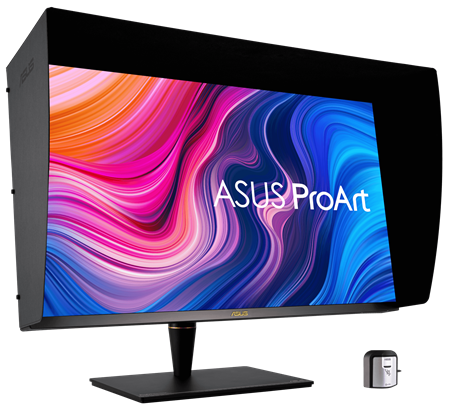
The ASUS ProArt PA32UCX-PK (not to be confused with the similarly named PA32UCG‑K) is a 32-inch 4K mini-LED display that can serve colorists, compositors, and video editors working on projects with multiple types of footage and delivery specifications. Priced at $1,900, it is roughly 40% less than the PA32UCG‑K. It has slightly lower peak brightness, a 60 Hz refresh rate, and standard HDMI connectivity instead of HDMI 2.1, making it less capable of handling extreme HDR highlights and high-frame-rate content. The monitor covers 89% of Rec 2020, supporting a wide HDR color gamut for grading most types of film and video content. It also supports HDR10, HLG, and Dolby Vision. It’s worth reviewing ASUS’s published specs to see if this monitor fits your workflow.
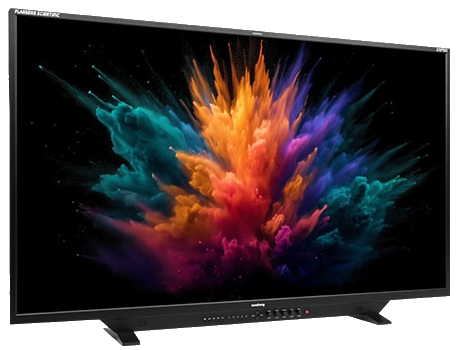
If you’re working in high-end video editing or color grading, the Flanders Scientific XMP551 is a 55-inch 4K QD-OLED reference display built for workflows that require precise color and luminance control. At approximately $21,000, it is a significant investment – but it provides the fidelity needed to evaluate high-luminance footage, see color accurately at each pixel, and leverage Flanders’ own wide color space for professional HDR grading. Its QD-OLED panel shows brightness and color more accurately than most prosumer or lower-end professional monitors. To use the XMP551, your system will need a capture card with SDI output or an HDMI-to-SDI converter. You may want to review the published specifications to ensure this monitor fits your needs, especially given the high price tag.
Monitor for Animation and VFX
In animation and VFX workflows, different roles will utilize various types of monitors throughout the content creation pipeline. More importantly, where you interact with and distribute an image or scene can help determine which monitor is best for you. While some roles specialize in creating visual assets, others work across multiple applications to assemble, refine, display, and review content throughout the pipeline. Whatever the task, your screen should help you make better creative and technical decisions.
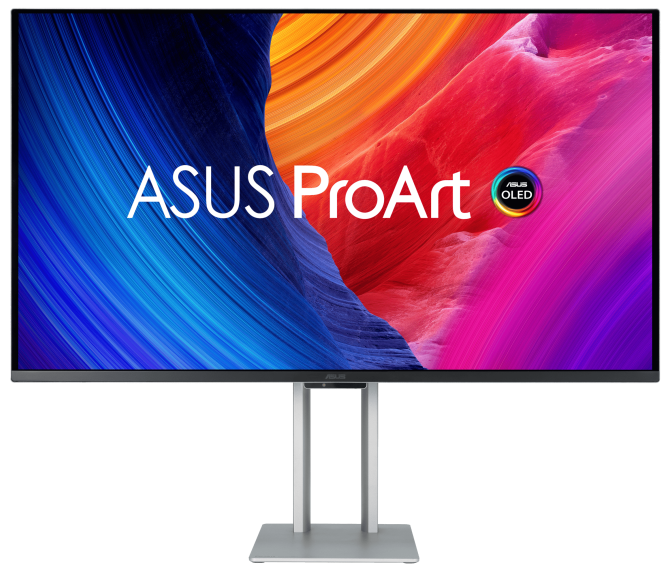
The ASUS ProArt PA32UCDM is a 32-inch 4K QD-OLED monitor that provides resolution, color accuracy, and refresh rates suitable for various tasks within animation and VFX pipelines. Priced around $1,700, it costs roughly 47% less than the ASUS ProArt PA32UCG‑K. Compared to that model, the PA32UCDM has slightly better DCI-P3 color accuracy at 99% and a higher refresh rate of 240 Hz, which can be beneficial for visual art departments that are working with LED walls or in other types of virtual production environments. Its brightness and contrast are slightly lower, but it still supports HDR10, HLG, and Dolby Vision. As with our other recommendations, it’s worth reviewing the technical specs to verify if this monitor is a good fit for your specific situation.
Conclusion
Choosing a monitor involves more than just resolution and screen size. Color accuracy, wide color gamut coverage, pixel density, and industry certifications can help meet the requirements of your projects or expand your capabilities as a creator, whether you’re editing photos, grading color, or creating textures and materials in computer graphics.
Other factors—like workspace setup, the types of projects you take on, panel technology, and budget—also influence which monitor will fit your workflow best. The hardware in your system and the working environment, whether a home office, studio, or post-production facility, can affect which features will have the greatest impact.
For photo editing, monitors that accurately reproduce sRGB, Adobe RGB, or ProPhoto RGB color spaces and offer higher pixel densities give you greater control to adjust color and refine details in your images.
Video editors and colorists often work within the Rec 709 gamut, but if your projects require Rec 2020 and HDR as deliverable specs, a display that provides greater accuracy in wider color gamuts can let you push black and white values to those parameters. This may be further enhanced with panels that use newer technologies like QD-OLED.
In animation and VFX workflows, resolution and screen real estate support texture creation and multi-application tasks, while using color-managed systems like ACES or OCIO with monitors that deliver near-perfect accuracy ensures that colors and luminance remain consistent when moving files between applications or across different workstations.
Lastly, I would encourage you to review published specifications and explore the full range of monitors available for content creation from brands such as Dell, EIZO, LG, SmallHD, Sony, and ViewSonic—in addition to those suggested above—as some models may better fit your workflow and budget.
Please feel free to share your experiences and feedback with different types of monitors in the comments below!
If you need a powerful computer to pair with a professional monitor, the Puget Systems workstations on our solutions page are tailored to excel in various software packages from content creation to engineering and scientific computing. If you prefer to take a more hands-on approach, our custom configuration page helps you to configure a system that matches your exact needs. Otherwise, if you would like more guidance in configuring a workstation that aligns with your unique workflow, our knowledgeable technology consultants are here to lend their expertise.

Looking for a Content Creation workstation?
We build computers tailor-made for your workflow.

Don’t know where to start?
We can help!
Get in touch with one of our technical consultants today.