Recently, I had a discussion with a 2D and 3D graphics artist about their workflow. During our conversation, they mentioned some applications they’ve been experimenting with to create content that feels different from their usual work. After these kinds of conversations, I usually feel inspired to create something new and fresh. Coincidentally, a few days later, a co-worker told me about the motion graphics feature in Unreal Engine and asked whether I had ever used it. I told them I had not, but that I would look into it.
The timing of these two interactions was subtly perfect, as I’ve been wanting to learn Unreal Engine for quite some time now – not necessarily for motion graphics, but out of general curiosity and an interest in making short films. These conversations, along with Unreal Fest coming up, were enough to push me to finally commit to exploring and learning Unreal.
First Impressions
Before I go over my experience with Unreal Engine, I want to mention that it is a robust, complex application that supports a wide range of industries and project types. Epic Games originally designed Unreal as a game engine, but it now also supports virtual production, ICVFX workflows, architecture, simulation, product design, and motion graphics.
While motion graphics is just one of the many workflows that Unreal supports, most animators and designers already have a preferred application for the bulk of their work. Whether it be After Effects, Blender, Cavalry, Fusion, Maya, Nuke, or TouchDesigner, each program offers a unique set of tools and capabilities, even when there is overlap in what they can accomplish. With that in mind, I wanted my exploration to focus on Unreal’s motion graphics features – to see how it fits in as another tool for animation, without getting lost in its other capabilities.
I had a month to test and write up a summary of my experience before Unreal Fest, so I signed up for a School of Motion course: Unreal Engine for 3D Artists, hosted by Jonathan Winbush. This gave me a fast-tracked learning experience so I could focus on gaining as much experience in Unreal without having to curate and learn from random YouTube tutorials.

I moved through the course at a slower pace, taking extra time to get comfortable with the UI and to learn best practices for working in Unreal, including organizing projects and managing assets, setting up scenes, and working in the Level Editor. Winbush has great advice for navigating and creating a scene.
Image
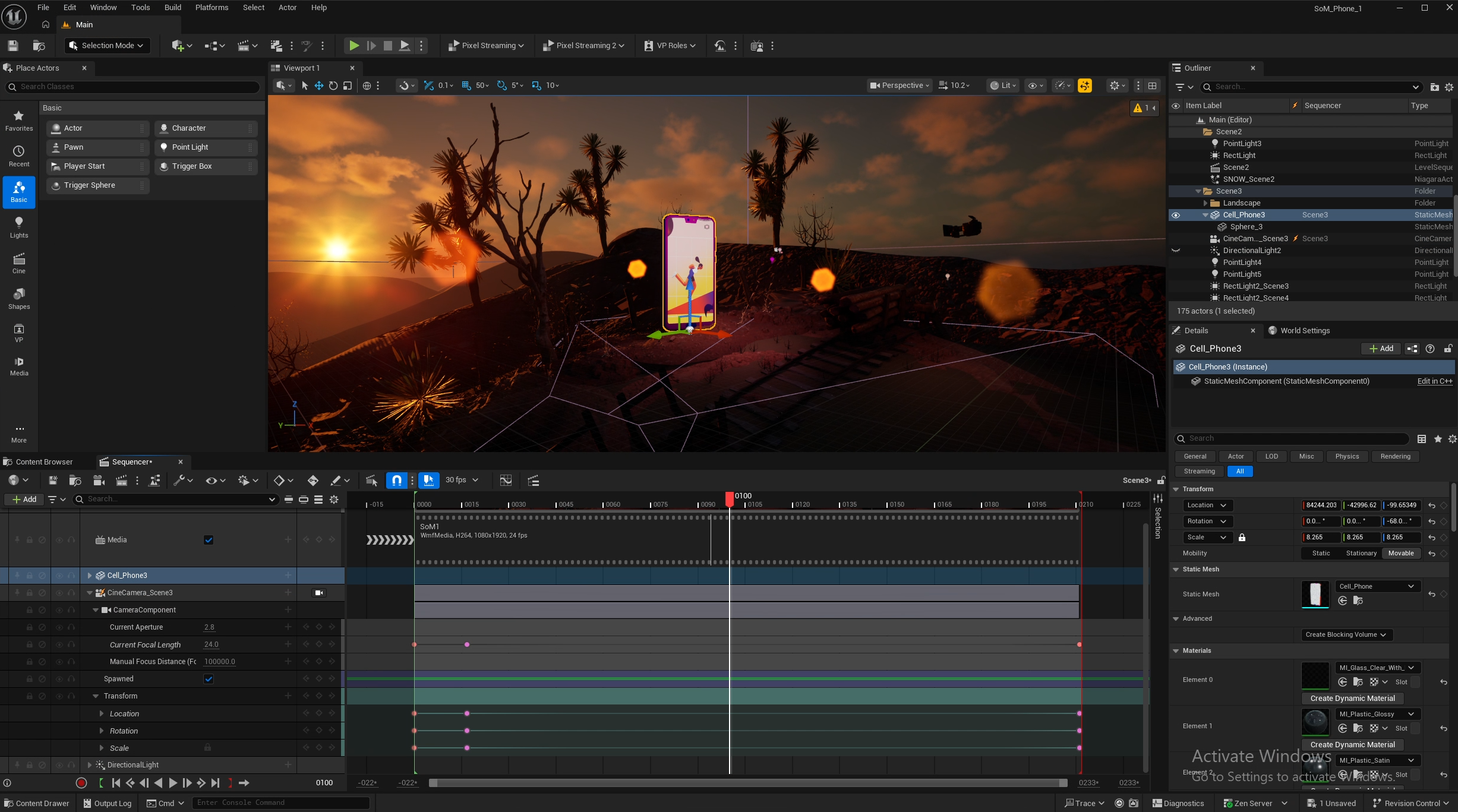
Level-Sequence Editor for my Wild West scene from the course
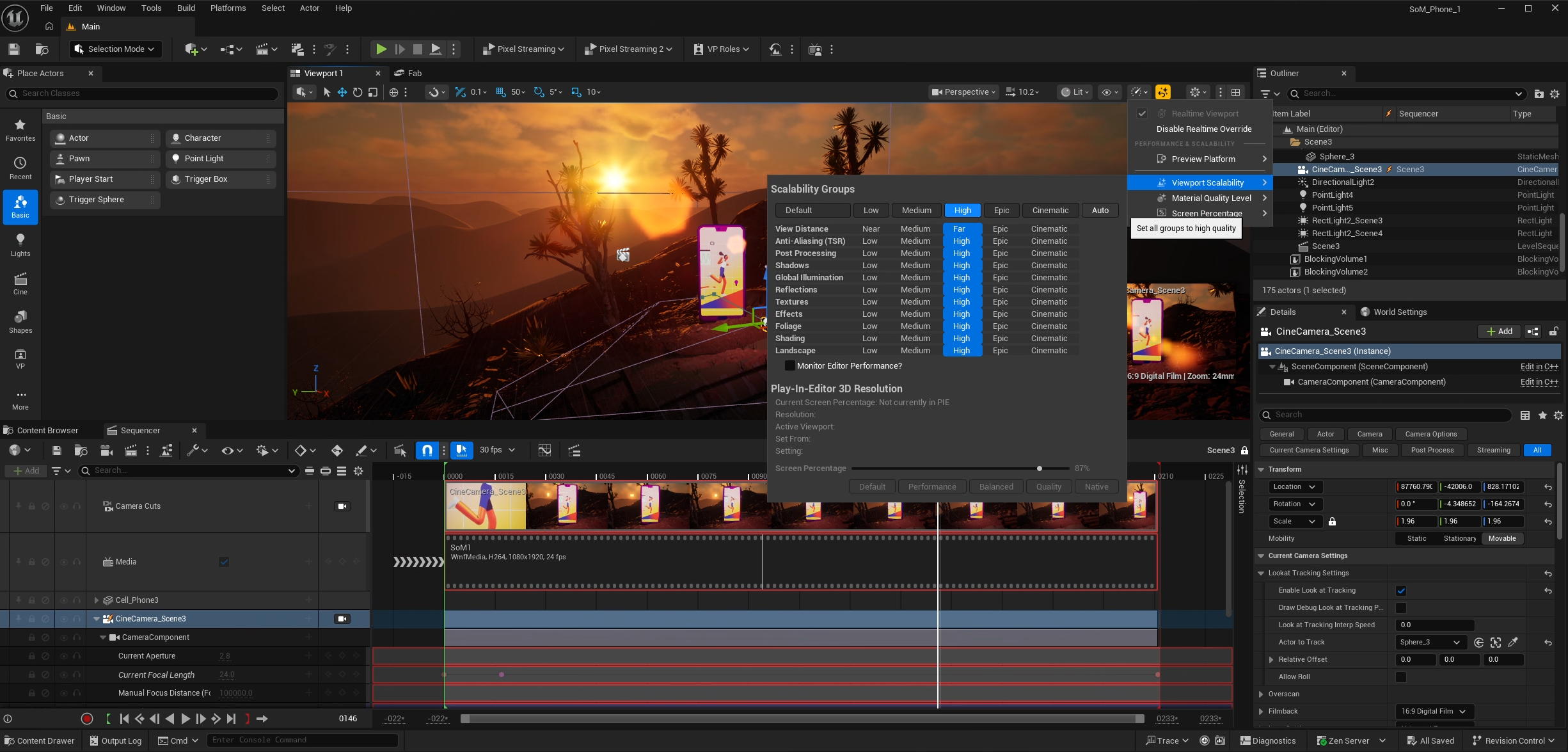
For each exercise, as I built out scenes, I added high-resolution materials and textures because I wanted to push the level of detail. However, I started to feel the effects of this as I navigated the viewport and worked in the level sequence editor. I noticed GPU usage ramping up when navigating the viewport, especially as the scene became more complex. It wasn’t disruptive, but it was noticeable enough that I adjusted a few settings to keep navigation smooth and responsive while working. The system I was working with had an NVIDIA GeForce RTX™ 5070 Ti graphics card.
Image
Unreal Engine scalability settings used to manage viewport resolution and rendering performance
In total, it took me about three weeks to complete the School of Motion course. Some of that time was spent revisiting the objects and environments to make adjustments and improvements. Still, as I progressed, I spent less time refining each scene and focused more on repeating tasks from memory rather than relying on the course to guide my actions.



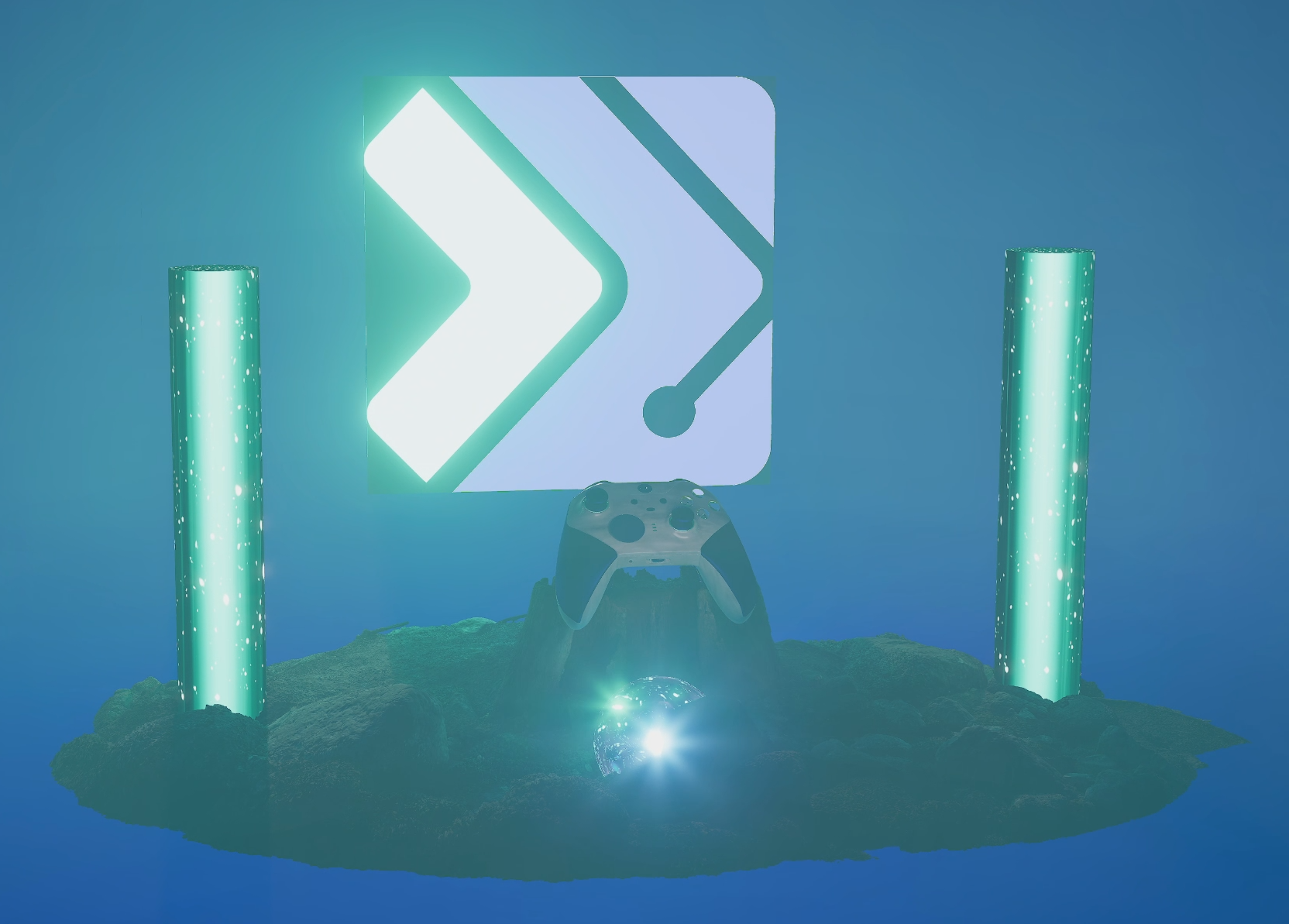
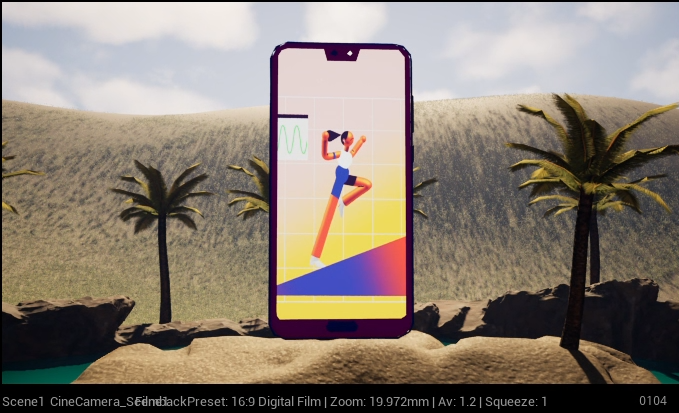
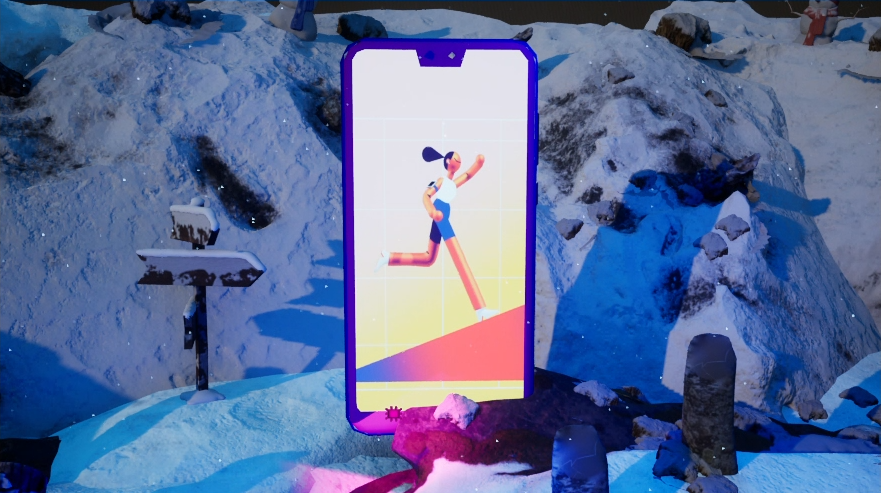
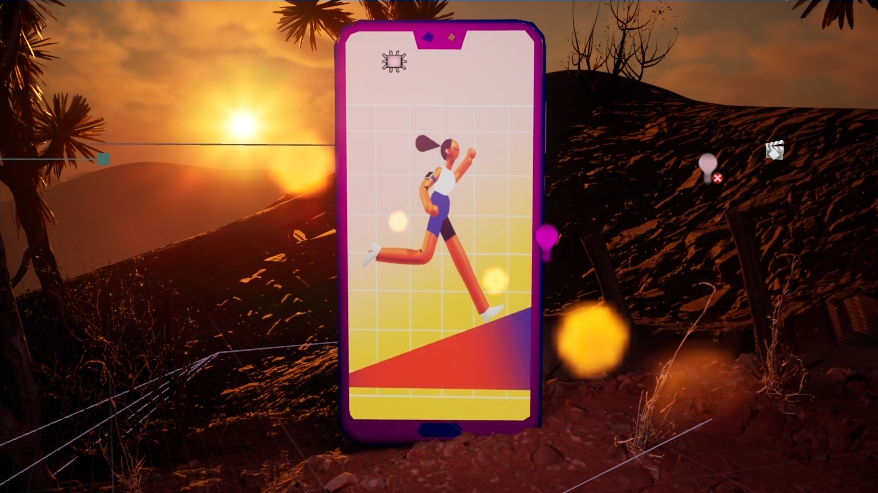
Still frames of my finished scenes from School of Motion’s Unreal Engine for 3D Artists course
Overall, my first impressions of Unreal Engine were positive. The course was a solid way to get familiar with creating in a 3D environment, and there was enough repetition throughout that I could build environments and scenes without referring back to Winbush for guidance. As I continued building out scenes, the biggest challenge became understanding how to configure and connect different materials and textures in the Material Editor. With more experience this will likely become more intuitive, but for now, it remains the main learning curve.
Once I got into animating lights, cameras, and objects in the Level Sequence Editor, I appreciated how it felt similar to After Effects. Even though the UI and tools are different, adjusting keyframes and curves was fairly intuitive and easy to manage. If I had more time and budget, I would have purchased additional assets from FAB and spent more time on landscaping the environment. That ended up being one of my favorite parts, especially seeing how everything came together once I started lighting the scene, when the mood and look of the environment really began to take shape.
Motion Design Templates
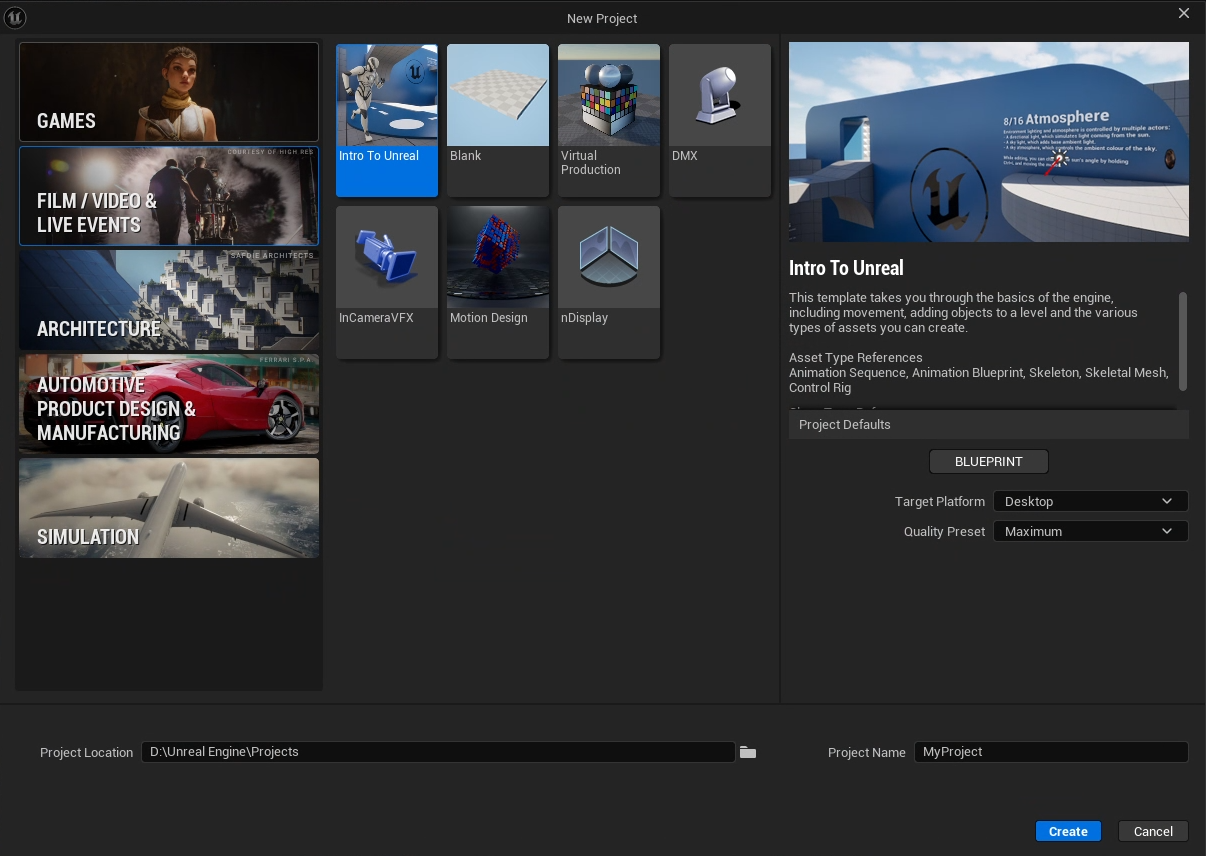
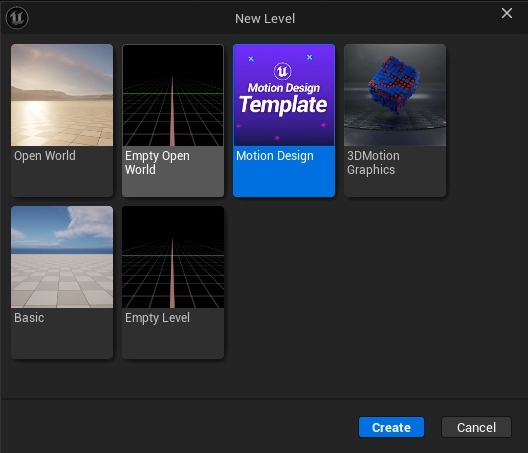
Unreal includes two types of motion design templates under the Film/Video & Live Events tab. When starting a new project, these are organized into 2D and 3D workflows, similar to how After Effects lets you build compositions in either a 2D workspace or a 3D environment. While I did not have time to craft a full project with either template in Unreal, I was able to explore both and get a general sense of how they function.
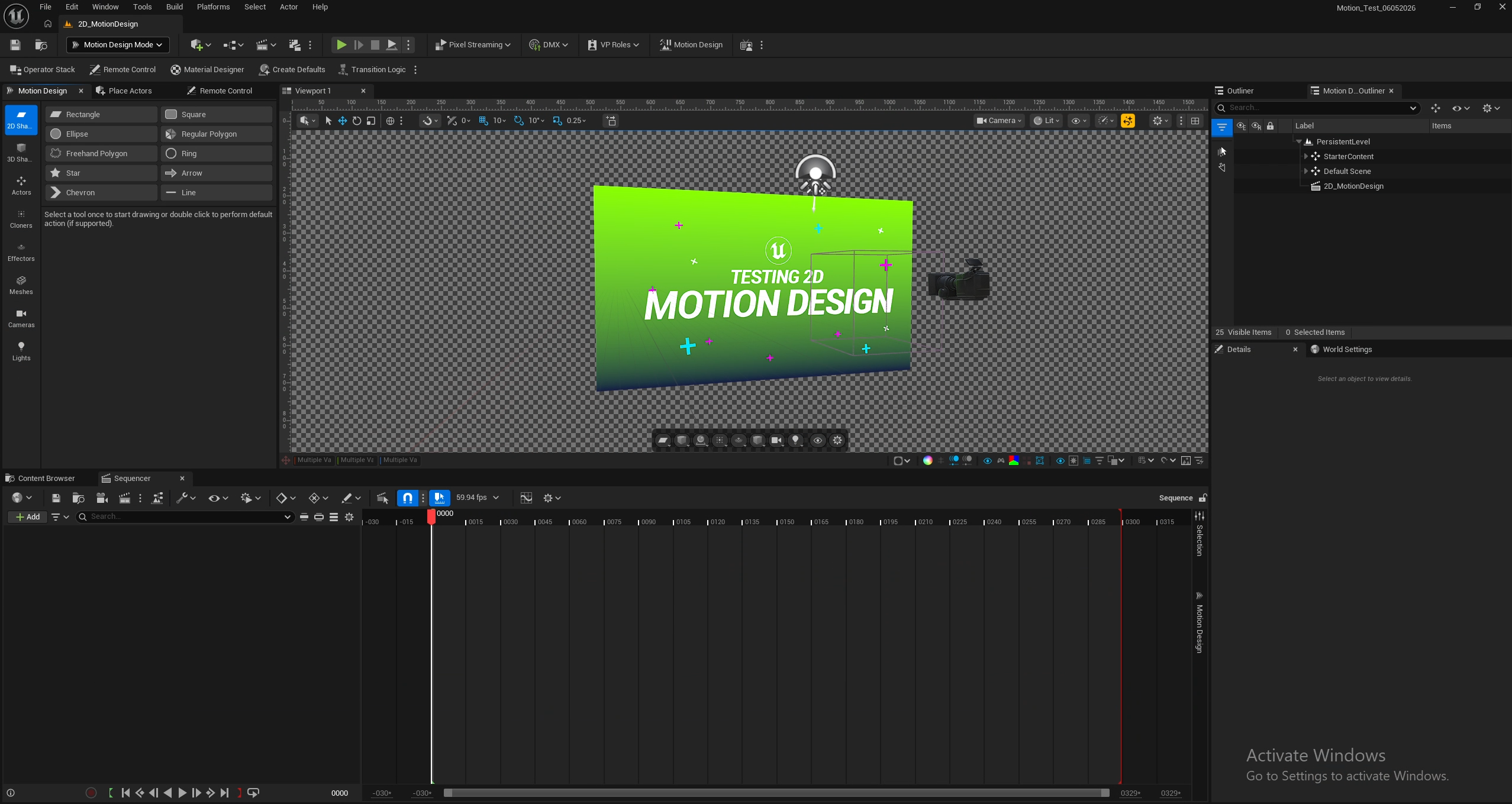
The 2D Motion Design template felt familiar enough that I could quickly understand what I was looking at, even though the layout and tools were different from what I was used to. The UI took some time to adjust to, particularly the toolbar across the top of the editor, as well as some of the effects and how to apply them to different shapes and objects. Still, after spending some time exploring the template, it became fairly intuitive to navigate. One thing that stood out was that animations could be attached directly to individual objects, which felt like a faster way to create movement in certain situations than manually keyframing everything yourself.
Image
UI of the 2D Motion Design template
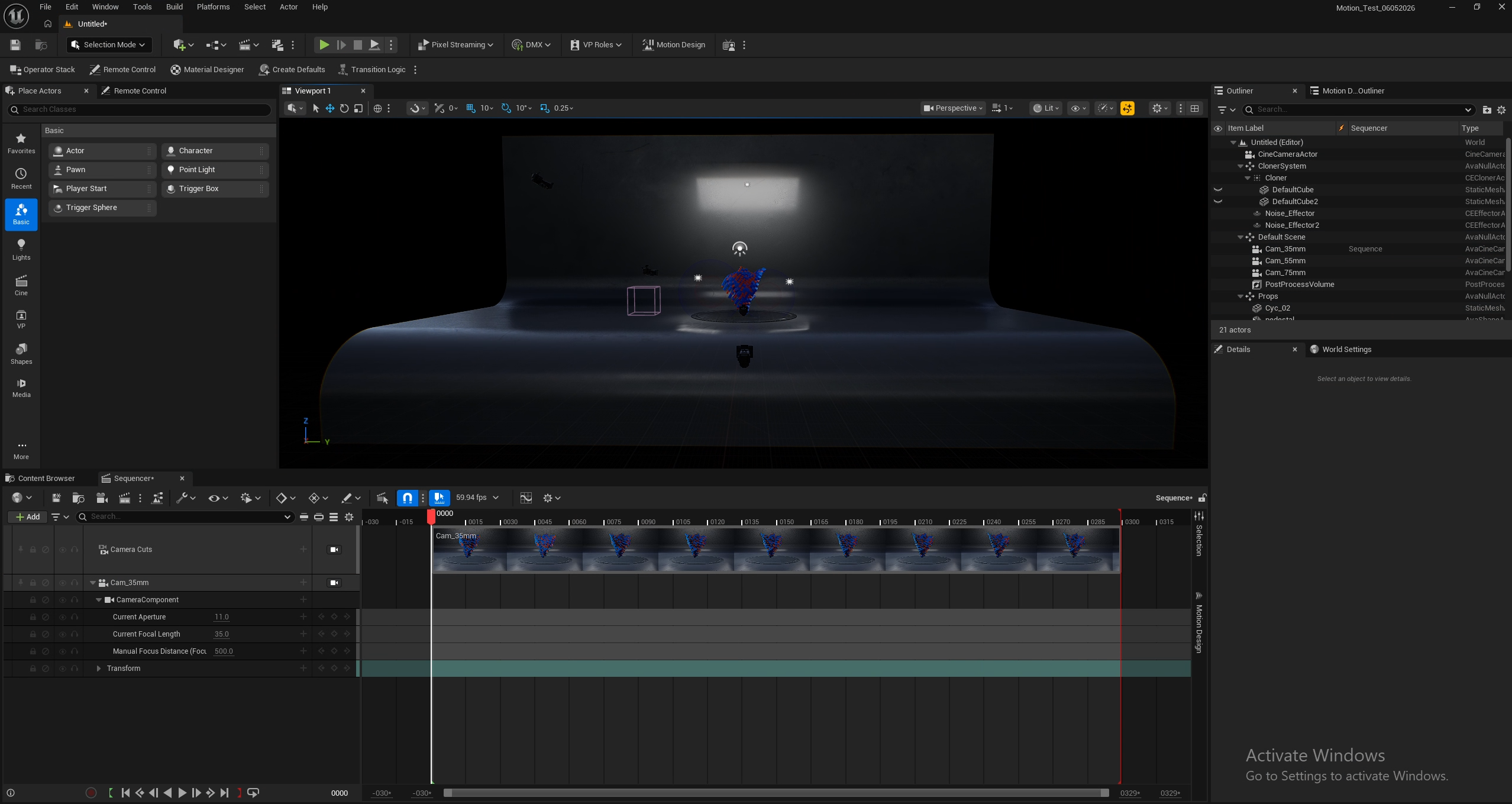
The 3D Motion Graphics template is built in a 3D environment, where shapes, characters, and other actors – such as cameras and lights – can be placed and moved around the scene. The template provides a cyclorama wall and floor that create a stage-like environment for building scenes, where lighting and spatial relationships reflect the physics and environment of a real-world studio.
Image
UI of the 3D Motion Graphics template
According to Epic Games’ documentation, the motion design tool was initially developed with broadcast motion graphics workflows in mind. Outside of that context, the 2D motion design template can still be useful for those looking to work with tools that rely more on building and animating elements directly within Unreal rather than assembling them in a traditional compositing application.
Unreal Engine for Motion Graphics: Initial Thoughts
There are many applications on the market for animation and motion graphics projects. In my experience, working with 2D and 3D motion graphics and VFX artists, the tools used often depend on the workflows of an in-house creative studio or agency – where a standardized set of programs is used across teams and projects. In these kinds of environments, software is selected based on compatibility, cost, and how well it holds up as projects and teams grow.
This context is important when looking at using Unreal Engine for motion graphics. From my perspective, Unreal may not yet be widely adopted in motion graphics workflows, as it was not originally designed for that purpose. That’s not to say it will never be used, but whether it becomes part of a workflow will likely depend on how well it fits within a project’s existing pipeline. For example, a studio focused on virtual production may aim to keep more of the process in Unreal, rather than moving between multiple applications such as Nuke, Fusion, or After Effects. On the other hand, studios that already have a well-established way of working with animation or motion graphics may prefer the tools they are accustomed to and bring Unreal into their pipeline only when it improves a process or produces a higher-quality product.
Within that context, one of the biggest benefits of using Unreal for motion graphics is that it is free to download, which lowers the barrier to entry for teams and individuals who want to explore a different approach and see how it fits into their workflow. The main challenges are computing resources and Unreal’s learning curve. For those with experience across tools like Maya, Cinema 4D, Blender, Houdini, and After Effects, the adjustment may be less significant. For someone like me, who does not regularly use those types of applications, that learning curve is more noticeable.
If you are someone like me exploring Unreal Engine for motion graphics, I’d like to know what you are hoping to get out of it. And if you already work in motion graphics, I’d be interested to hear why you would consider incorporating Unreal into your animation or motion graphics workflow. Please share your thoughts in the comments below!

Looking for an Unreal Engine workstation?
We build computers tailor-made for your workflow.

Don’t know where to start?
We can help!
Get in touch with one of our technical consultants today.