Table of Contents
Introduction
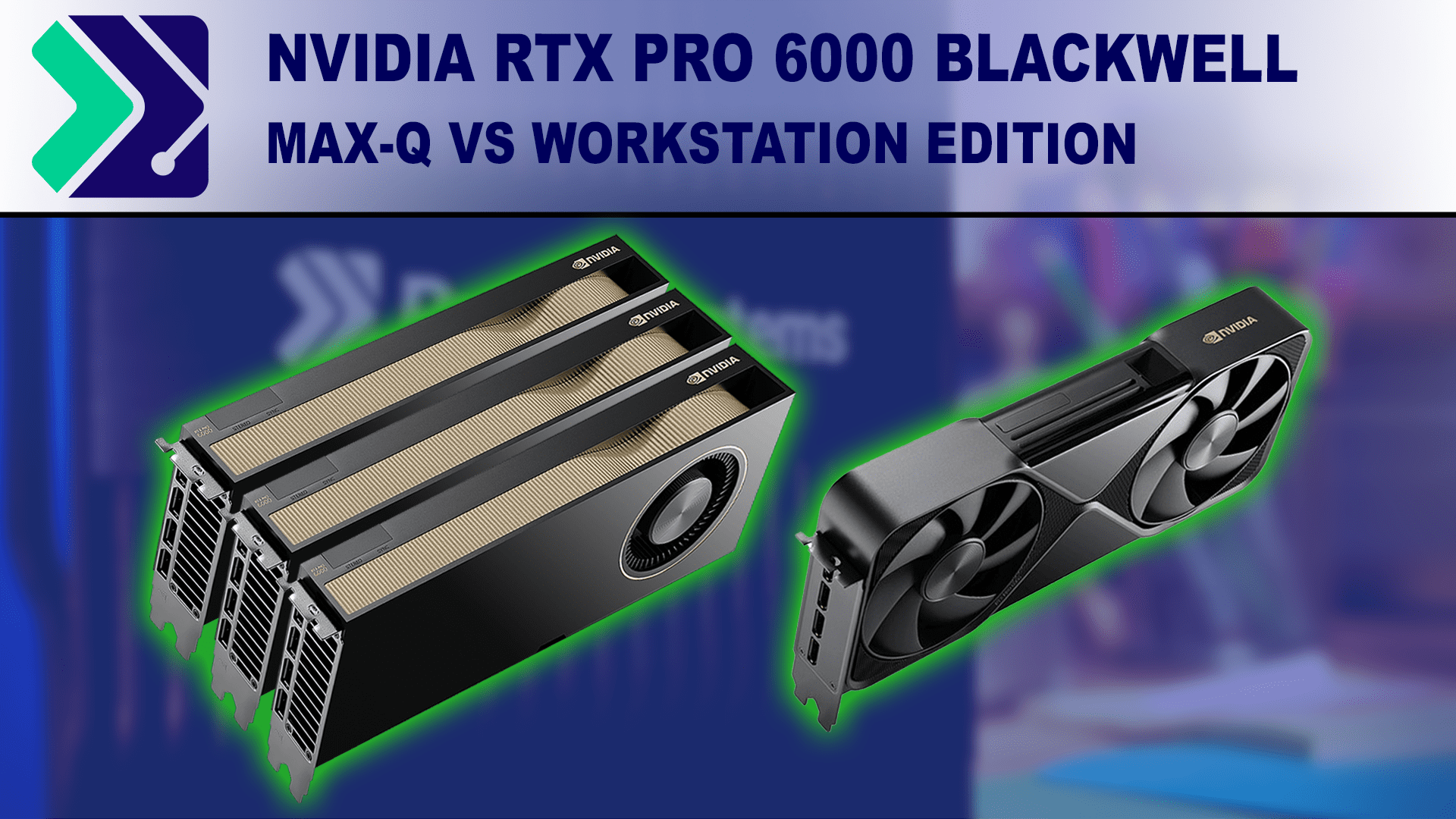
Last month, we reviewed the NVIDIA RTX PRO™ 6000 Blackwell Workstation Edition, the first card in NVIDIA’s new professional Blackwell GPU lineup. Now, we’re turning our attention to a new variant: the NVIDIA RTX PRO™ 6000 Blackwell Max-Q Workstation Edition. NVIDIA has taken a different approach this generation and is making three variants of their top-end card with different cooling solutions and power draw. Specifically, the Max-Q version features a blower-style cooler similar to the RTX™ 6000 Ada and is limited to a 300W TDP, half that of the full-power 600W Workstation Edition. There is also a passive Server Edition that we will be looking at in the future.
Image
Despite its lower TDP, the Max-Q variant is not cut down in terms of hardware. All RTX PRO 6000 Blackwell variants feature a 512-bit memory bus and 96 GB of GDDR7 memory, offering nearly 1.8 TB/s of memory bandwidth. This is double the VRAM of the RTX 6000 Ada Generation and triple that of consumer-class GPUs like the GeForce RTX 5090, making these cards particularly attractive for high-end workflows that require large datasets or high-resolution assets. It also features the same dual NVENC/NVDEC media engines with support for hardware-accelerated H.264 and H.265 4:2:2 10-bit encoding and decoding. The only differences between the Max-Q and standard Workstation Edition are the power draw and cooler design.
Due to the extremely long product names in this generation, we will be using the following shorthand to refer to the three distinct RTX 6000 Blackwell GPU models:
RTX PRO 6000 Workstation: NVIDIA RTX PRO 6000 Blackwell Workstation Edition
RTX PRO 6000 Max-Q: NVIDIA RTX PRO 6000 Blackwell Max-Q Workstation Edition
RTX PRO 6000 Server: NVIDIA RTX PRO 6000 Blackwell Server Edition
Cooling
The standard RTX PRO 6000 Workstation cooler uses a pass-through design similar to the GeForce cards, where air is pulled from underneath the card, blown through the heat pipes, and exits the top of the card. While this is a very efficient way to cool a GPU, it has one major drawback. If there are multiple GPUs in the system, then the lower card will push hot air into the intake of the upper card, which can lead to thermal issues on the upper card.
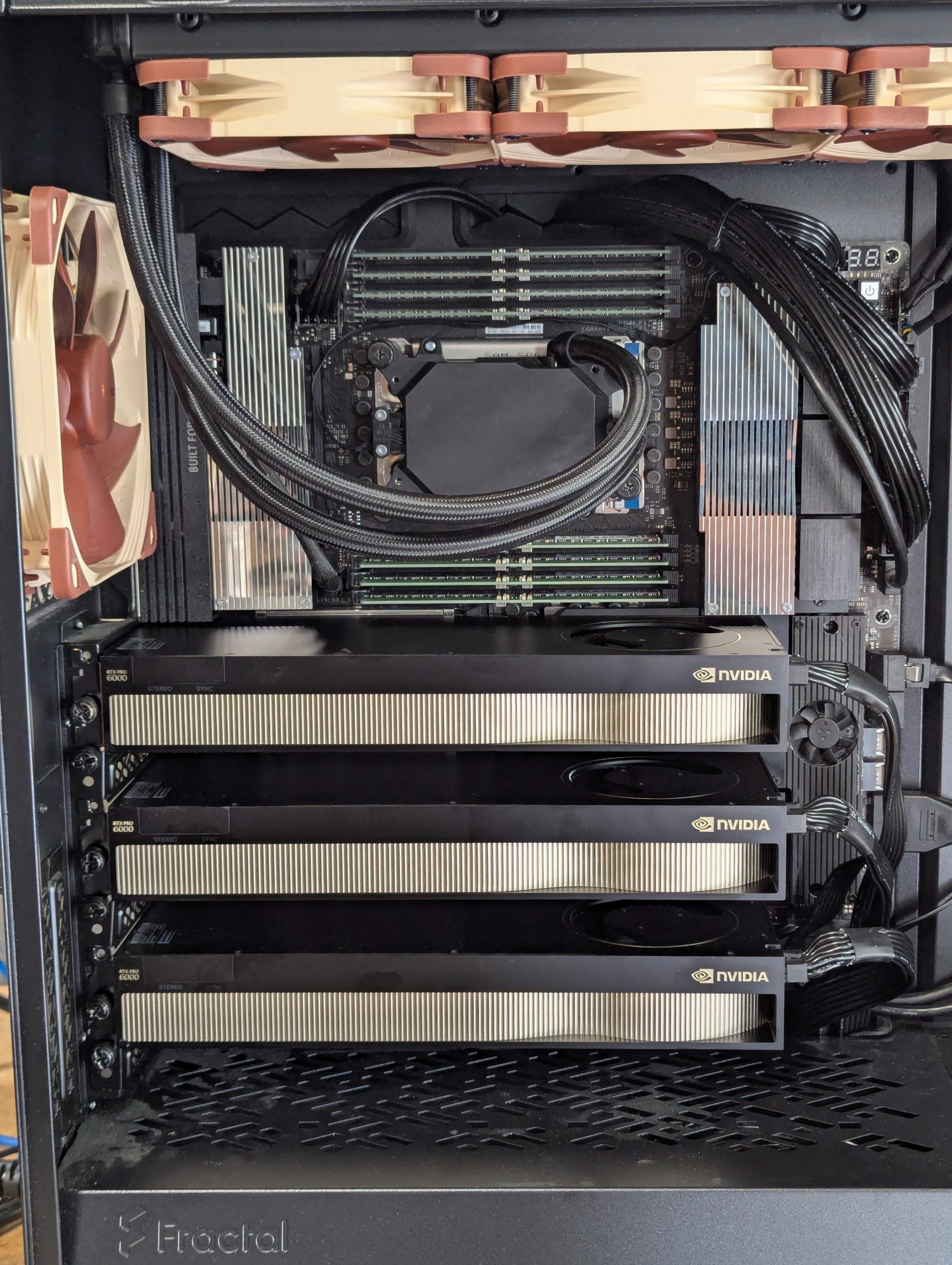
By using a blower-style cooler, the RTX PRO 6000 Max-Q model is much better suited for multi-GPU configurations as it takes air from inside the system and blows it out the back of the case. This means the heat generated by one card won’t (significantly) affect other cards in the system. However, in our testing, we have found that it still isn’t a good idea to stack these directly on top of each other. When placed directly next to each other, there is very little room for the fans to bring in cool air. This can be combated by having high-airflow system fans forcing cool air into the gaps, but that increases system noise.
The other issue is that because these cards have so much VRAM, some of those chips are located on the back of the PCB and are not cooled by the active cooler. There is a metal backplate that acts as a heatsink, but it needs air flowing across it to work fully. Ideally, there should be a single slot gap between each card to allow for proper airflow to each card.
Image
Power
The RTX PRO 6000 Max-Q variant’s lower power draw also aids in its cooling. The amount of electricity put into a card impacts the performance, but also directly correlates to the amount of heat it produces. At 300W, it consumes half the energy of the standard RTX PRO 6000 Workstation card and the same as the previous generation RTX 6000 Ada. Consuming less power results in less heat at full load, which is why it has a smaller cooling system.
The big question is, “Will the lower power ceiling impact performance in sustained compute-heavy workloads?” Our benchmarks aim to highlight exactly where those limitations appear and whether they’re offset by the practical benefits of lower thermals and power consumption. In the following sections, we’ll look at how the Max-Q variant performs in real-world workloads, and help determine which of these professional GPUs is the best fit depending on your application and system constraints.
Test Setup
Test Platform
| CPUs: AMD Ryzen™ Threadripper™ PRO 7965WX |
| CPU Cooler: Asetek 836S-M1A 360mm AIO |
| Motherboard: ASUS Pro WS WRX90E SAGE SE BIOS Version: 1106 |
| RAM: 8x DDR5-4800 32GB RDIMMs (256 GB total) |
| PSU: Super Flower LEADEX Platinum 1600W |
| Storage: Samsung 980 Pro 2TB |
| OS: Windows 11 Pro 64-bit (26100) Power Profile: Balanced |
Benchmark Software
| Lightroom Classic 13.1 – PugetBench for Lightroom Classic 0.96 |
| After Effects 25.2.2 – PugetBench for After Effects 1.0 |
| DaVinci Resolve 20.0 beta – PugetBench for DaVinci Resolve 1.2.0-beta |
| Topaz Video AI 6.2 |
| Unreal Engine 5.5 |
| V-Ray 6.00.01 |
| Blender 4.0.0 |
| OctaneBench® 2025.2 |
| Redshift 2025.5.0 |
For this round of testing, we moved to an AMD Ryzen™ Threadripper™ PRO 7965WX-based workstation platform. In our previous review of the RTX PRO 6000 Workstation Edition, we used a Ryzen 9 9950X to focus on single-GPU performance. However, with the release of the RTX PRO 6000 Max-Q—and its clear positioning for multi-GPU use cases—we opted for Threadripper PRO to ensure sufficient PCIe lane availability, allowing us to collect accurate multi-GPU performance data in applications that can take advantage of it. This system also closely matches the kinds of systems we configure for professional users running multi-GPU rendering, AI, or post-production workflows.
We used the latest publicly available NVIDIA GPU drivers for testing, and made sure Windows and all applications were fully updated at the time of benchmarking. Our benchmark suite includes a mix of in-house and industry-standard tools, chosen to reflect real-world usage across the creative and technical fields we most often support:
- PugetBench for DaVinci Resolve (multi-GPU supported)
- PugetBench for Adobe After Effects
- Topaz Video AI
- Our in-development Unreal Engine 5.4 benchmark
- Blender Benchmark (Single-GPU only)
- V-Ray GPU benchmark (multi-GPU supported)
- OctaneBench (multi-GPU supported)
- Redshift (multi-GPU supported)
Motion Graphics: Adobe After Effects
System Image
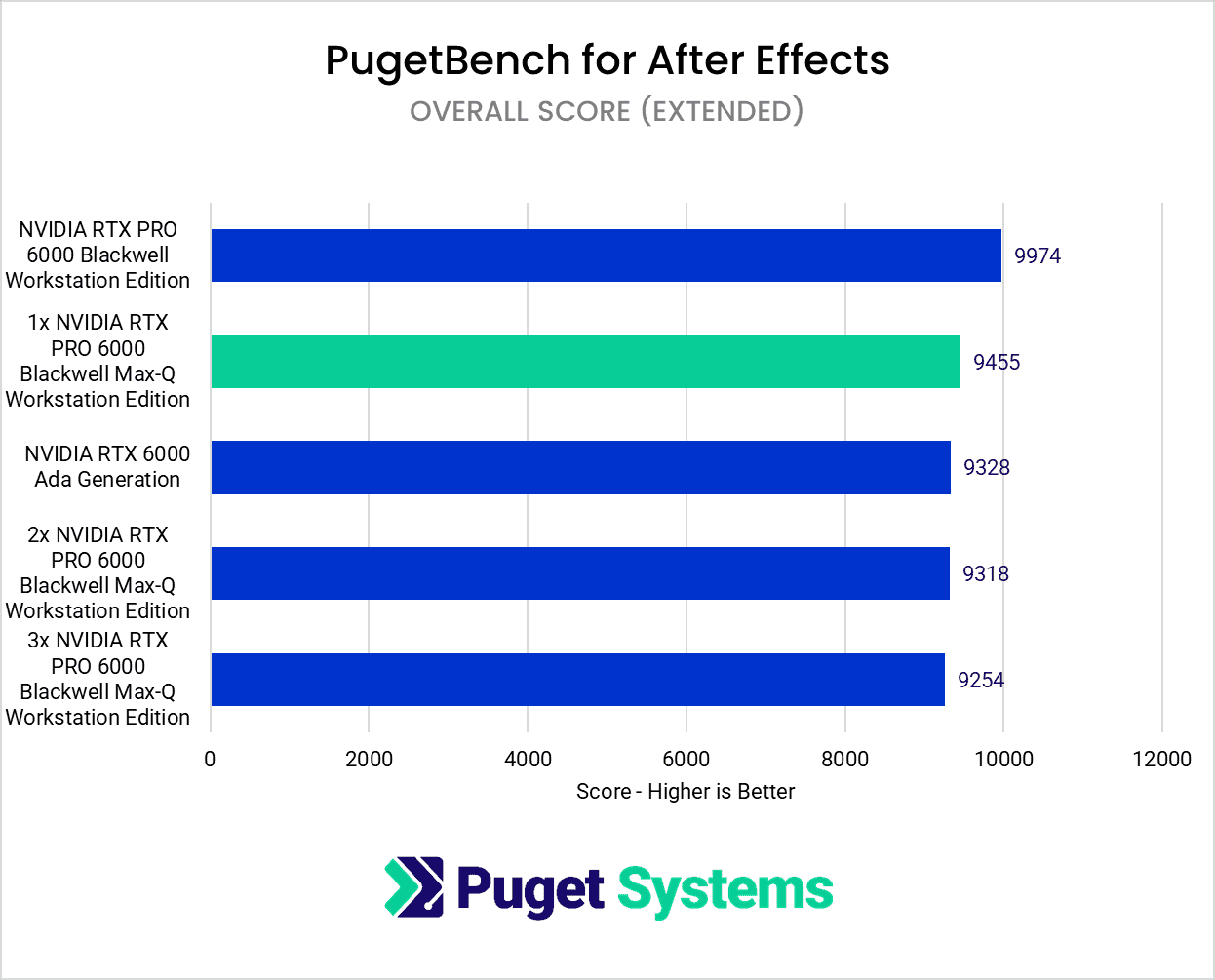
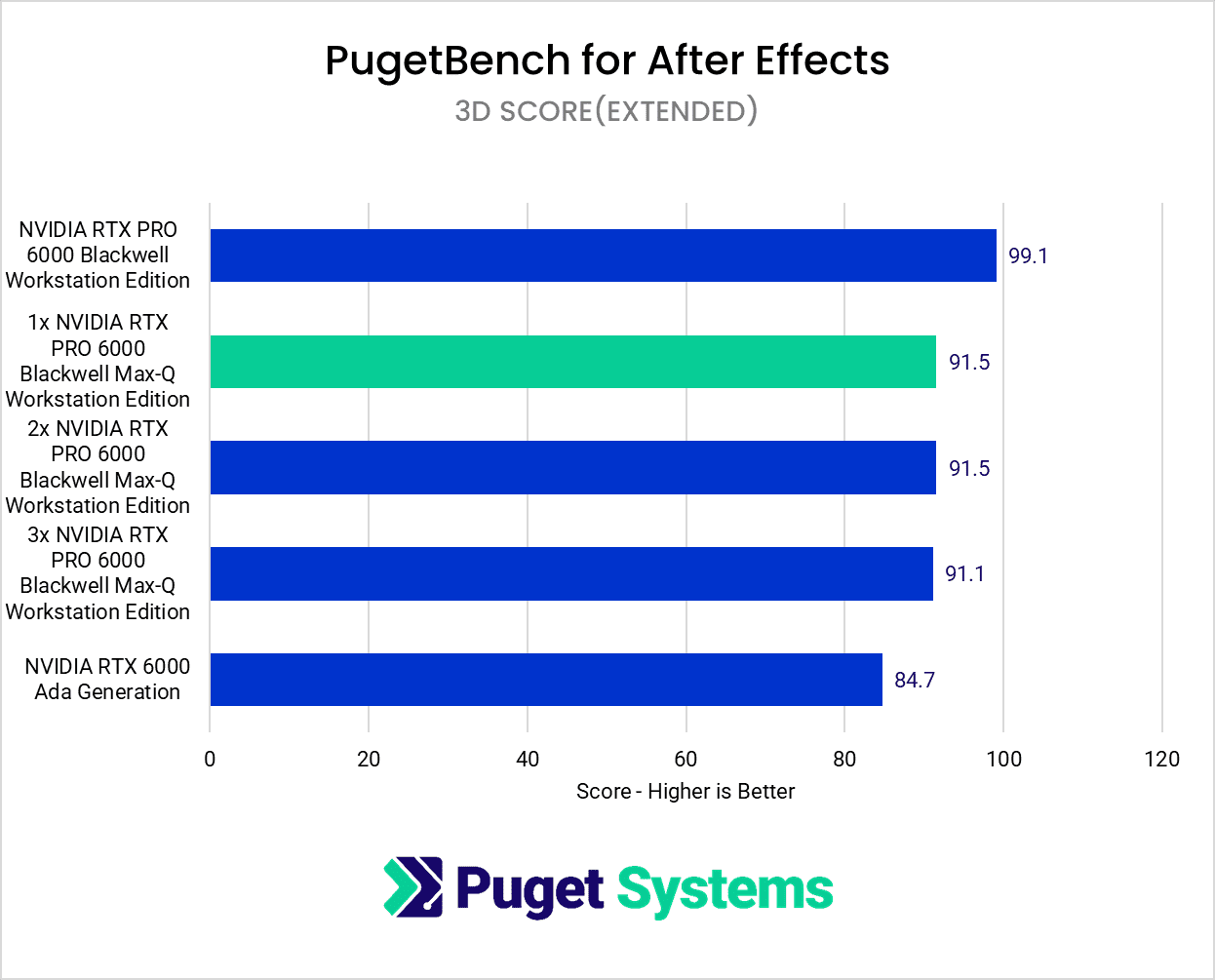
After Effects is increasingly incorporating GPU processing into its 3D workflows, utilizing the Advanced 3D renderer to handle 3D environment lights, models, and scenes, thereby offloading these tasks from the CPU. While it functions as a comprehensive 2D and 2.5D solution within the Creative Cloud ecosystem, After Effects is a more “lite” option for 3D compared to dedicated tools like Blender,Maya Houdini, or Unreal Engine. When evaluating our benchmark results for After Effects’ GPU utilization, it’s beneficial to prioritize 3D scores, as these specifically engage the Advanced 3D renderer for frame processing and tool enablement. However, the Overall score is still a useful metric of what an “average” user may see across multiple workflows.
From a cost/performance standpoint, workstation-class cards like the RTX PRO 6000 Blackwell Workstation and RTX PRO 6000 Blackwell Max-Q generally don’t offer significant enough performance improvements over a GeForce RTX 50-series card to justify their high price. Furthermore, After Effects is not optimized for multi-GPU usage, as multi-GPU testing with Max-Q cards showed minimal differences in 3D scores.
However, for 3D artists, VFX artists, and VAD teams who use After Effects and the Adobe Creative Cloud Suite as a supplementary workflow alongside other demanding 3D applications like Blender, Cinema 4D, Houdini, Maya, or Unreal Engine, or who utilize render engines such as Arnold, V-Ray, and Octane, these high-end cards may be warranted. Conversely, investing in such a costly workstation card is likely not a worthwhile investment for those whose work is exclusively within After Effects and the Creative Cloud suite.
Video Editing / Motion Graphics: DaVinci Resolve Studio
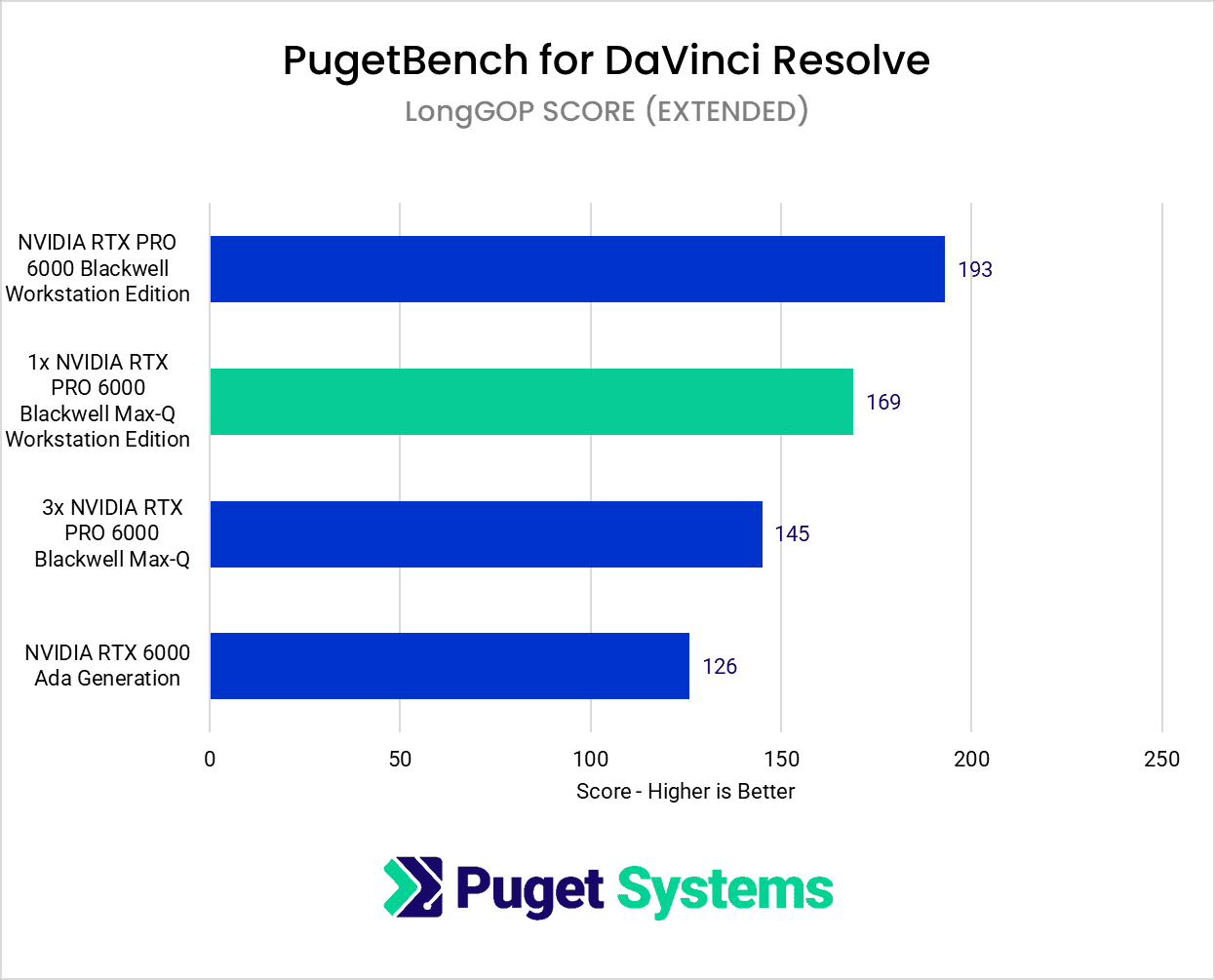
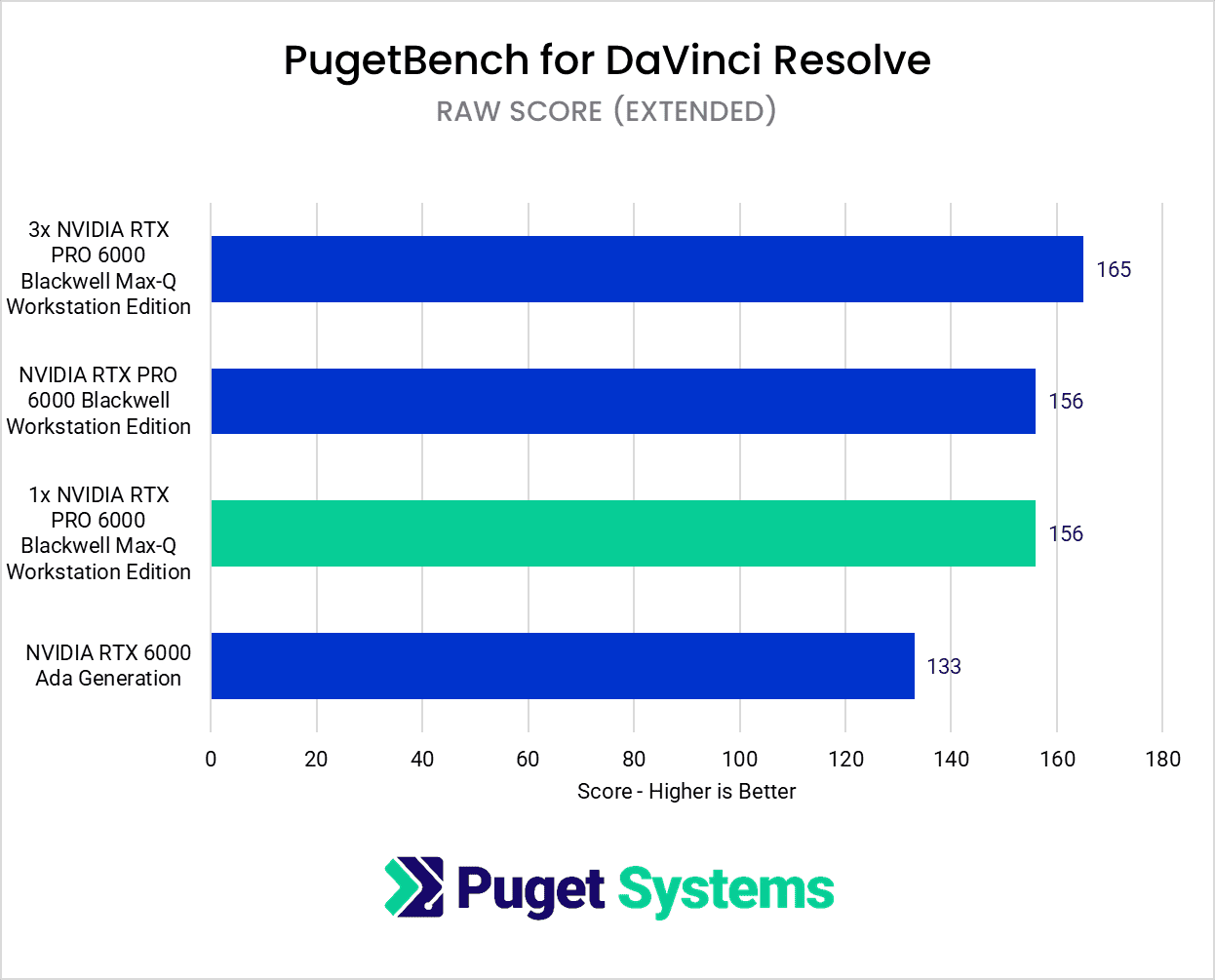
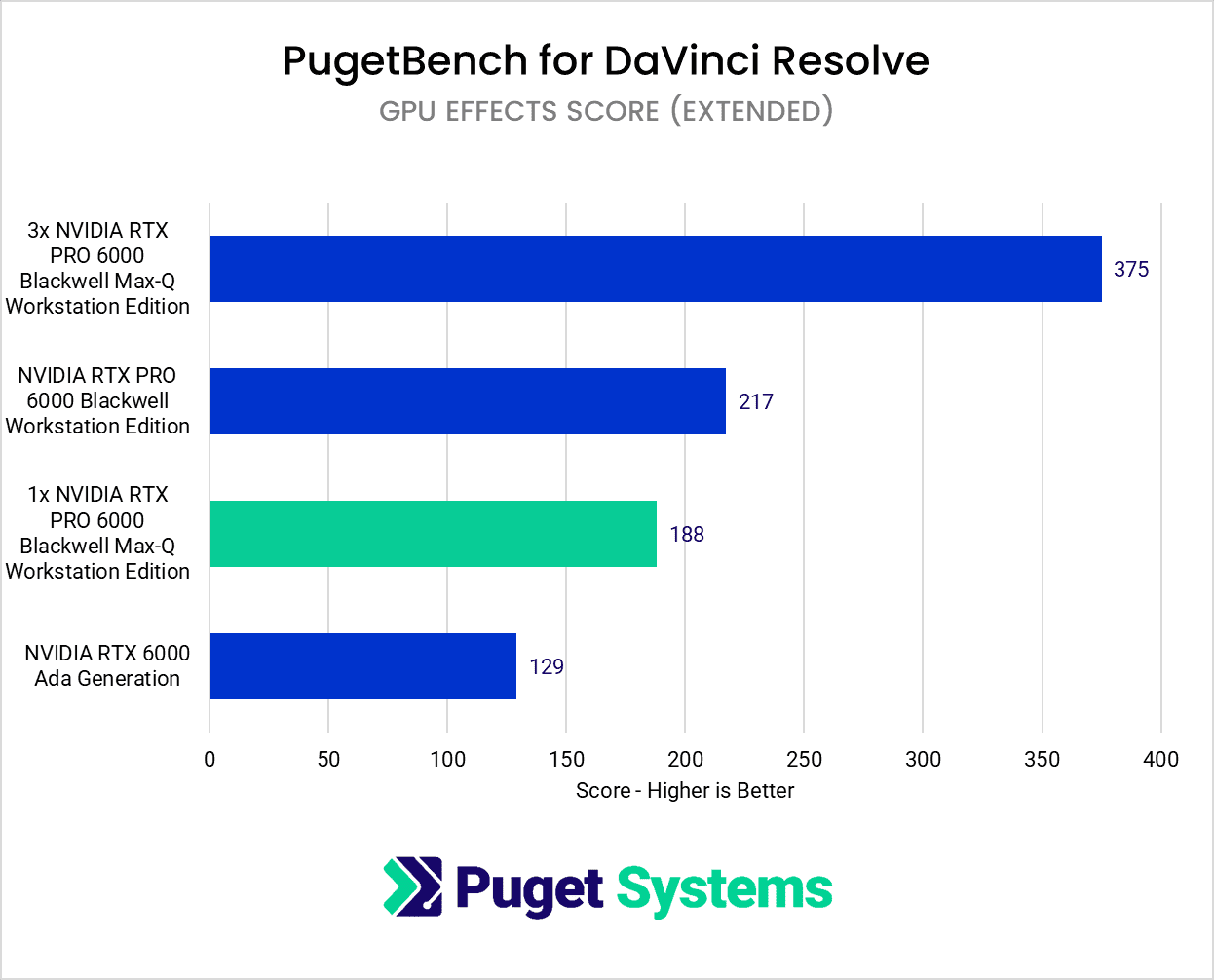
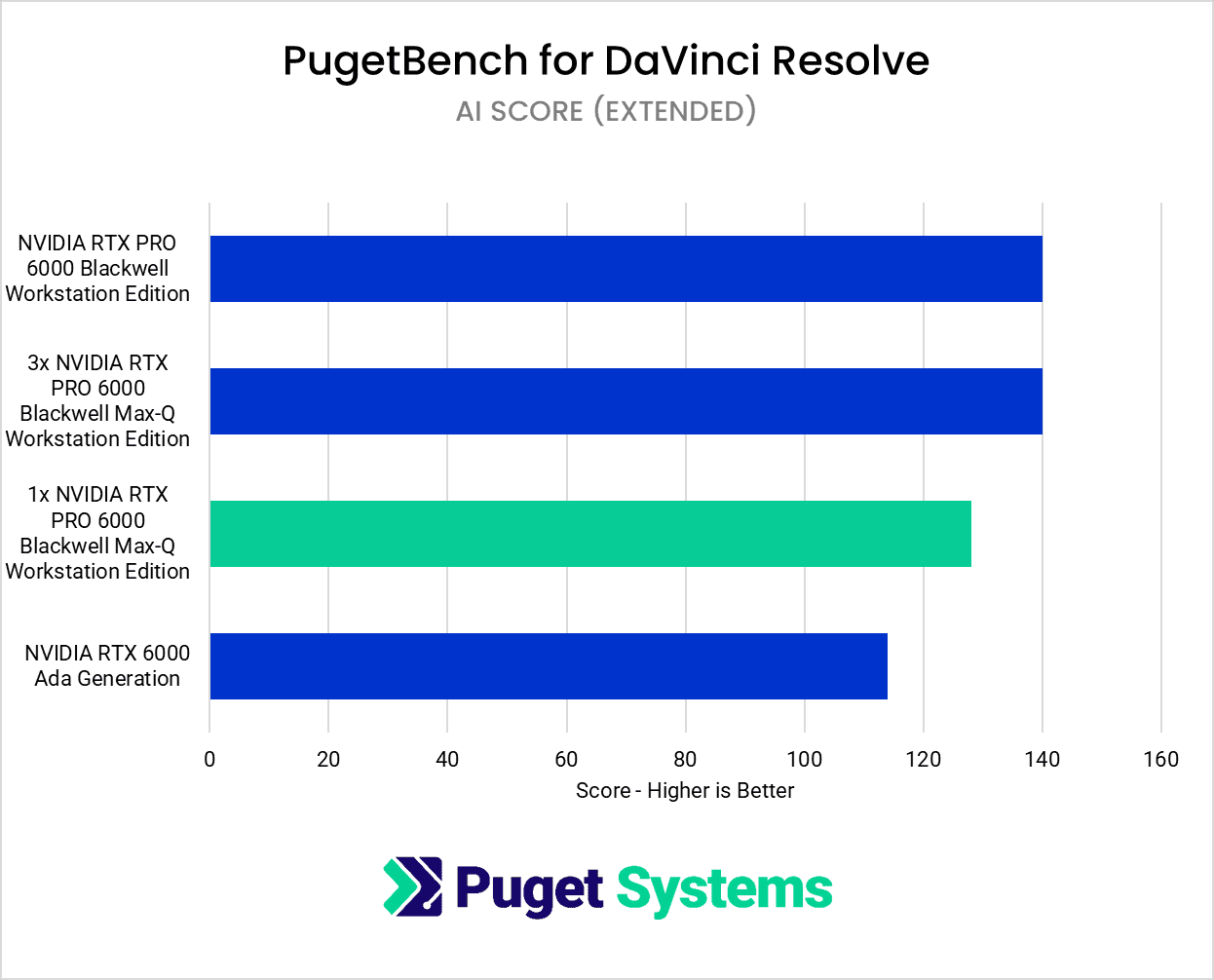
DaVinci Resolve Studio is notable among non-linear editing (NLE) applications for its ability to benefit from a multi-GPU setup; our previous reviews have even explored scaling with up to seven GeForce RTX 4090s. Multi-GPU is more difficult with the GeForce RTX 50-series cards, but the introduction of the new RTX PRO 6000 Max-Q allows us to once again assess the viability of multi-GPU configurations within a workstation environment for Resolve.
Unfortunately, during testing with a multi-RTX PRO 6000 Max-Q setup, we encountered a number of stability issues that require further investigation. We have contacted NVIDIA and Blackmagic to verify if these issues are hardware or software-related, and plan to re-test these configurations to publish qualifying results after we get them sorted out. For this current evaluation, we successfully ran a benchmark instance comparing three Max-Q GPUs against an RTX PRO 6000 Workstation and an RTX 6000 Ada, in addition to single GPU setup.
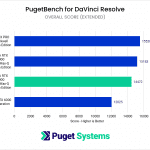
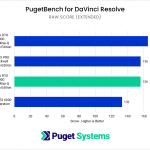
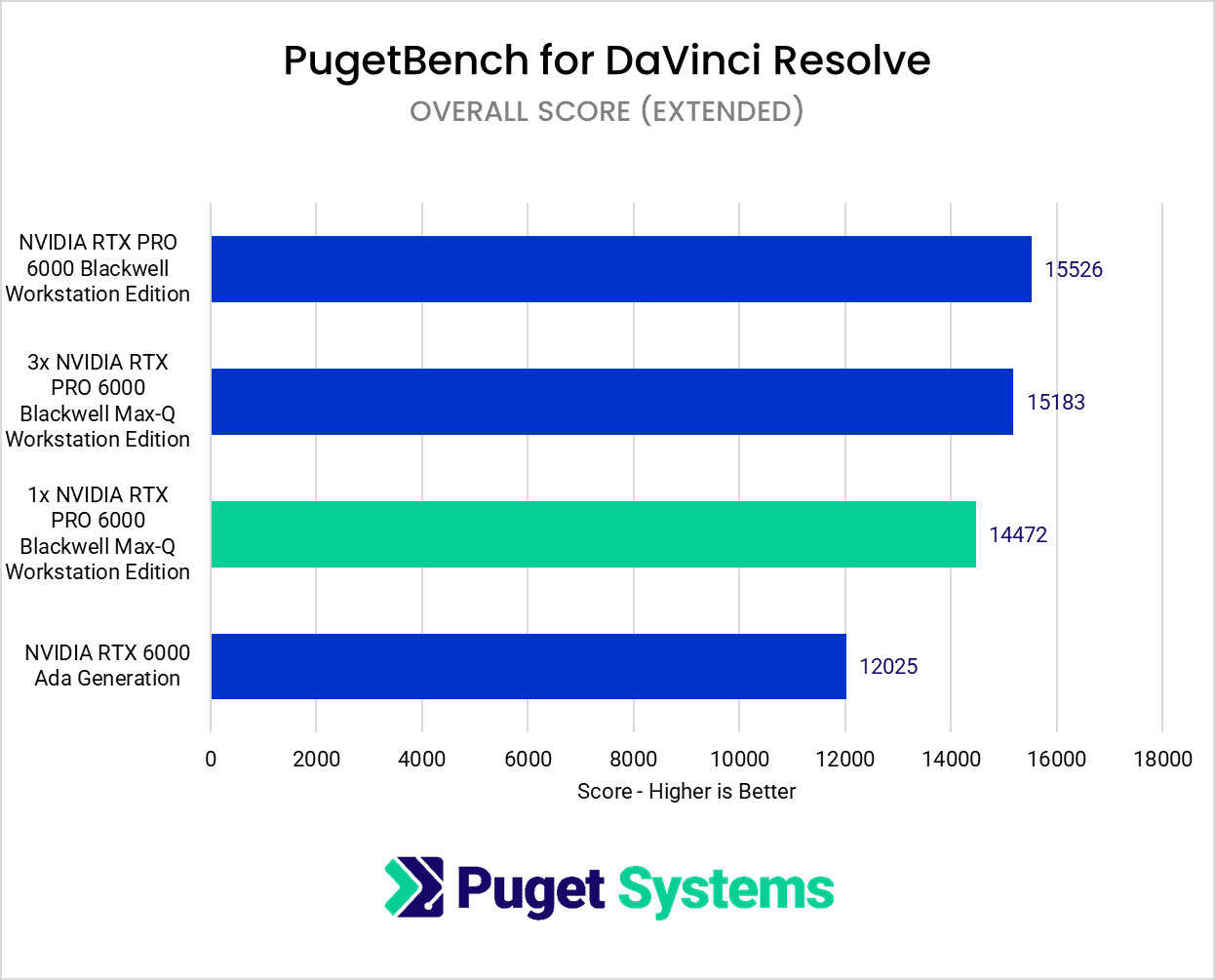
Starting with the Overall score, this is a combination of all the tests we run in Resolve, including ones that are CPU-bound or don’t scale with multiple GPUs. This is an important metric for those looking for overall performance differences between GPUs, however, since very few users are going to spend all their time working with only the parts of Resovle that are GPU-accelerated. For this, a single Max-Q offers a 12% performance increase over an RTX 6000 Ada but an 8% performance decrease when compared to an RTX PRO 6000 Workstation. Three Max-Q cards increase performance by just a small 5%, although the benefits of having multiple cards are heavily influenced by what parts of Resolve are a bottleneck in your workflow.
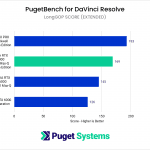
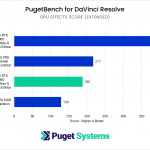
Moving on to the LongGOP score (chart #2), what is interesting here is that the 3x GPU configuration is actually slower than the single Max-Q card. Likely, there is some conflict going on with Resolve knowing which card to use, and it may be jumping around between cards mid-render, resulting in a performance penalty.
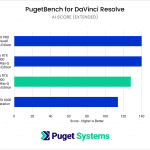
For RAW footage workflows (chart #3), a three Max-Q setup shows about a 5% performance increase compared to a single RTX PRO 6000 Workstation setup. This suggests a modest gain for those who frequently work with RAW footage, although the cost of three Max-Qs for this percentage improvement might not be justified.
GPU Effects (chart #4) is really where Resolve benefits from having multiple cards. Here, a three Max-Q setup scores about 2x higher than a single Max-Q card. In contrast, a single RTX PRO 6000 Max-Q exhibits a 14% performance decrease when compared to an RTX PRO 6000 Workstation card for GPU effects. In other words, multiple Max-Q can give a big boost for GPU effects in Resolve, but if you are only using a single card, you should stick to the RTX PRO 6000 Workstation model.
Resolve has also been consistently updating its AI toolset, with many new features introduced in Version 20. This is the first chance we have had to test multiple GPUs for these AI features, and unfortunately, it looks like they don’t scale particularly well. There is a small performance gain to be had, but three RTX PRO 6000 Max-Q cards only managed to match a single RTX PRO 6000 Workstation card.
For those considering an investment in a multi-GPU Max-Q setup, the primary question is whether the benefits of GPU scaling justify the investment. With an MSRP of approximately $8,500 per card, three Max-Qs would cost around $25,500. Even for the best-case scenario, where you are completely bottlenecked by GPU effects, that is a $17,000 premium (plus whatever it costs to cover the power, cooling, and physical space needed to support three cards) in order to roughly double the performance. For some users, that is well worth the investment, but for others, it could be much too steep a cost to pay.
Topaz Video AI
Image
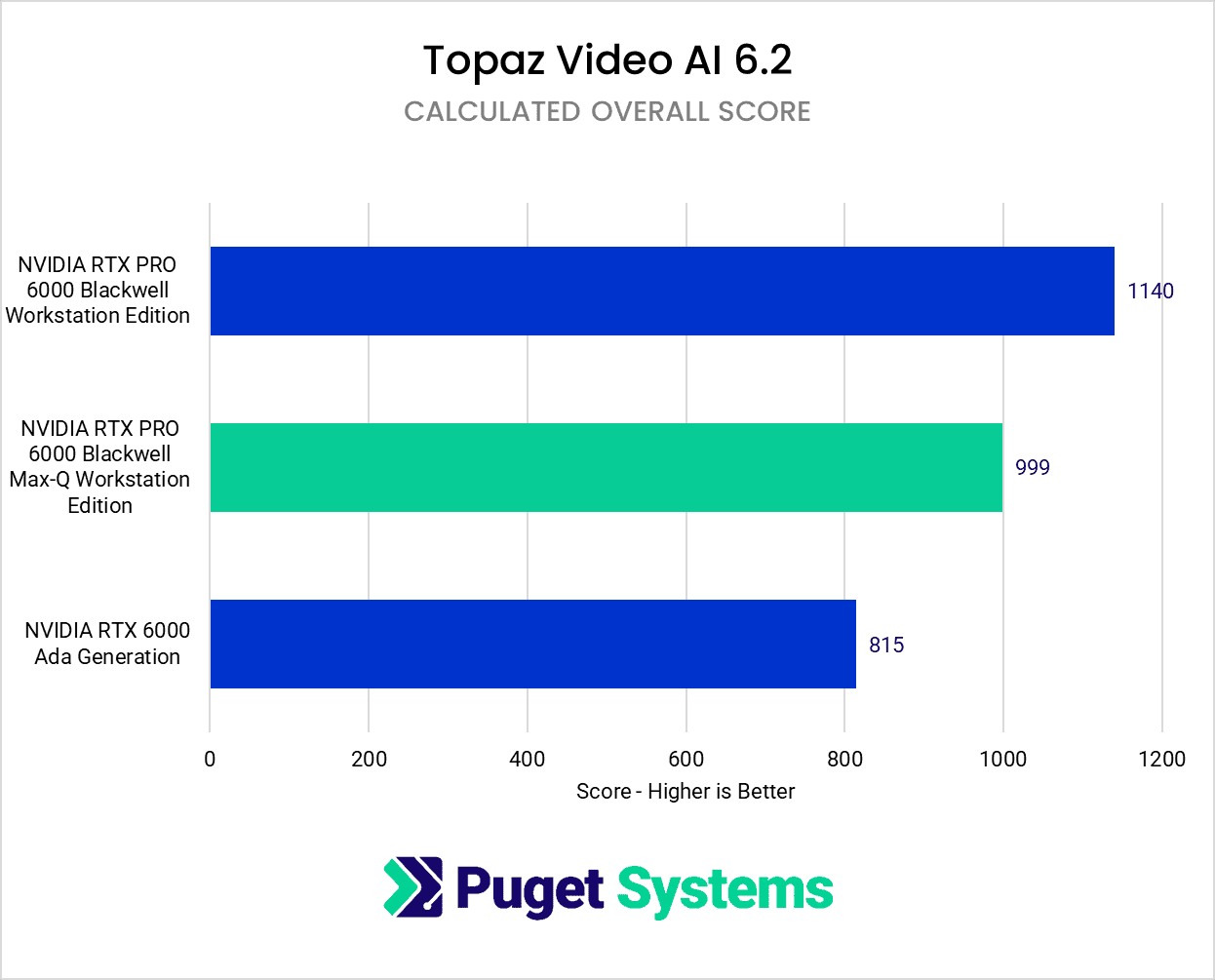
Topaz Video AI is constantly releasing new versions, making it somewhat difficult to keep up with it’s most recent changes. However, when the first Blackwell cards (the consumer GeForce cards) were released, we found that they were no faster than their past-gen counterparts. Luckily, it seems as if this issue has been sorted, at least for the Professional cards.
The 6000 Blackwell Max-Q is 13% slower than the Workstation Edition, but 23% faster than the 6000 Ada. If you use Topaz Video AI professionally, either Blackwell card may be a good option, especially depending on how (or if) Topaz Labs brings their new Starlight model to local machines, hopefully outside of the Mini version.
The deciding factor between the Workstation and Max-Q versions will be whether you plan on using only one GPU or multiple. While the built-in benchmark does not currently support multi-GPU, Topaz Video AI itself does. We plan to look into this more in the future, and are currently working through the best methodology for testing multi-GPU performance in Video AI.
Game Dev / Virtual Production: Unreal Engine
Image
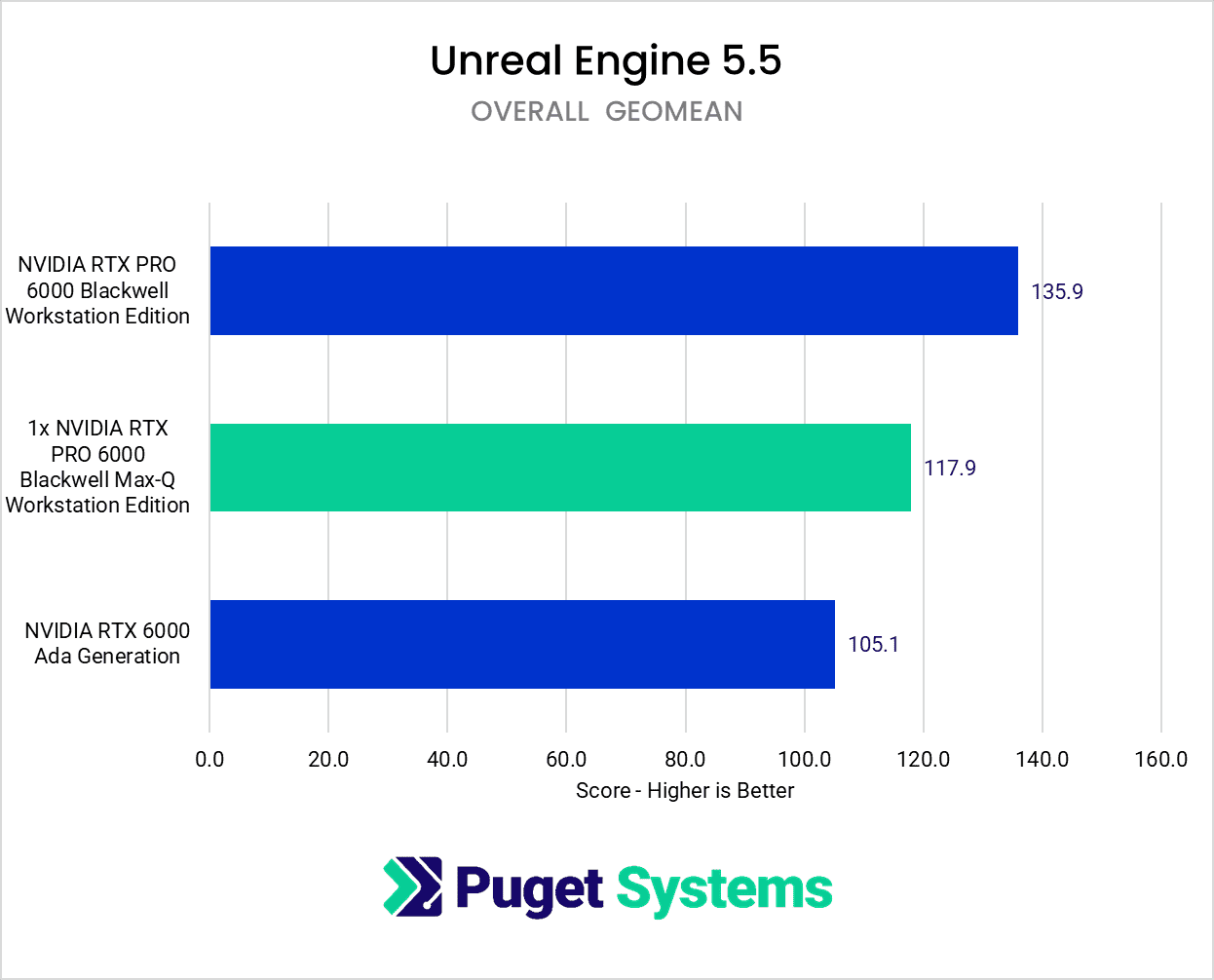
Our Unreal Engine benchmark renders a variety of real-time scenes, which feature a mix of features (such as Nanite and hardware RT) at three different standard resolutions. We combine all of those into one overall score, as shown above. The Max-Q’s lower power draw resulted in a 14% drop in average frame rate. This puts the Max-Q right between the RTX 6000 Ada and the RTX PRO 6000 Blackwell. That is more of a decrease than most will find acceptable. Users who currently have an RTX 6000 Ada may not find it worth upgrading, since it is only 12% faster.
Unreal Engine doesn’t have many use cases for multi-GPU, but the most common one is multi-process rendering. This is where two instances of Unreal run at the same time, each rendering a different part of an LED wall. Our benchmark does not reflect this workflow, but each GPU runs independently and is often connected together with a NVIDIA SYNC card anyway. For Render Nodes with a single GPU, the Workstation is probably still the best option, but for multi-GPU the Max-Q is the better option due to heat.
GPU Rendering: Blender & V-Ray
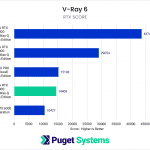
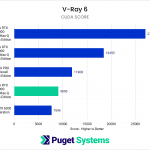

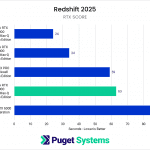
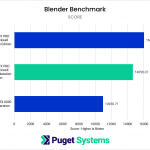
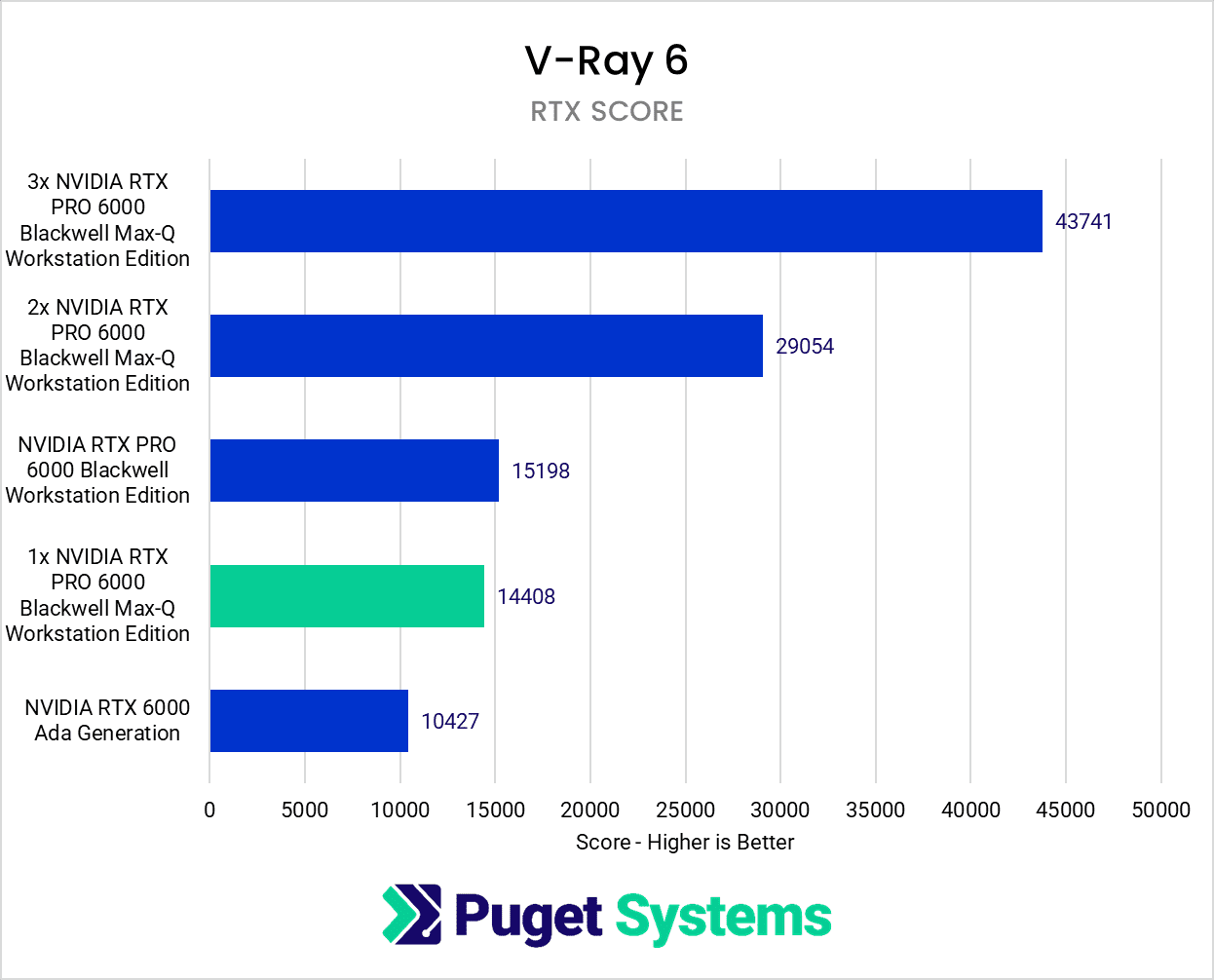
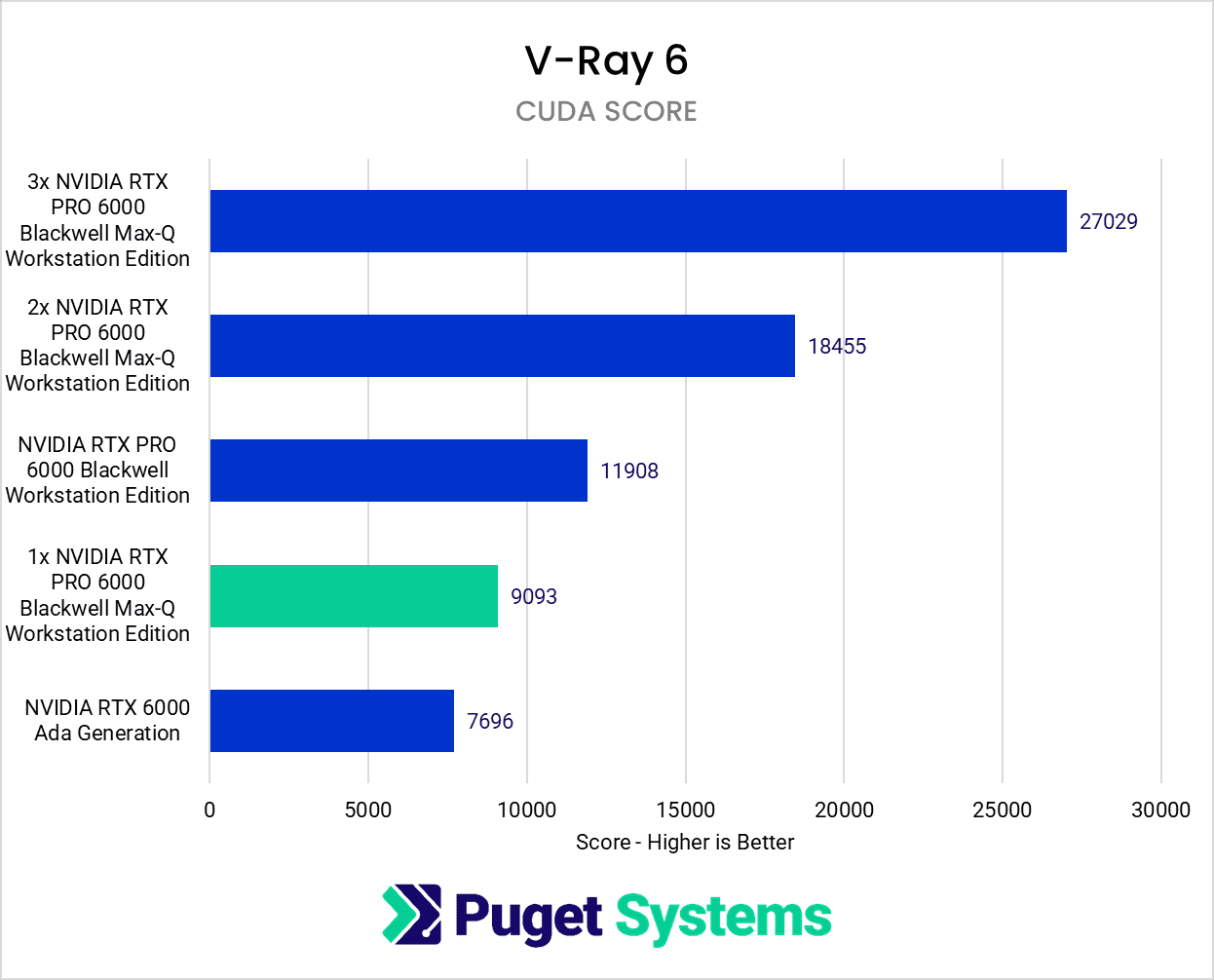
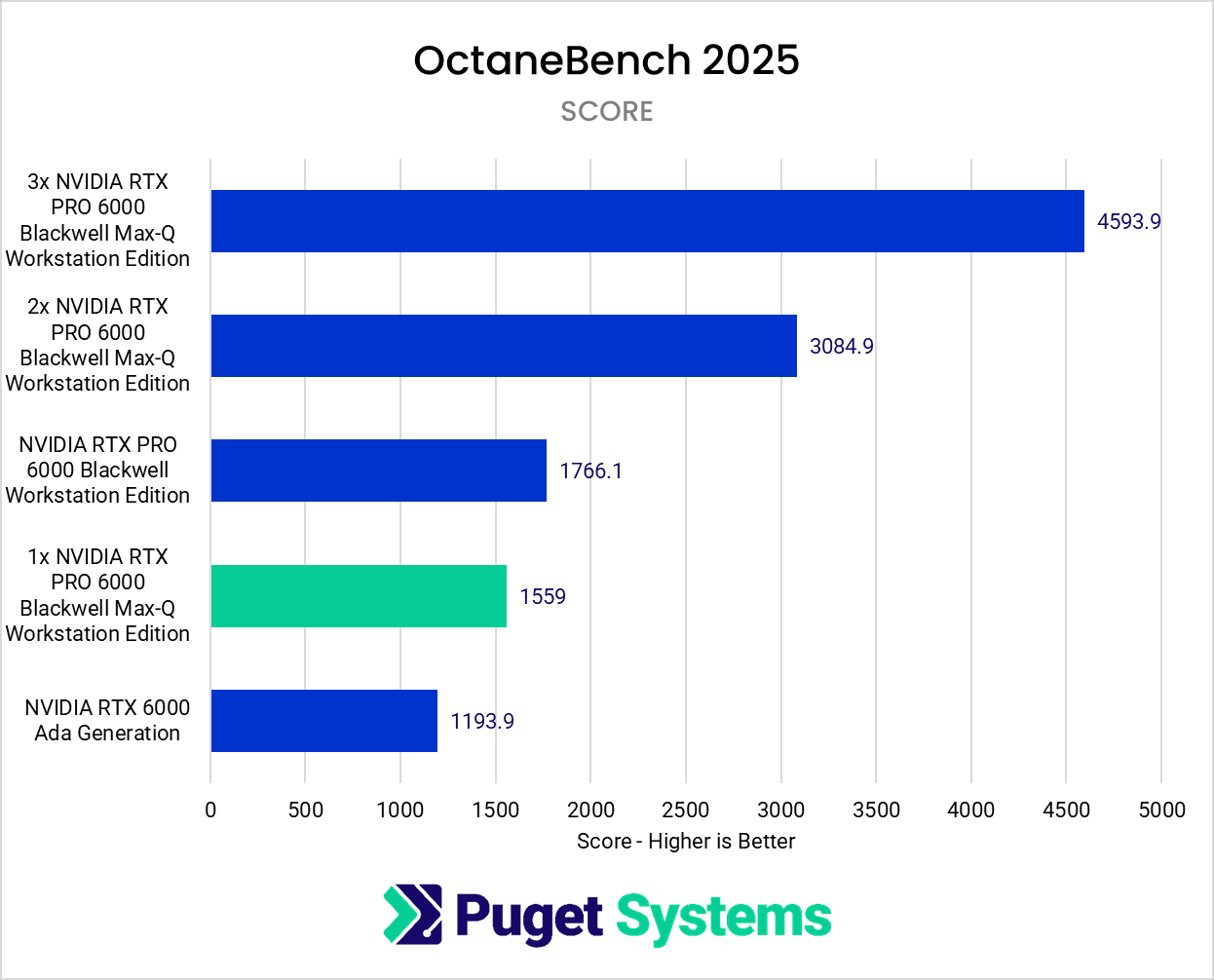
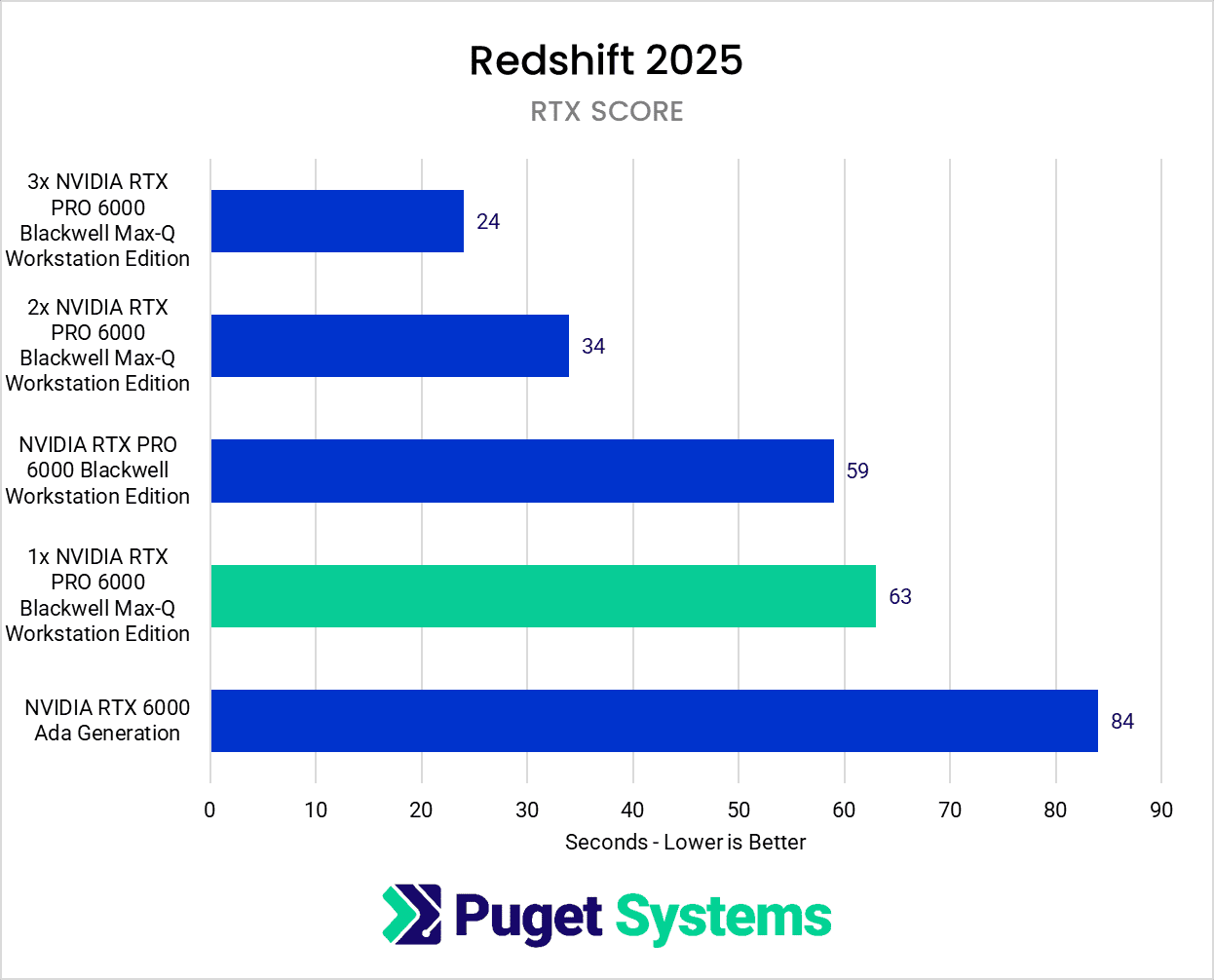
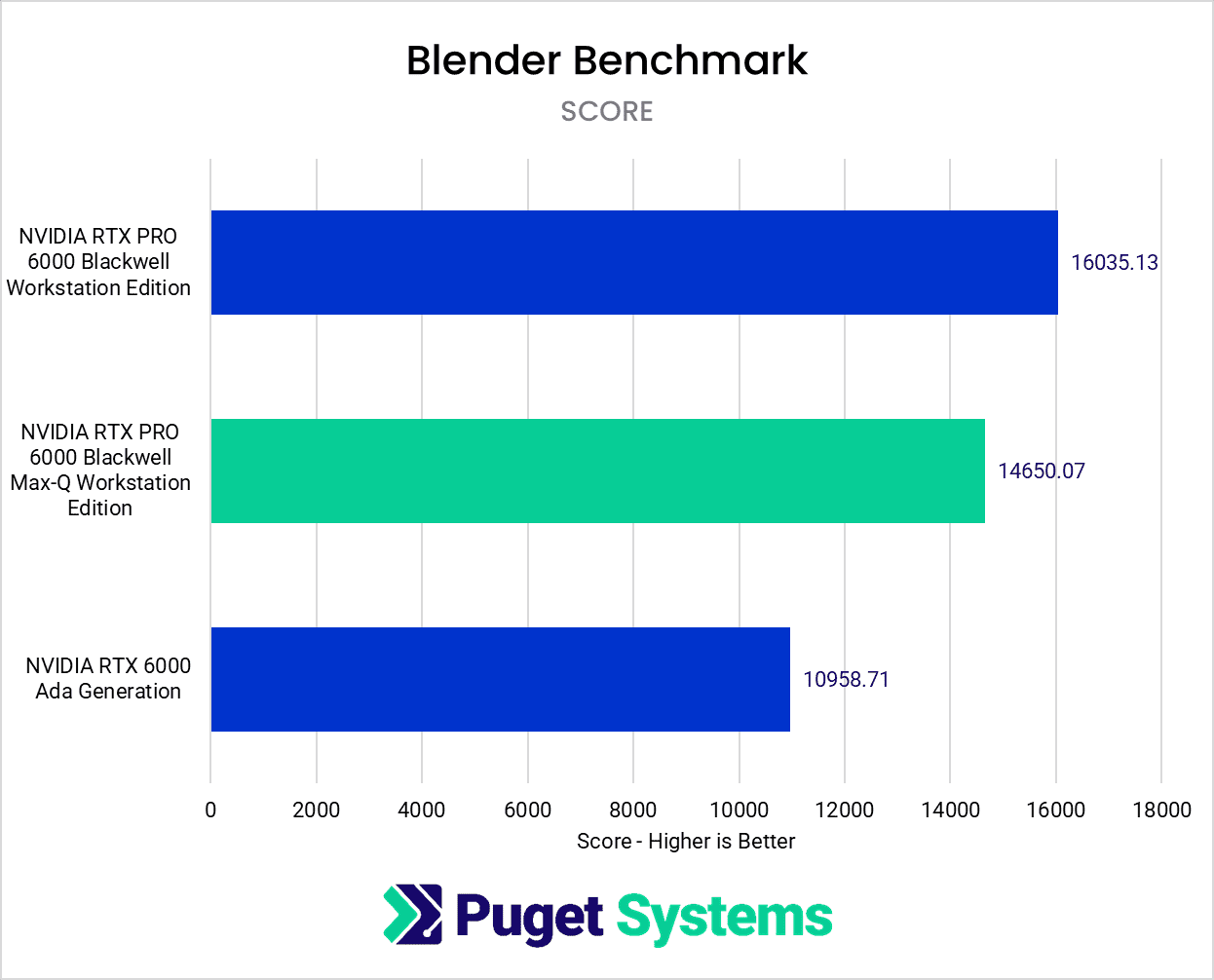
Moving on to offline GPU rendering, we tested with four different applications, three of which supported multiple GPUs. Blender’s benchmark does not support multiple GPUs even though Blender itself does.
Across all applications, we see a similar story. In most cases the RTX PRO 6000 Max-X has a 5-13% decrease in performance compared to the RTX PRO 6000 Workstation card. That will be an easy trade-off for most users if it means that they can get multiple GPUs into a single system. The only time there was a significant performance delta was in V-Ray CUDA. Other than perhaps early drivers, we don’t have a good explanation for this. Luckily, running in CUDA mode isn’t something that most users will choose as it limits the performance of modern GPUs.
As expected, we see very strong scaling in each of the applications. Only Redshift did not have perfect scaling, likely due to how the benchmark works. V-Ray, Octane, and Blender each measure how much work can be accomplished in a minute, whereas Redshift renders a single frame and reports how long it takes. Just a few years ago, the fastest card would still take 3-5 minutes, but now, a single RTX PRO 6000 can complete the frame in 60 seconds, and three RTX PRO 6000 Max-Q were able to complete the render in 24 seconds. We’d probably see better scaling if the benchmark was updated to a more demanding scene.
Should you use the NVIDIA RTX PRO 6000 Blackwell Max-Q or Workstation Edition for Content Creation?
Despite the NVIDIA RTX PRO 6000 Blackwell Max-Q Workstation Edition having half the power draw of the RTX PRO 6000 Workstation Edition, it is only 5-14% slower in most cases. Both versions of the RTX PRO Blackwell are highly impressive, highly performant cards that offer unparalleled VRAM capacity, compute, and hardware acceleration. Exactly which of these two GPUs you should use largely depends on whether your workflow can benefit from multiple GPUs, although there is something to be said for a GPU that only has half the power draw.
After Effects is gradually leveraging more GPU power for 3D workflows via its Advanced 3D renderer, but it remains a lightweight 3D tool compared to dedicated applications like Maya or Unreal Engine. The RTX PRO 6000 Max-Q is only 5-9% slower than the standard Workstation Edition. This means if you did need multiple GPUs for other applications, you would not be sacrificing much performance in After Effects by using the RTX PRO 6000 Max-Q. However, for most users focused solely on After Effects and the Adobe Creative Cloud suite, high-end workstation GPUs like the RTX PRO 6000 Blackwell Workstation or Max-Q offer limited performance gains and feature sets relative to their cost, making consumer GeForce RTX 50-series cards the better value.
DaVinci Resolve Studio supports multi-GPU configurations, though we experienced some stability issues while running our tests. A single RTX 6000 PRO Workstation typically outperforms one Max-Q, and in some cases—such as LongGOP codecs—multi-GPU setups can actually reduce performance. Our testing with up to three RTX 6000 Max-Q GPUs revealed modest gains in areas like codec processing and AI effects; the main performance advantage comes from GPU effects. Even here, however, the performance scaling is far from linear with three cards only giving about a 2x increase in performance. Given the high cost and power demands of running multiple Max-Q cards, the value proposition depends heavily on specific workflow needs and how valuable the time saved is.
Unreal Engine, a real-time renderer, was 14% slower on the Max-Q than the full-powered Workstation Edition. This is a bigger hit than most would find acceptable. This puts it only a bit faster than the RTX 6000 Ada, making it a questionable upgrade. Single GPU nodes for LED walls will likely opt for the standard version, while those looking for multi-GPU will need to go with the Max-Q. Offline renderers like V-Ray, Blender, Redshift, and Octane likewise saw a 5-13% decrease in performance. The trade-off is the ability to have multiple Max-Q GPUs in a system without the need for specialized power or cooling solutions, which can unlock significantly higher performance than a single RTX PRO 6000 Workstation card.
In the end, the RTX PRO 6000 Blackwell Max-Q Workstation Edition is a very impressive GPU, especially for workflows that can leverage multiple GPUs. NVIDIA’s tactic of using only half the power of the standard RTX PRO 6000 Workstation Edition seems to succeed at allowing for multiple GPUs without sacrificing performance to a massive degree. Like all Pro-level cards, however, it is not meant for everyone, and is targeted (and priced) for professional users where reliability is of the utmost importance and the performance gains pay for themselves over time.

Looking for a content creation workstation?
We build computers tailor-made for your workflow.

Don’t know where to start?
We can help!
Get in touch with one of our technical consultants today.