Table of Contents
Introduction
Choosing the best PC for After Effects is not an easy task. With software evolving rapidly, artistic trends shifting, and the latest computer hardware continually advancing, it can be difficult to know which system delivers the best performance. Many of our customers and readers don’t have the time to become fully versed in the latest computer hardware, so they want a clear answer about which system will deliver the best performance for their budget. For that reason, we focus on gathering detailed information and distill it down to the basics for those who want a quick and easy answer. If that kind of advice sounds helpful, this article is for you!
There are several strategies for configuring a system for After Effects, and the most expensive workstation isn’t always the ‘best’ option. The most optimal configuration depends on the types of projects you’re creating, the settings within those projects (preferences and composition), the version of After Effects, and any other applications you use. Some workflows benefit from a more budget-friendly configuration, where higher-end hardware offers minimal performance improvements. At the same time, other projects might require a more versatile workstation – with higher-end components – for peak performance across a wide suite of software applications.
In this article, we’ll configure a few workstations for After Effects, each tailored to a different type of artist. The first is a budget-friendly configuration that delivers solid performance without breaking the bank. Then we have a pair of professional-grade systems designed for freelance artists who need a reliable machine for a wide range of After Effects projects, as well as other creative applications. There is also a powerful mobile workstation option for those who need to take their After Effects projects on the go. Lastly, there is a high-end, all-in-one system for artists who want a single machine that can do it all. This configuration uses top-tier components to deliver strong performance in After Effects while providing the flexibility and headroom to handle other demanding cross-application workflows.
Please note that the prices for these systems may shift over time, as the market fluctuates, and that if you are reading this months or years after publication, the links may eventually point to newer and different hardware.
Workflow Breakdown
Before exploring the different workstation configurations for After Effects, it’s important to acknowledge that your skillset, creative style, and the types of content you produce have the greatest impact on performance. These factors help determine whether your projects are best categorized as 2D, 2.5D, or 3D, since each type affects which render engine you’ll select within the composition settings. In turn, each renderer offers a different set of tools that interact with hardware in varying ways, so being able to classify your work as 2/2.5D or 3D will help you better understand which components are most optimal for your workflow. For example:
- 2D and 2.5D workflows often involve assets from Adobe Illustrator and Photoshop, animated in After Effects using the Classic 3D Renderer. These projects primarily rely on the CPU and system memory for processing and rendering. Multi-Frame Rendering (MFR) allows After Effects to use multiple CPU cores to render several frames simultaneously, speeding up the process so compositions can be displayed in the Preview playback window faster. The GPU plays a limited role in these workflows, contributing mainly to GPU-accelerated effects and supporting MFR.
- 3D workflows often involve assets imported from applications such as Adobe Substance, Blender, or Cinema 4D. System performance will vary depending on the render engine used. The Cinema 4D Renderer relies primarily on the CPU, so a fast processor and plenty of RAM will have the biggest impact on performance. The Advanced 3D Renderer, on the other hand, leverages the GPU to process a set of tools designed for working interactively with 3D environments, materials, lighting, and effects, making the graphics card a central component for rendering and real-time playback.
The Most Budget-Friendly PC for After Effects
If you need a workstation that delivers strong performance in 2D and 2.5D workflows, while also supporting 3D projects, we recommend the following configuration as a budget-friendly option for After Effects.
| CPU | Intel Core™ Ultra 7 265K |
| GPU | NVIDIA GeForce RTX™ 5060 Ti |
| RAM | 64GB DDR5-5600 |
| OS Drive | 1TB NVMe PCIe Gen 4 M.2 SSD |
| Cache Drive | 2TB NVMe PCIe Gen 4 M.2 SSD |
| Project Drive | 2TB Samsung 870 EVO SATA SSD |
| Warranty | 1-Year Parts Warranty, Lifetime Labor & Tech Support |
| Price | ~ $3,700 |
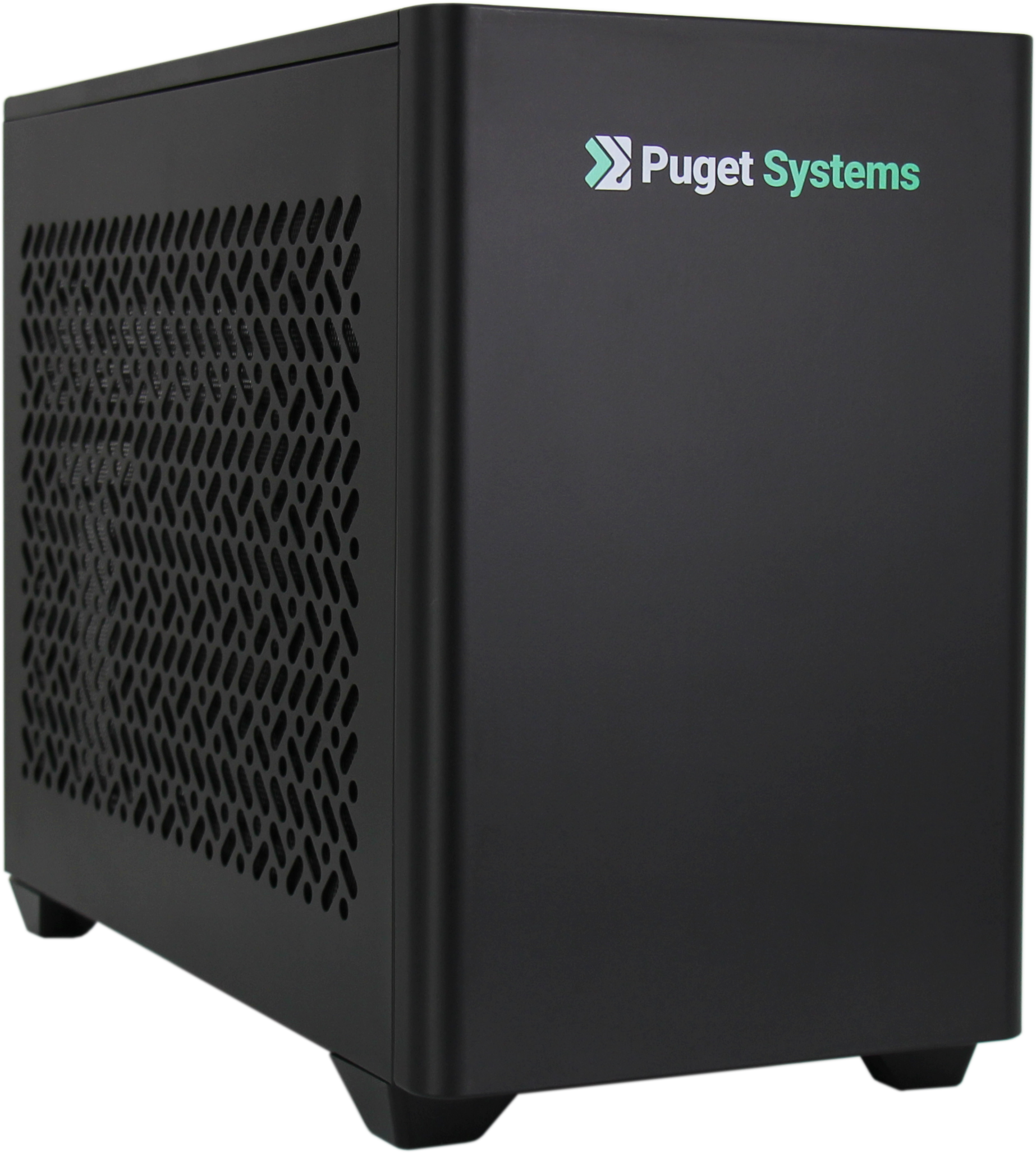
The budget-friendly configuration offers excellent performance for the cost and is best suited for 2D and 2.5D projects that have you working between After Effects, Illustrator, and Photoshop. In all of these applications, performance is driven more by single-core CPU speed than by total core count, making the Intel Core™ Ultra 7 265K processor an ideal option. It outperforms the similarly priced AMD Ryzen™ 7 9700X by about 21% in 2D tasks. With 8 performance cores and 12 efficiency cores, it enables After Effects to operate efficiently while other software remains responsive in the background.
While the GPU does make a difference in rendering frames that utilize the Classic 3D Renderer, such as 2D and 2.5D compositions, there are minimal performance improvements between GPU models and manufacturers. The only exception is the Multi-Frame Rendering (MFR) setting, where VRAM capacity determines the number of threads that can be used for processing. For this reason, we recommend the NVIDIA GeForce RTX™ 5060 Ti, which features 16GB of VRAM, as the most cost-effective choice. As an added benefit, the 5060 Ti offers 103% better performance in 3D workloads compared to the next fastest GPUs from AMD and Intel. For those planning to work extensively with the Advanced 3D renderer and want to keep their budget as tight as possible, upgrading to the RTX™ 5070 Ti provides approximately 20% better 3D performance, albeit for an additional $300-500.
Historically, After Effects required large amounts of RAM to play back a composition in the Preview window. However, with the High-Performance Preview Playback (HPPP) setting introduced in version 25.2, rendered frames are stored in disk cache and streamed to RAM for Preview playback. This reduces the total amount of memory needed to view a composition, leaving enough RAM for other applications running in the background. For this reason, we recommend 64GB of DDR5-5600 memory.
Storage is as much a strategy as it is a matter of capacity. Keeping cache and project assets on separate drives allows After Effects to read and write data simultaneously, reducing the chance that one becomes a bottleneck. We recommend a 1TB NVMe SSD for the OS and applications, a 2TB NVMe SSD dedicated to disk cache, and a 2TB SATA SSD for project files and assets.
In summary, the total cost of this system is approximately $3,700. For comparison, a 16-inch MacBook Pro with a 14-core M4 Pro CPU, 20-core GPU, 4TB storage, and 48GB of RAM with 1 year of Apple Care+ costs 15% more ($4,250). While Apple systems do quite well with 2D work in After Effects, that configuration would offer lower performance in 3D After Effects workloads, less memory and total storage capacity, and no GPU upgrade path.
The Best After Effects Systems for Freelancers
If you are a freelance artist who takes on a wide range of projects, your computer system should strike a balance between performance and versatility. Based on your skill set, the types of projects you produce, and the application you use, your system should be configured for optimal performance between your core applications. For example, you might work primarily in After Effects and Premiere Pro for video editing and motion graphics, or pair After Effects with tools like Photoshop, Blender, Cinema 4D, or Unreal Engine for design, animation, and VFX work.
Every workflow is unique and differs between individual artists. What you need from your computer will vary based on the core set of applications you use. To account for this, we recommend a compact PC tower specifically configured for After Effects projects with versatility to perform in other suites of applications that are more conducive to their specialties. With that in mind, here are two categories of recommended systems: one for After Effects projects with a focus on video editing, and another for projects that focus on graphic design, motion graphics, and 3D/VFX.
Motion Design and Video Editing
| CPU | Intel Core™ Ultra 9 285K |
| GPU | NVIDIA GeForce RTX™ 5070 Ti |
| RAM | 96GB DDR5-5600 |
| OS Drive | 1TB NVMe PCIe Gen 4 M.2 SSD |
| Cache Drive | 4TB NVMe PCIe Gen 4 M.2 SSD |
| Project Drive | 4TB Samsung 870 EVO SATA SSD |
| Warranty | 3-Year Parts Warranty, Lifetime Labor & Tech Support |
| Price | ~ $5,300 |
2D/3D Motion Graphics and VFX
| CPU | AMD Ryzen™ 9 9950X3D |
| GPU | NVIDIA GeForce RTX™ 5070 Ti |
| RAM | 96GB DDR5-5600 |
| OS Drive | 1TB NVMe PCIe Gen 4 M.2 SSD |
| Cache Drive | 4TB NVMe PCIe Gen 4 M.2 SSD |
| Project Drive | 4TB Samsung 870 EVO SATA SSD |
| Warranty | 3-Year Parts Warranty, Lifetime Labor & Tech Support |
| Price | ~ $5,600 |
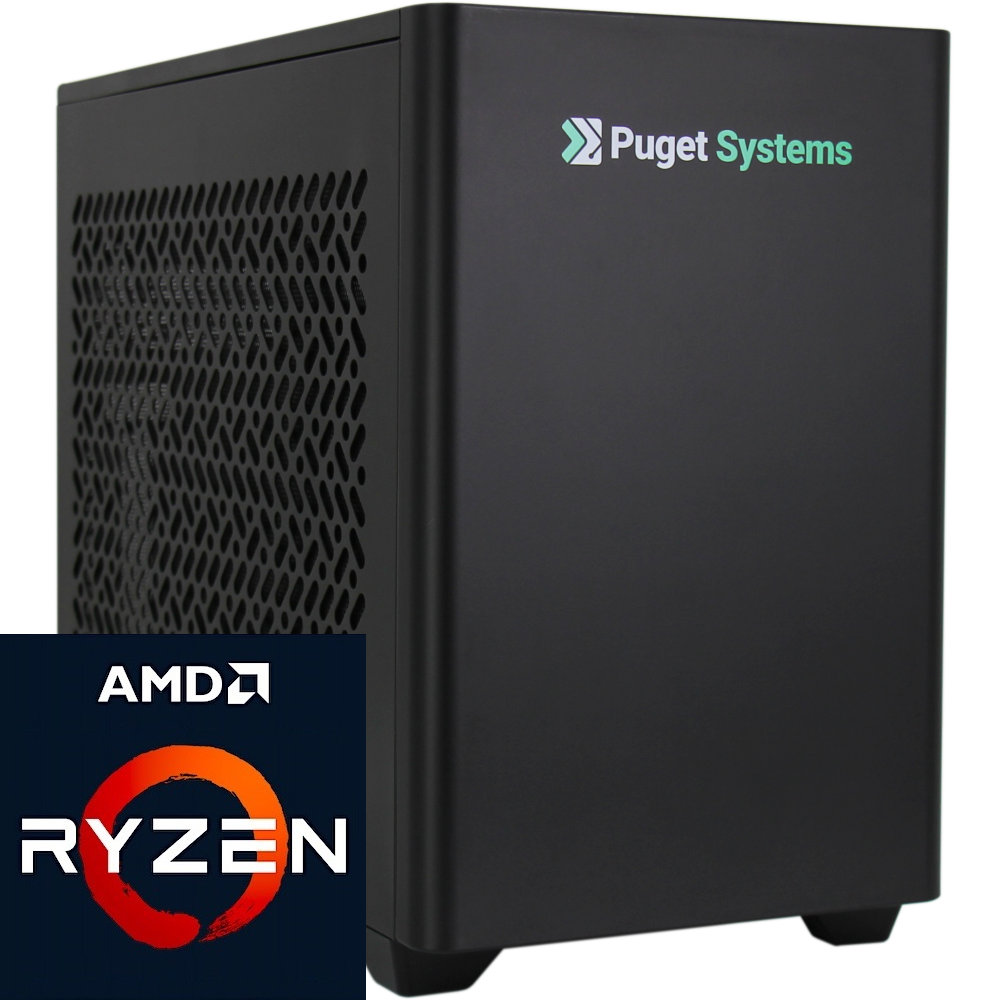
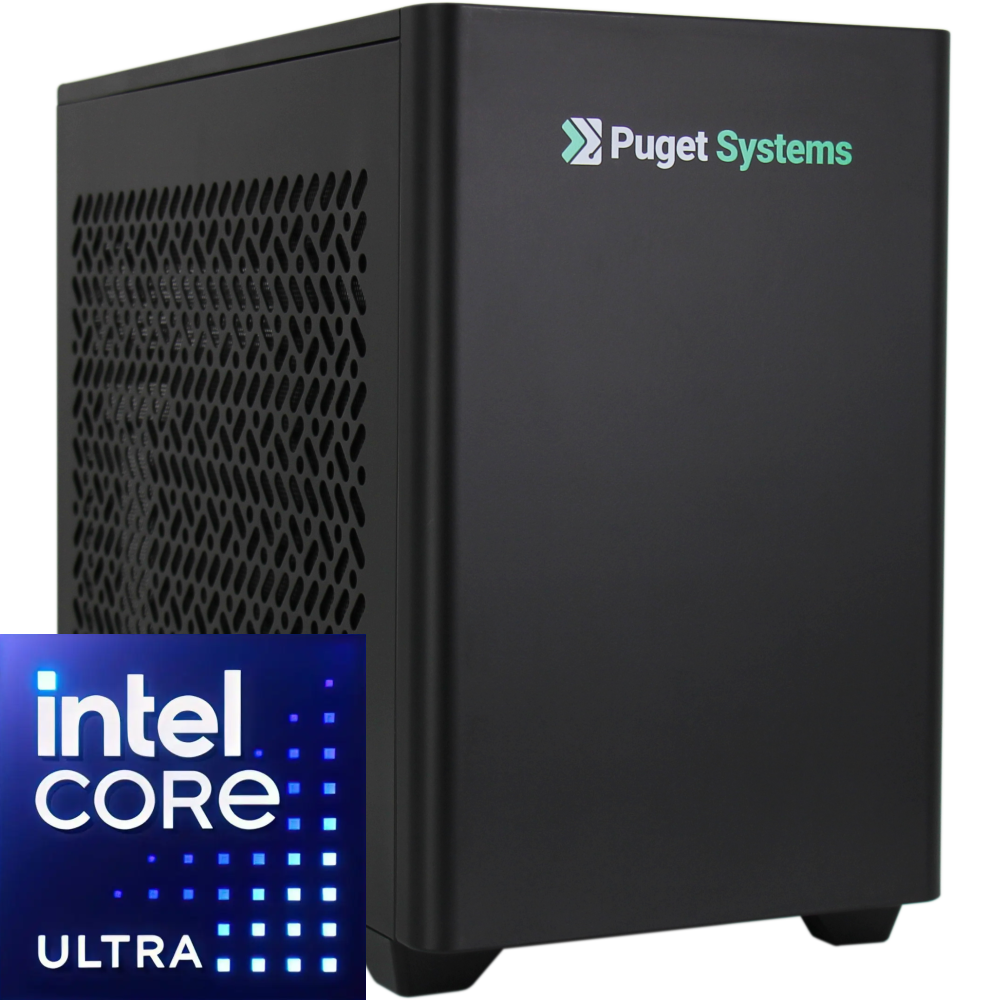
The main differences between these configurations are the processor and its platform. For workflows that include applications such as After Effects, Premiere Pro, and DaVinci Resolve, we recommend an Intel Core™ Ultra 9 285K processor. Intel’s Quick Sync Video technology provides a dedicated media engine that excels at processing footage in certain LongGOP formats. The Core™ Ultra 9 285K and the AMD Ryzen™ 9 9950X3D are nearly identical in our PugetBench benchmark scores. However, when looking at the subscores that reflect common tasks in video editing workflows, such as processing and encoding ProRes 422, the Core Ultra 9 285K shows an advantage over the 9950X3D.
In contrast, AMD’s top-end Ryzen is better suited for freelance artists who work across a broader suite of applications, such as Photoshop, Blender, and Unreal Engine. In our content creation review, the 9950X3D scored 12% higher than the 285K in Photoshop, and is the fastest performing consumer-class processor for compiling code and shaders in Unreal Engine. While the overall differences between these processors are relatively few in After Effects, freelance artists whose workflows consist of programs that have specialties in 3D asset creation, animation, motion graphics, or VFX will find that the Ryzen 9 9950X3D gives them solid performance in After Effects as well as the flexibility to work in other applications.
GPUs mainly impact performance in 3D workflows that utilize the Advanced 3D renderer. Within NVIDIA’s GeForce RTX™ 50 Series product stack, the performance difference between the top-end RTX™ 5090 and mid-range 5070 Ti in our 3D Scores is relatively small, around 10%. For this reason, we recommend an RTX™ 5070 Ti for both of these workflow categories. While other applications might benefit from higher-end GPUs, the 5070 Ti is the best cost-to-performance option for freelance artists whose primary application is After Effects.
Additionally, the money saved by configuring the 5070 Ti can be used to install 96GB of DDR5-5600 RAM, which provides a bit more memory bandwidth to run other applications—such as Premiere Pro, Cinema 4D, or a resource-hungry browser like Google Chrome—simultaneously in the background. And much like the budget-friendly configuration, storage follows the same strategy, except we are increasing the disk cache and project/asset drives to 4TB each to account for multiple projects that you might be working on simultaneously over extended periods of time.
Both of these configurations provide an excellent solution for freelance artists to get great performance in After Effects for the next several years. The Intel Core™ Ultra 9 285K configuration will cost approximately $5300, while the AMD Ryzen™ 9 9950X3D system is roughly $5,600 – both prices including our full 3-year parts warranty with lifetime labor and tech support!
The Best Mobile Workstation for After Effects
Life and projects often take you beyond your home or office. Some tasks need to be completed on-site, and having the flexibility to stay productive on the go can influence the types of projects you’re able to take on.
| CPU | Intel Core™ Ultra 9 275HX |
| GPU | NVIDIA GeForce RTX™ 5090 Mobile 24G |
| RAM | 96GB DDR5-5600 |
| OS Drive | 1TB NVMe PCIe Gen 4 M.2 SSD |
| Cache Drive | 2TB NVMe PCIe Gen 4 M.2 SSD |
| Project Drive | 4TB NVMe PCIe Gen 4 M.2 SSD |
| Warranty | 1-Year Parts Warranty, Lifetime Labor & Tech Support |
| Price | ~ $5,000 |
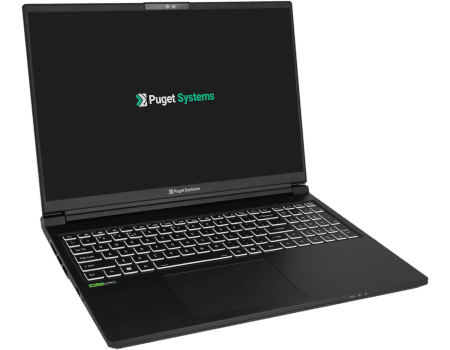
For users in this situation, we recommend the Puget Mobile 16” laptop, featuring an Intel Core™ Ultra 9 275HX. Generically, Apple’s MacBook Pro laptops do have an advantage over PCs in 2D After Effects scores but, the Puget Mobile 16” laptop also includes an RTX 5090 Mobile GPU, which delivers significantly stronger performance in After Effects’ 3D workflows than the MacBook. The Advanced 3D Renderer is optimized for NVIDIA GPUs using CUDA for hardware acceleration, which gives our 16-inch laptop a clear advantage in GPU-accelerated tasks that Apple’s computers cannot fully leverage.
Similar to the desktop workstation above, we recommend 96GB of RAM and three separate storage drives totaling 7TB. The 2TB drive is dedicated solely to After Effects’ disk cache, while the 4TB project/asset drive holds project files and media. For workflows where media is ingested from an external hard drive (DAS) or downloaded as cache via a cloud-based service like LucidLink, the 4TB drive provides enough space to store project files and assets for multiple projects locally, keeping them separate from cache produced in After Effects.
The total cost for this laptop is roughly $5,000. For comparison, a 16-inch MacBook Pro with an M4 Max chip (16-core CPU, 40-core GPU, 64GB RAM, 4TB storage) and one year of AppleCare+ is priced at $5,350.
The Best Performance After Effects System
If your budget is less of a constraint, we recommend configuring your hardware to be optimized for both performance and versatility across your workflow. In this scenario, the ideal system isn’t necessarily the fastest in After Effects alone, but the most capable for it and the other tools you use regularly.
| CPU | AMD Ryzen™ Threadripper™ 9960X |
| GPU | NVIDIA GeForce RTX™ 5090 |
| RAM | 128GB DDR5-5600 |
| OS Drive | 1TB NVMe PCIe Gen 4 M.2 SSD |
| Cache Drive | 4TB NVMe PCIe Gen 4 M.2 SSD |
| Project Drive | 8TB NVMe PCIe Gen 4 M.2 SSD |
| Warranty | 3-Year Parts Warranty, Lifetime Labor & Tech Support |
| Price | ~ $11,500 |
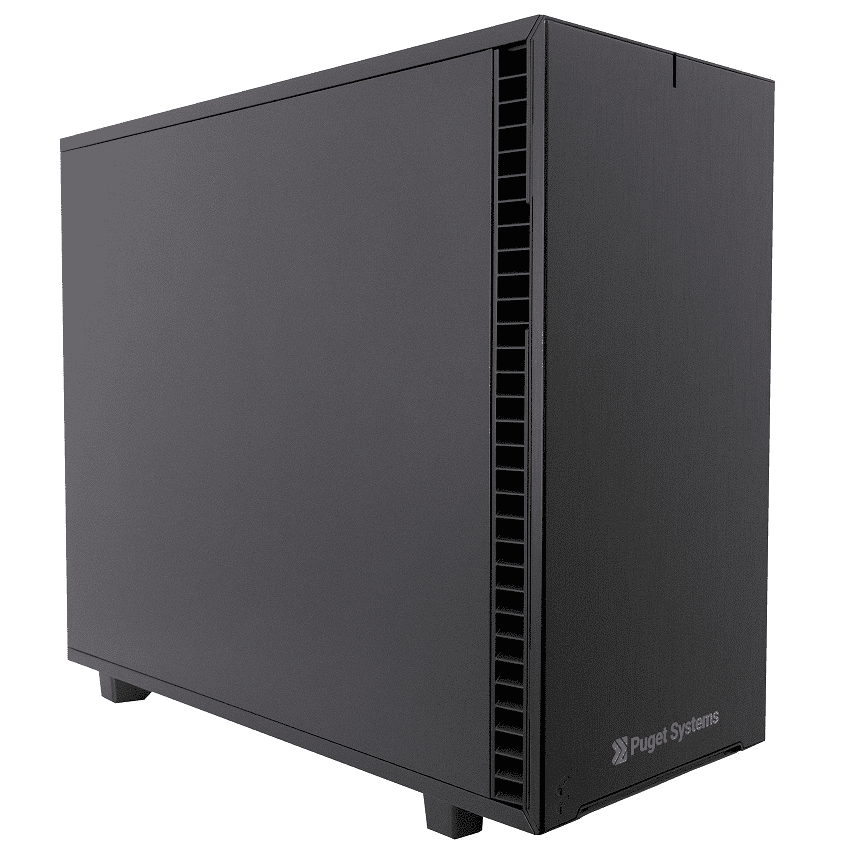
Configuring the best After Effects systems involves moving beyond consumer CPUs, such as the AMD Ryzen or Intel Core Ultra processors, and opting instead for the AMD Ryzen™ Threadripper™ 9960X (24 cores), which ranks as one of the highest-performing processors in our content creation reviews. While After Effects is generally lightly threaded, enabling Multi-Frame Rendering (MFR) allows multiple frames to process simultaneously across all available cores, speeding up rendering for Preview Playback. However, there is a limit to how effective MFR can be, as the performance per core diminishes as the number of cores in a CPU increases. This is why we typically do not recommend using the higher 32- or 64-core Threadripper CPUs specifically for After Effects. For example, in our testing, we saw that the 9960X performed the same and even better in some instances than the 32- and 64-core 9970X and 9980X.
Although the difference in 3D performance between the RTX™ 5070 Ti and RTX™ 5090 in After Effects is relatively small, we still recommend the RTX 5090 for artists working heavily in 3D who want the fastest speeds possible. Armed with 32GB of VRAM — double the amount of the 5070 Ti and 5080 — the 5090 can increase how many CPU threads Multi-Frame Rendering can use to render frames within the composition simultaneously. This reduces total render time, improves render performance for frames with GPU-accelerated effects, and supports playback responsiveness for 3D compositions that include high-resolution or detailed textures. While it comes at a higher cost, the upgrade also delivers significant benefits in other GPU-intensive applications such as Premiere Pro, DaVinci Resolve, Blender, Houdini, and Unreal Engine.
AMD’s Threadripper platform also supports higher RAM capacities and additional PCIe lanes, making it ideal for memory-intensive applications, dual GPU setups, and expansion cards for networking or other workflow needs. For this configuration, RAM is increased to 128GB, and the project/asset drive is upgraded to an 8TB NVMe SSD to accommodate larger projects, particularly for those working with high-resolution footage and extremely detailed assets. Both RAM and storage can be cranked up even higher, which is especially helpful if you work in a lot of other demanding programs alongside After Effects (like Nuke).
Lastly, if you plan to work from a network-attached storage (NAS) box, this system has room for an upgraded network card. It comes with 10Gb Ethernet and WiFi built in, but we also offer 25Gb and even faster network options to help avoid performance bottlenecks when accessing files over the network. Of course, it is important to make sure your NAS and other network infrastructure has the same speed and cabling!
The total cost for the best After Effects system is approximately $11,500. Overall, this is one of the most versatile configurations for After Effects that you can get with the hardware currently available. This configuration is designed for the fastest performance in After Effects while also providing the flexibility to work efficiently across a wide range of other creative applications. It serves as an all-in-one solution for freelance artists and studios, capable of handling complex projects, high-resolution media, and diverse workflows without compromise.
Additional Resources
If you would like to learn more about how After Effects performs with various hardware, as well as our justifications for these recommendations, we have several resources available:
- For those who want a basic overview, we recommend visiting the Hardware Recommendations section of our After Effects Solutions page.
- If you really want to dig into the numbers behind the data, we also have an ongoing series of hardware articles that are regularly updated, as well as PugetBench for Creators, which is a public database of PugetBench for After Effects benchmark results.
- And, as always, if you aren’t sure what you need or just want to verify that you are spending your budget in the most effective way possible, our technology consultants are available to help you get the right system for your workflow.

Looking for an After Effects workstation?
We build computers tailor-made for your workflow.

Don’t know where to start?
We can help!
Get in touch with one of our technical consultants today.